 3:31
Pioneer DJ Opus Quad Using the Short Cuts
Contents of the video
0:01 Of the shortcut features
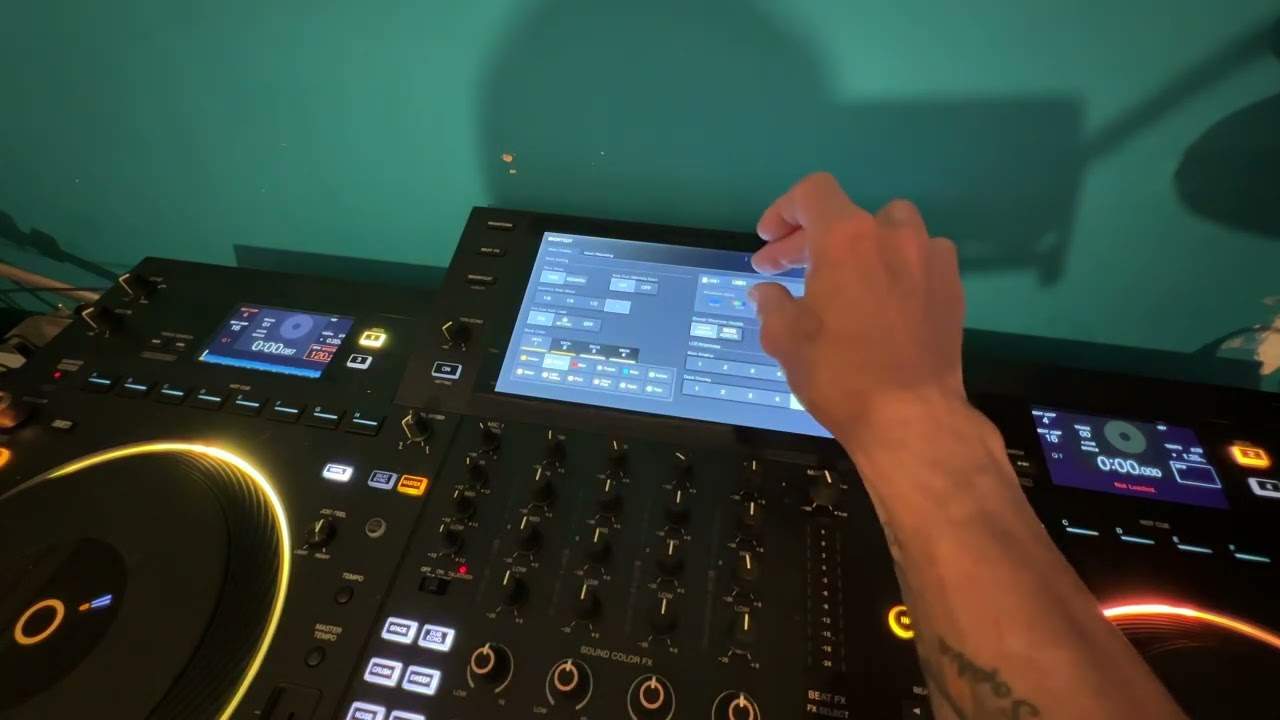
Pioneer DJ Opus Quad, again another short video. In this one we're going to look at some of the shortcut features. So third button down on the left hand side of the main center screen, press that. Okay now first of all we're going to look at time mode. Now if I have that highlighted as it is with time, on the left hand deck we can see 000.087 which that's probably just the file. If I press remain we can now see 9.33. What that is, is very simply this. With remain it's giving you the amount of time left on the track. If you have the time icon highlighted it won't give you that. So in other words it's count up or count down. My own personal opinion is to have it count down so at a glance on the screen you can see how much time you have left
On that track. Auto cue on and off, we can set quantize beat value, hot cue, auto load and also deck colors. So I can go deck one, I can change the color we can see there and deck two, three, four and so on. Shows you here the USB inputs and also main display.
1:30 Alternatively if you're in a club environment maybe you want it low
You're in quite a bright environment, you'll probably want the display to be quite bright. Alternatively if you're in a club environment maybe you want it low. Also the deck display is exactly the same. We can increase or decrease the overall brightness of the screens. Mixer recording we can go EQ ISO, we can change the parameter excuse me channel fader curve just by touching the icons. Exactly the same with the crossfade we can do headphone mono split or stereo also microphone master zone master and zone so again with the opus quad it will be in a future video you can be playing a track in the room where you are but at the same time you can also play a completely separate track in a completely different room
So for example it could be a cocktail bar and the like and you're playing for the main dance area. Microphone exactly the same so you can talk on the microphone in the zone and not in the area where you are. Alternatively you can talk using the microphone in both areas. Zone assign, zone on and off of course you can preview and recording. So here we have one two and three you can have usbs in one or all you can use any one of those usbs the thumb drive so long as of course you have enough space to record. This icon here basically track marks so if you're doing a long mix and say you want to have track marks at the precise point where you're mixing press that and that will give you a track mark i hope that's a help practice and enjoy thank you
This transcript was produced automatically from the audio of the video and may contain mistakes.











