 4:01
Assigning roll from one channel to another
On YouTube this video is called Pioneer DJM-800, Assign Roll from one channel to another
What this lesson teaches
Made in answer to a viewer's question, and it takes the idea from the previous lesson and spells out the mechanics.
The sequence
The record is on channel two, so:
1. Channel select to 2 - the effect has to be listening to the right channel, and this is the step everyone misses. 2. Effect dial to roll. 3. Beat division to 4/1, which gives a roll one bar long - a count of one, two, three, four. 4. Press the effect on, in time. The button flashes to show it is engaged.
At that point the mixer is holding a bar of the record and repeating it.
The demonstration
He lifts the needle off the vinyl.
The roll keeps going, because it lives in the mixer. That single gesture explains the whole feature better than any amount of talking: the deck is no longer involved.
Sending it anywhere
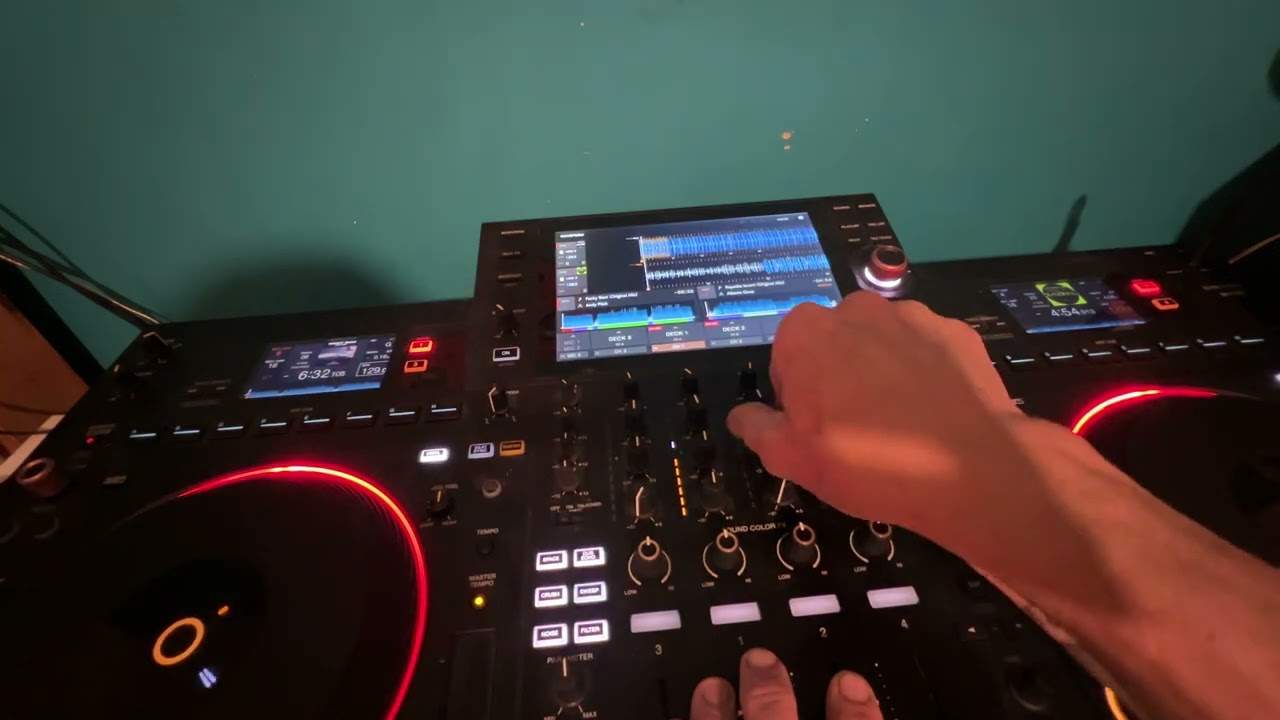
Turn the channel-select dial and the roll moves with it - channel one, channel three, channel four, back to two. Watch the LEDs to see where it has gone, and remember that the destination channel's fader must be up or you will hear nothing and conclude it is broken.
Why this is genuinely useful
Because of what it leaves you holding.
The roll is now on channel three, say, and nothing is connected to it. Channel two - deck, needle, record - is free. So you can cue up the next record on the same deck while a bar of the last one is still playing to the room, or bring something completely different into the channel you started on.
For a two-deck setup that is a third hand. You have a sustaining bar of music that needs no deck, which is exactly what a DJ runs out of when a track ends sooner than expected.
And the divisions
While it is running you can halve it down - one bar, half a bar, one beat, half a beat - which turns the parked groove into a build without touching a record.
Contents of the video
0:00 Use the roll feature on
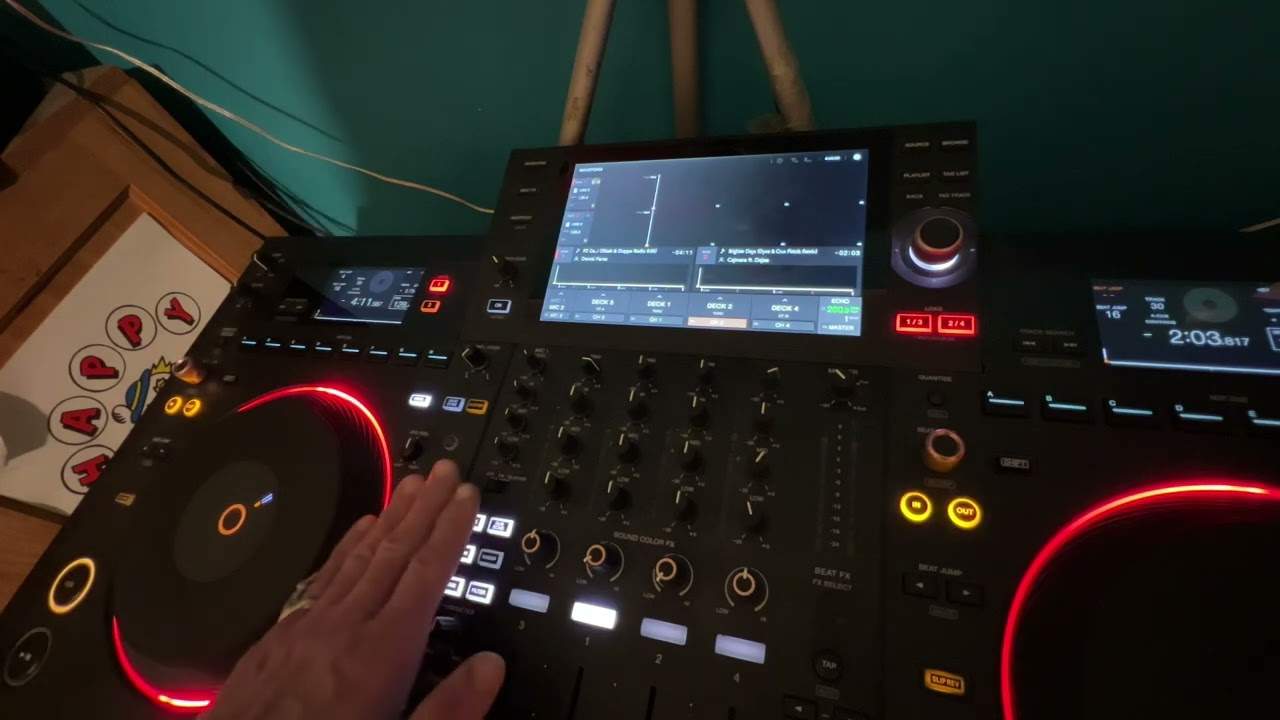
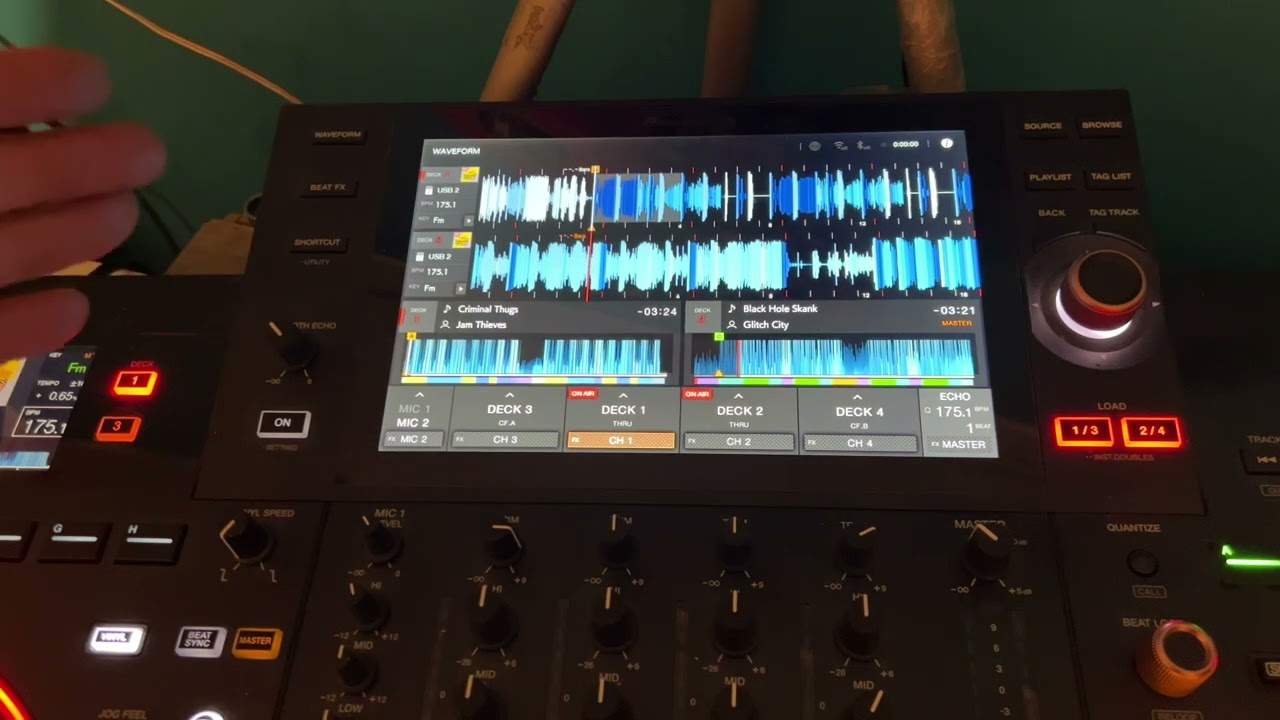
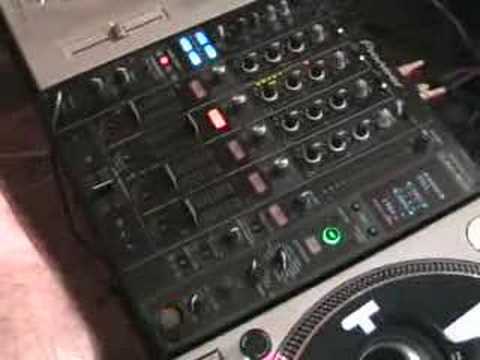
Alright folks, first off this particular video is going out to Dean Marsh. Nice one mate. In this video I'm going to show you how to use the roll feature on the DJM800 mixer but more importantly I'll show you how to actually use the roll feature and then assign it to another channel so it means the original channel you started using the roll feature on you can use for something else. So I'll pause the camera and we'll have a closer look at this area whole tight. Okay, here we go. We've got a piece of vinyl on that side. It doesn't have to be vinyl, it can be CD, it can be anything, it doesn't matter. What we've got, we've actually got a particular track now plugged into Channel 2. The track we're going to be messing around with is David Guetta, Just A Little More Love, and it's the Wally Lopez remix. So let's just have a quick listen to the actual track. Bearing in mind that that is actually on Channel 2. Okay, this is what you need to do. We've got here, it's the third dial-up, we've got Channel Select.
1:27 The needle off and now we've got the roll engaged
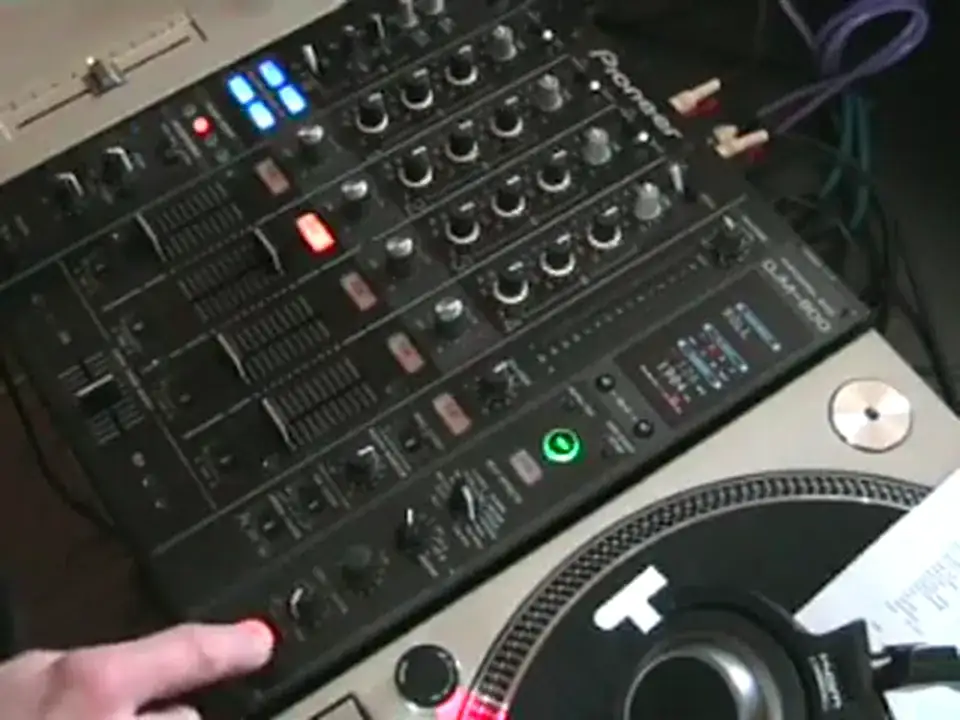
So because we're on channel 2, you need to select channel 2. Above that, we've got the effects dial. You'll need to set that to roll. Now above that, we have the screen. Now I'm actually going to set that. It doesn't really matter where you set it. I'm going to set that to 4 over 1. So what will actually happen, I will have a roll of one bar which is a count of 1, 2, 3, 4. So what I'm going to do now, I'm going to play the music. And then in beat, I'm going to press this button down here and when that's flashing it means that the roll feature will be engaged. Here we go. One, two. We've got roll engaged now so if I just move the camera I can now take that off. The needle off and now we've got the roll engaged. Okay, so how do we now assign that roll to another channel? What we need to do is here we have the dial channel select.
2:42 Through to channel 3, the channel selector, and now it's gone to chann
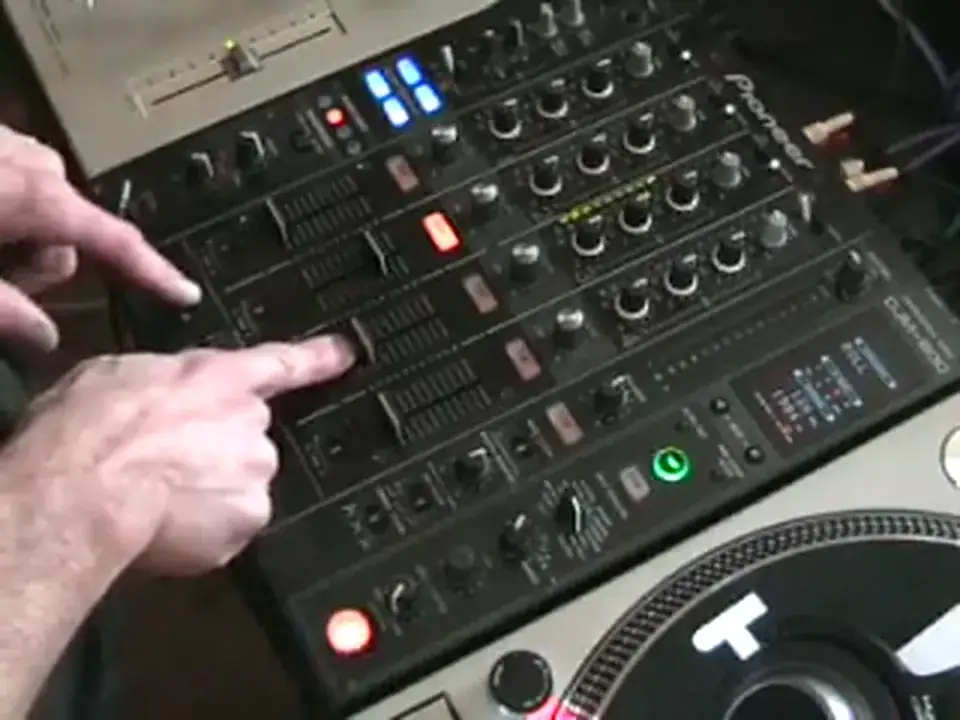
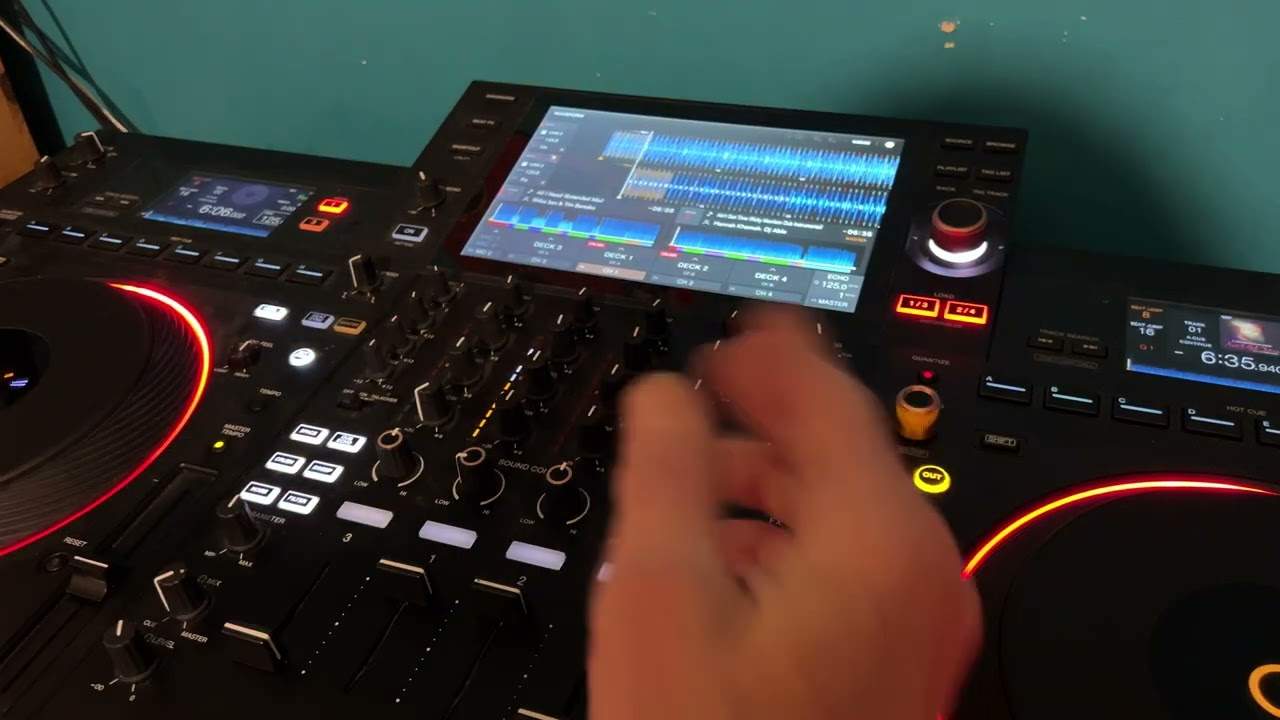
I can do one of two things. I can move that to any other channel, but all of a sudden the music's vanished. But if you can see here now, we can see the lights, the LED shining on channel 1. That's because we've now assigned the actual roll feature from channel 2 to channel 1. So if I move this volume up now, we'll now hear the roll on channel 1. Okay, if I then want to assign the roll to channel 3, I'll move this... Through to channel 3, the channel selector, and now it's gone to channel 3. Exactly the same applies for channel 4, move it across, channel 4. Or if I want to, I can put the roll feature back to channel 2, and here we go. And at the same time, if I want to, by pressing these buttons with beat in the middle, we can go from one bar to half a bar, to one beat, half a beat,
Okay, so we're on channel 3. What we can do now is I can then, if I want to, start the piece of music again and mix it in. Alternatively, I could find a completely different piece of music and mix that completely different piece of music back into the original channel I started with. Okay, there you go. A tiny insight into how you can assign the roll feature onto a different channel. Thanks for watching. Practice and enjoy!
This transcript was produced automatically from the audio of the video and may contain mistakes.