 5:56
PIONEER MEP-7000 Firmware 2.02, How to use.
Contents of the video
0:00 Video number two here on the latest firmware on the MEP7000
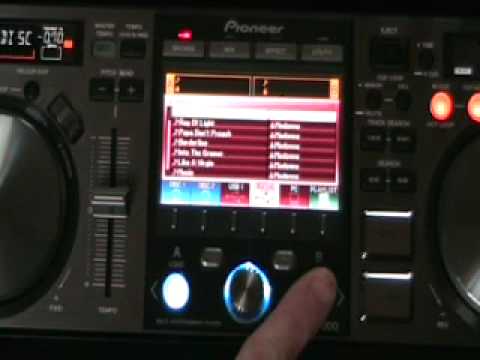
Alright folks, video number two here on the latest firmware on the MEP7000. Follow the link in the description of this video and it will take you to the site where you can download the latest firmware edition for your MEP for free. Now in video number two we're going to concentrate mainly on using the dials in the centre of the head unit enabling you to search through tracks a lot simpler and a lot quicker. In video number one, I used the keyboard. In video number two, we're just going to use the centre area there. So I'm just going to pause the camera and we'll have a closer look. Right, first off, so we know where we stand, there's nothing in disc number one, nothing in disc number two, nothing in USB port number one. I've got the pacemaker and USB number two, nothing where the PC is concerned and nothing on the playlists. Right, let's press USB port number two.
The centre dial, I can scroll up and down, you can see the cursor moving. We've got genre, artist, album, track, but we're mainly going to concentrate on search and search. The first search we've got there, you'll notice just about hopefully, we've got a small little icon there that looks like a musical note. If I move down, we've got another icon next to search which is almost, it looks like the top half of someone's body. Now basically, very straightforward, that bottom search where we've got the top half of someone's body will enable us to search for an artist. If we go up, the next one up where the musical note is, that will enable us to search for a track name. So if we scroll down to that bottom search, we're now going to start to look for an artist. So centre dial, right hand button, I'm going to press that once and we go over to a blank screen.
1:51 Say M, K-L-M
The reason we've got that blank screen is because I haven't searched for anything yet. Now all of a sudden, we've got that top half of a torso up here now. Now using the centre dial, by moving this clockwise or anti-clockwise, I can go through every single icon you would expect to find, or virtually every single icon you would expect to find on a basic keyboard. So let's go to say M, K-L-M. You can see that flashing. All I need to do now is press this button to the right-hand side of the centre dial once, and now I've got another M, so I need then to move this centre dial until I get to A. I'm going to look for Madonna. And then I'm going to press that again, the button to the right-hand side of the centre dial once, and I'm at A again. So basically every time I press it, I will have the last letter that I just got. So I need to get D.
And then O. Now again, if let's say you're in a rush, hold on, let's try and find O. Let's say you're in a rush, you do not have to type in the full name, you can just type in three or four letters. You may not just get the person you're looking for, you'll get a whole load, but it will enable you to get to that particular artist or the particular title a lot quicker. M-A-D-O, mad O. So, all I need to do now... Press the centre dial once. OK, so there we go, we've got Madonna. So what I'm going to do now, I've got the track there like a prayer. So I can do quite a few things here. I can load that into side B by pressing this button here or I can load that into side A or I can load it into both sides if I want to. So just for this demonstration I'm going to load that into side B. All I need to do now is press this button that's, you can see there it's blue and above it you've got...
3:48 A load, underneath it's the MEP7000
A load, underneath it's the MEP7000. I'm going to press that once and there it is. It's ready to go. Well, it should be. There it is. It's ready to go. Alright, now let's say for example we've searched for an artist. Let's say now we need to search for maybe the name of a track. So we'll just go back to this area here. To get back to the original position where we were, I need to now press the left hand button which is just above Press that button there, and we've got another W, and I need to get to E. Hold on, this is D, E. Get there, right. We, and I'm going to, in fact, I'm going to leave it like that. Press down, and let's have a look, see if we can find We Will Rock You. There we go, We Will Rock You Queen. Okay, so all I need to do now, I've got the one track, for example, let's say I've got that track playing quite happily. I've got the Madonna track playing.
And I want to put We Will Rock You Queen on the other side. All I need to do now is press A, load, and that's it. That will be playing quite happily when I'm ready to go. And then I can do exactly the same procedure over and over again looking for name of track and name maybe of artist. Video number two, again, on this guy here. It's the MEP7000 on the latest firmware that's downloadable as we speak. Practice and enjoy.
This transcript was produced automatically from the audio of the video and may contain mistakes.











