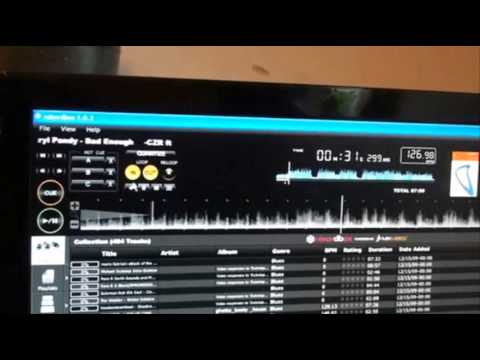
 5:52
Importing, quantise, loops and hot cues
On YouTube this video is called Pioneer Rekordbox VIDEO 1..Quantize,import files,loop and hot cue
What this lesson teaches
The first of the library-software lessons, and the thing it demonstrates is more important than the software it demonstrates it in.
Before anything: the code
His first instruction, from the era when this came on a disc: do not throw the packet away - the activation code is printed on the back and the program needs it.
Dated in its specifics, still true in principle. Whatever your library software, know where the licence lives, because the night it wants re-authorising will be the night you are setting up in a club.
Importing
File → Import, and you can bring in a single track, a folder, or a playlist. Then navigate to wherever your music actually is.
The tracks appear in the collection and the software analyses them. What it produces is a tempo - and note the precision: not 126, but 126.89. Several decimal places, because that is what beatmatching to a grid requires.
Double-click loads a track; a single click only selects it. Worth knowing because it is the difference between browsing and interrupting what is playing.
Loops in the software
He makes a loop by hand - pressing in, counting one, two, three, four, pressing out - with quantize off, so the loop is as good as his timing.
Then the loop-length buttons: 4, 8, 16 and 32, which extend it to two bars, four bars and so on. One bar becomes two at the press of a button.
Then he turns quantize on and deliberately hits in and out off the beat. The software snaps both ends to the grid and the loop comes out perfect - the same demonstration as the quantize lessons in stage 6, here done at a desk.
And the display shows the loop's start and end as markers on the waveform, so you can see where it is rather than only hear it.
Saving loops as hot cues
The part that makes this worth doing.
He sets his loop, then stores it to A. Comes out of it, makes another, stores it to B. A third to C.
Now those three loops are saved to the track, retrievable by pressing a pad, in any order. He hits the first, the second, the third, back to the second.
And then the whole point
The sentence the lesson exists for: once your loops and cue points are set in the software, you transfer them to a thumb drive or an SD card, and your player reads them.
So all of this - the loop points, the cues, the analysis, the tempo to two decimal places - is preparation done at home, and the equipment in the club arrives already knowing where everything is. The readout on the player is identical to what you set up at your desk.
That is the actual change this kind of software brought, and it is bigger than any feature in it. The work moved from the booth, where you have thirty seconds and people watching, to the kitchen table, where you have all evening.
His own closing note is right: there is far more to this than meets the eye. But the habit is the thing - prepare the track, not the moment.
Contents of the video
0:01 Very basically, very qu
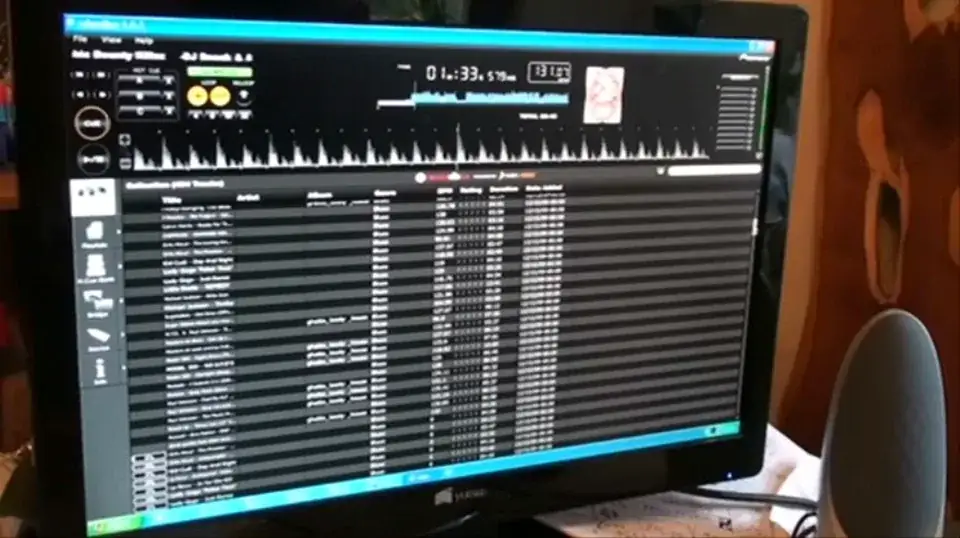
Right guys, video number one on the software known as rekordbox for the Pioneer CDJ-2000 and the CDJ-900. Now you will get a CD like that. That is your software. Now on the back of this, do not chuck the packet away, you will have a unique code. You need to put that code into the program to activate it. That's very important, okay? Now in this video... I'm going to show you very basically, very quickly how you can get files from your PC into here. So I'll just pause the camera. Now it is quite simple and logical. Top left hand corner you have file. Click on file and then go to import and here you can import either one file, one track or a complete folder. Once you hit that then you need logically to go to the area on your PC where your music is.
You import your tracks and then what happens, they'll be brought to this area here. And if we notice, if I just scroll down, you can see here it's being analysed and if we look now we've got that guy there, BPM 126.89. So it's not just giving you 126 BPM, 103, 105, it's going a few decimal points below that as well.
1:29 Let's say for example you want to listen to a track
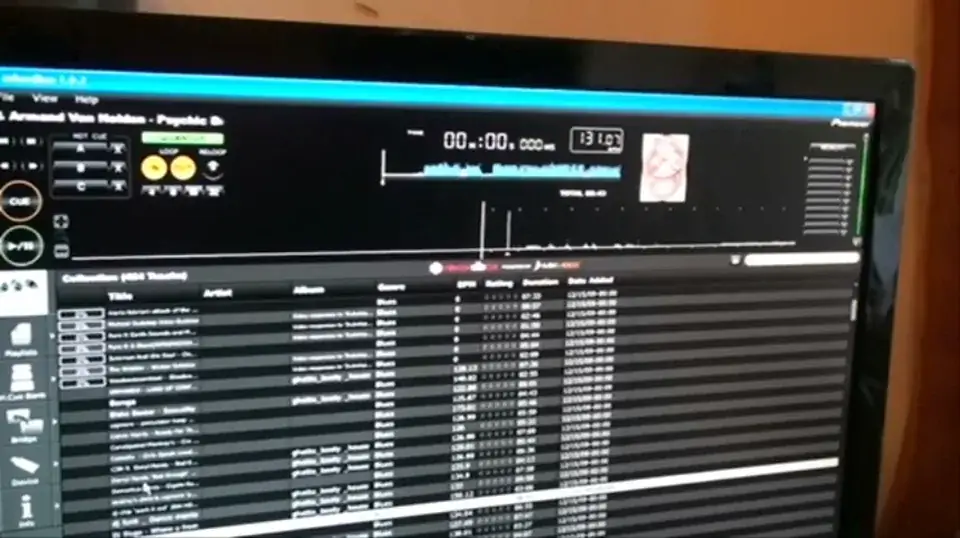
Right, let's say for example you want to listen to a track. Well, if you notice, click like so, but if you double-click, you'll get that track loaded up. Just make a note of this area here, so I'm going to just click on one track, but click on another one, another one, but what I'm going to do now is double-click. And there it is. Right, I've loaded up a track which is CZR featuring Daryl Pandy. What I'm going to do... I'm going to go over here and just press play. By the way, the quality of the audio has got nothing to do with the software, it's the fact that I've got really rubbish speakers in here at the moment. Now, Quantize is disengaged at the moment. What I'm going to do, I'm going to hit in and out in time one bar and I'm going to form a loop as follows. What you'll hear me say is in 2, 3, 4, out 2, 3, 4. Here we go.
In, 2, 3, 4. Out, 2, 3, 4. Right, we've got now a four-bar loop. And if you do see the software stopping occasionally, it's because the PC is doing other stuff, so I do apologise. Right, what we can do here, underneath the in we have a 4, and then in between in and out we have an 8. Underneath the out, 16, then 32. Basically, I've got a four-bar loop, or a one-bar loop, sorry, I beg your pardon. What I can do, I can have a two-bar loop by hitting the 8. So, here we go.
3:07 Loop loop, loops
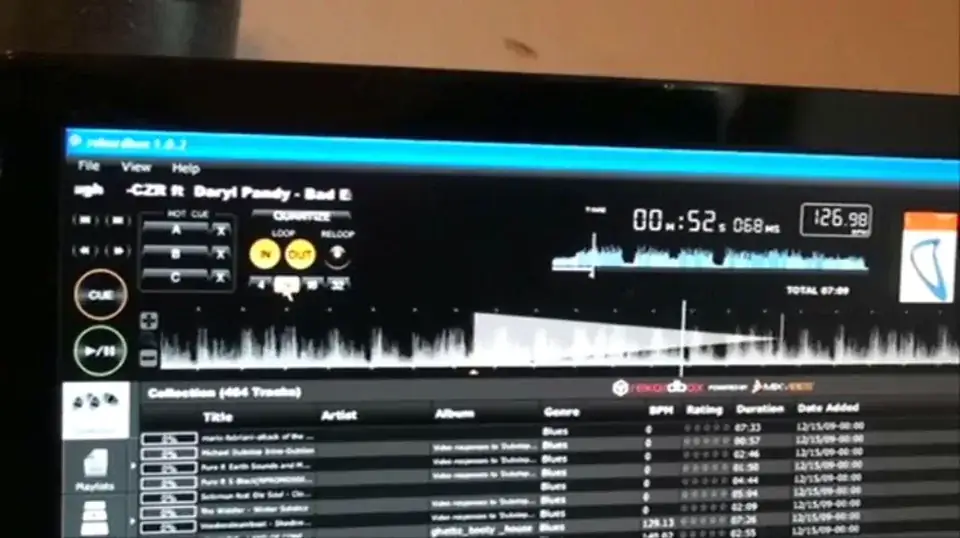
Just count. 1, 2, 3, 4, 5, 6, 7, 8. 1, 2, 3, 4, 5, 6, 7, 8. Right, we've got that. So, that sounds as though it's relatively good, but is it perfect? Now what we can do, if I just hit re-loop, we're out of that loop now. What I'm going to do is I'm going to hit up here, click on quantize. I'm going to do exactly the same thing, but... I'm going to hit it slightly offbeat for 1, 2, 3, 4, 1, 2, 3, 4. Now what it's done, what the actual software has done is got it perfectly in time. Don't know if you can see, if I just pause this, we've got tiny little markers at the top there and if you notice we have the start of the loop and the end of the loop. And again I can hit 8, 16 or 32 like so. What I can do as well, if I just hit, let's have a look.
If we press play again, and if I hit that there, I've now set that loop into here. So for example, if I go out now, the music will carry on, and let's do another loop. I'm going to set that to B, go out of the loop by hitting re-loop, and let's do another one. Hit C, go out, now I've got my hot cues here, three loops, I'm going to hit the first one.
Hit the second one that I made, and the third one, second. So basically I can go back to those loops. Now this is almost identical to using the player. So basically what it means now is you can set your loops, your cues in the software and then once you've got those you can transfer them to let's say a thumb drive or an SD card and then you're good to go with your actual player. And basically as well, the readout that you have at the top there will be identical to the 2000 as well. Video number one on the rekordbox software. There's a lot more to this than meets the eye and we'll be having more of these guys in the future. Practice and enjoy.
This transcript was produced automatically from the audio of the video and may contain mistakes.











