 3:34
Pioneer Wedj App Using the Filter and Echo Part 1
Contents of the video
0:00 I'm using an iPad Mini
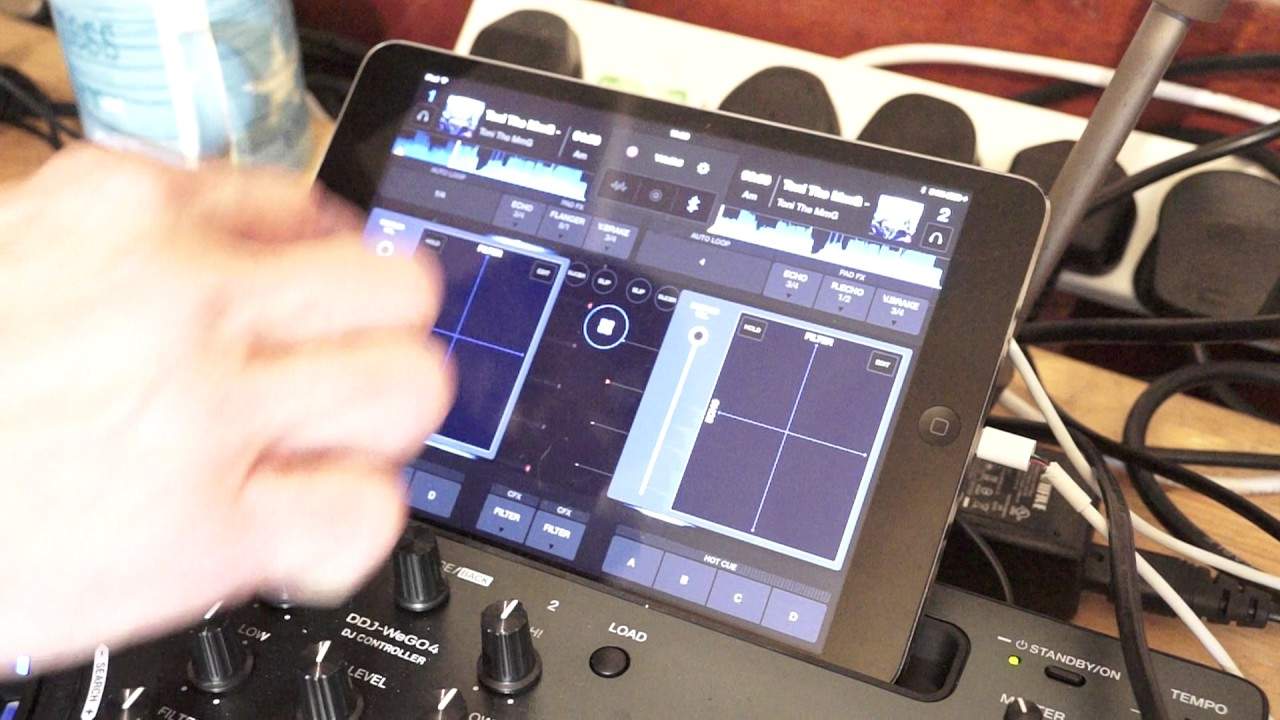
Alright ladies and gentlemen, in this video we're looking at the Pioneer WeDJ app in conjunction with the DDJ WeGo 4. That's the hardware, the WeDJ app is the software. I'm using an iPad Mini. The track I'm using is Tony the MMG from Karmic Power Records. Now there'll be a link in the description to Karmic Power Records. Also, if you're interested in getting some one-to-one lessons by myself, Jonathan Lewis, a.k.a. Ellaskins, The DJ Tutor, there'll be an email in the description as well. The lessons are through the medium of Skype. Also we can go through Facebook Live if you want to. The lessons are for beginner, complete beginner DJs, also intermediate or advanced and we can go through the likes of controllers or CDJ, even vinyl.
1:19 Few of the features
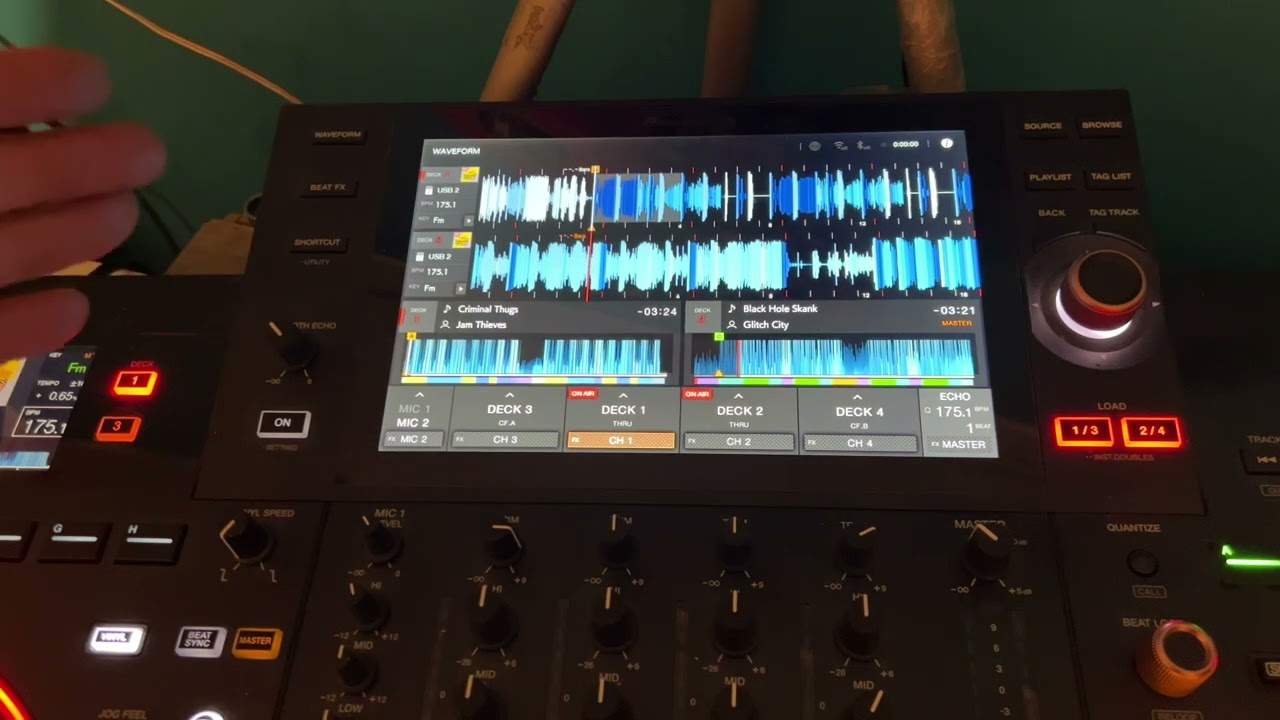
The lessons are strictly private, no information about you is given to anybody at all. It's just me and you in front of a couple of screens playing some rather banging tunes. Okay, so WeDJ app. Let's have a look at the filter effect. How can we change the parameter of the filter effect? Now in the centre of the screen there's an icon with a circle and four small squares. I'm going to press that and now either side of the screen. We have a square. We have filter, echo, we have sample of volume, hold and edit. Let's have a look at a few of the features. Of course on the left hand side I have Tony The MMG playing. So what I'm going to do now is press anywhere in that square on the side that's playing the tune. So I'm gonna press down and now we have the Filter Echo effect take my finger off the screen and that effect will stop.
Take my finger off the screen from that effect will stop if I press down and now it's going to play the filter.
2:19 Press center, center icon, effect press
An icon that's top left hand corner of that square called hold now that's highlighted in blue I'm now going to do exactly the same thing my move my finger around that square now wherever I take my finger off in that square we will keep that sound that effect that's because I've enabled hold press hold again on that effect that sound will disappear so even during the course of the tune if I get rid of the complete icon so for example press hold move my finger around the effect leave my finger there press the center icon again we still have that effect press the center icon go back to the area where we have filter and echo move the effect parameter around change the parameter press hold again now hold is not highlighted and
Now I've taken away that effect press the center icon again and now we're back to our original screen vertical wave formats or we can go to virtual turntables just below the icon where it says we DJ or to the left of that we can go to horizontal wave format all right I hope that's been a help don't forget check out the link in the description to Karmic Power Records and also send me an email ask me some questions and you never know you and I could be doing live one-to-one DJ lessons practice and enjoy thank you
This transcript was produced automatically from the audio of the video and may contain mistakes.