 6:23
Setting up DVS and timecode vinyl
On YouTube this video is called rekordbox DVS Set up Is Very Simple Virtual Vinyl
What this lesson teaches
Aimed squarely at the intermediate DJ, and he says so: there is more to DVS than one video, and this is the setup rather than the technique.
What DVS is
Digital Vinyl System, also called virtual vinyl. Special timecode records on real turntables, controlling digital files on a laptop - so you keep the feel and the technique of vinyl with the convenience of files.
Not new. It had been around about ten years when he made this. What was newer was mixers with the sound card built in.
Internal versus external sound cards
A good explanation of something you can see across a booth.
If somebody is using virtual vinyl with a box next to the mixer, that box is almost certainly an external sound card - because their mixer has not got one.
Mixers that do have one internally need no box. And some have two, which means two DJs can each plug in their own laptop - one running one program, one running another - and work independently.
His point about why that matters is a working DJ's point: it removes the changeover panic. No fiddling with leads hoping the outgoing DJ's last track does not finish before you are connected.
The connections
On the mixer he is using:
1. USB from the mixer to the laptop - this carries the audio both ways and is the whole digital link. 2. Turntable into the phono input, exactly as normal. Nothing about the turntable changes. 3. Earth wire to the mixer's earth post - he calls it very important, and it is: the same hum that the turntable-maintenance lesson is about. 4. Channel input switch set to the DVS position so it corresponds to the USB rather than the phono.
Second deck the same, on another channel.
Calibration, and the circle in the box
In the software's settings → DVS page there is a display per deck. Put the needle on the timecode record and a green circle appears inside a square.
That circle is the single most useful indicator in DVS. It means:
- The turntable is correctly connected to the mixer.
- The mixer is talking to the computer.
- The timecode signal is being read cleanly.
Set calibration to auto, calibrate left and right and the noise level, and the job is done - as long as that circle stays in the square. A circle that wanders or goes ragged is a dirty stylus, a bad lead or a noise problem, and it will show you that before it shows you as a problem in the mix.
The driver, explained properly
His best analogy in the whole catalogue, and it is worth repeating in full.
You are a tourist in New York. You cannot be bothered with the bus, so you get in a taxi. You sit there for ten minutes wondering why you are not going anywhere - because there is no driver.
There is the taxi. There is your destination. Everything is connected and nothing is happening, because the thing that takes you from A to B is missing.
A software driver is what makes the computer understand what the hardware is. It is the communication, and without it a perfectly connected setup does nothing at all.
How to check: go to the software's audio settings. If the driver is installed, your equipment appears there, highlighted and selectable. If it does not, that is your problem.
Where to get it: the manufacturer's own website, in the help or software section. And his recommendation, which is sound advice in general: do not download drivers from third-party sites.
The thing DVS is actually for
His closing argument, and it is the honest case for it.
If you love playing vinyl but you are afraid of wearing out your records, DVS is the answer: get the tracks as files, keep the records at home, and play them through the timecode.
And - the good part - the input switch on the mixer means you can flick from DVS to phono and play a real record, then flick back. The two are not exclusive. You can bring the ten records that only exist on vinyl and run everything else digitally, on the same two turntables, changing over with one switch.
Contents of the video
0:00 First of all, DVS is Virtual Vinyl
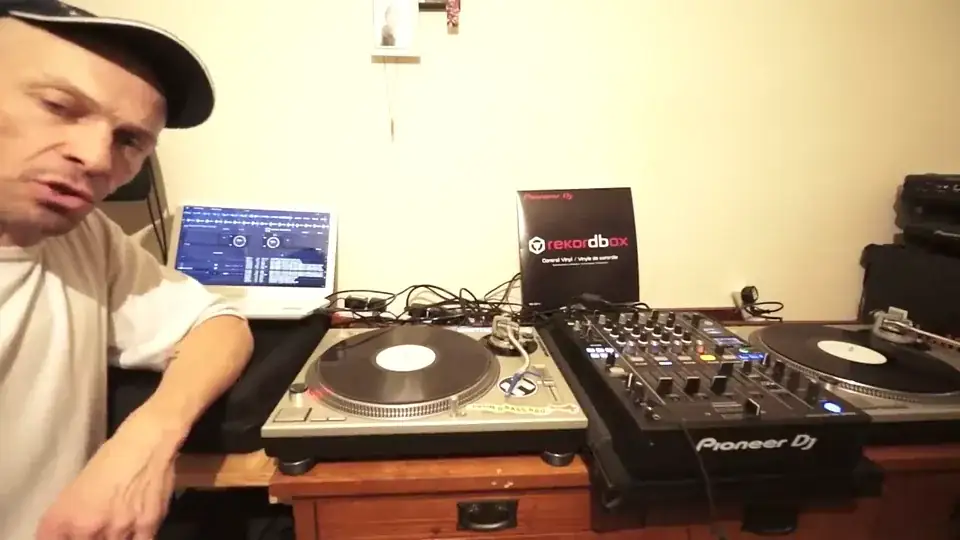
Alright, in this video we're having a short insight into looking at DVS, also known as Virtual Vinyl. This video really is targeted for the intermediate DJ, definitely not for the advanced DJ and not really for the beginner because there's a lot more to using DVS than what I'm about to explain in this video. Now first of all, DVS is Virtual Vinyl. Now it's not a new technology, it has been around for about 10 years. What is relatively new is now we can buy mixers with internal sound cards. So very quickly, a bit of a discussion on sound cards. If let's say you've seen people using Virtual Vinyl and they've got like a box close to their mixer, it's very likely that that is an external sound card because the mixer they've got does not have an internal sound card.
1:29 Plugged, taxi
On the other hand, the likes of the Nexus, the X-Mark 2, the 900 does have a sound card. I believe actually, don't quote me, it has two. What that means is that at any given time, two DJs can plug in a different laptop, one each and work off their own separate laptops. So for example, one DJ could be using Serato, the other one could be using Rekordbox, which is a great feature. It means that no longer have you got to go to a nightclub and desperately fiddle around with leads and cables. Hoping that the last track the DJ's playing doesn't finish before you plugged in all your kit in and get your next track ready. So, all I've done with the 900 now, I have gone out of A which is the top left-hand corner via USB into my laptop
I have then plugged in the deck as normal, nothing changes, I've gone into the phono input I've also very importantly connected the Earthcase, to the back of the mixer I've then switched the top switch to a so it corresponds with the USB and then the right hand deck is plugged into channel 4 again I switched that to a so that's sort of pretty much good to go a few more things to run through before you can all of a sudden start playing your virtual vinyl I've got the record box software here just going to put the camera a little bit closer so I will go to settings which is top of the screen around about two-thirds from left to right I'm going to press on settings and go to DVS now I've got now four virtual decks so again that's showing that I can
If I want to use for turntables but I'm not that clever I'm going to now just put the needle on the record and we should there it is we should be able to see what's going on here so I'm going to go ahead and we've got that green kind of circle in that box now first of all that is telling me that everything is plugged in correctly the turntable is plugged into correctly to the mixer and the mixer is talking to the PC and I will talk about that a little bit very soon okay so calibration set to auto auto you need to calibrate left and right and also calibrate the noise level so that's all once you've done that on both decks you're good to go so long as that circle stays in that square that's quite important now I did mention about the
4:14 Audio and up audio settings you
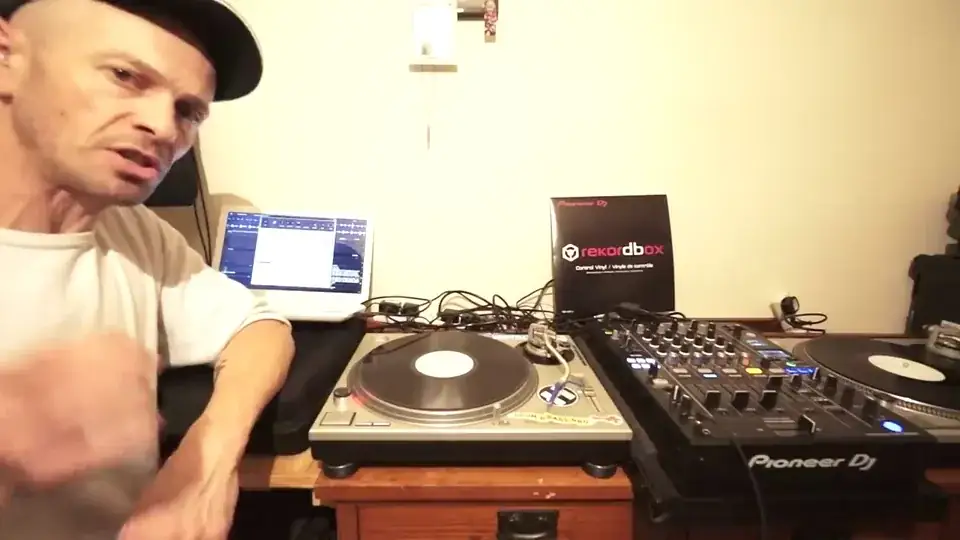
Two or everything talking to each other now what is very important here is the driver now you need to make sure you've got all the relevant drivers now I'll give you a quick analogy here imagine you're in New York and you're a holiday maker and you want to go up the road you can't be bothered about getting the bus so you jump in a taxi and you sat in the taxi for 10 minutes thinking why not going anywhere it's because you ain't got the driver the driver is the person is the thing that will take you from A to B so there is the taxi the laptop is the place your destination everything's plugged in but nothing's going anywhere that's because you have not got the driver installed the driver will is the part of the software that makes sure the
Computer understands what the piece of kit the hardware you're using is all about it's the communication so make sure you install the driver and you'll know you can you will have the driver is if you go to audio and up audio settings you should by all rights if the driver has been installed have the relevant piece of kit highlighted and that's pretty much good to go if you haven't then depending on what you're using maybe go to the website go to the help area and go to software and hopefully a driver there should be a link there to a drop the driver you need one recommendation is try not to go to third-party sites to download drivers it's always a very good idea if you're using any particular company go to the
Company's website and get the driver from they're very important ok so very quickly what's been said so far what the app says nothing at all the software is all good to go and also everything's plugged in they will be a little bit more that I will discuss on a van virtual vinyl and how it is slightly different to using real vinyl but if you do like to use real vinyl and you're scared about knackering your records then visual vinyl is a good way forward because what it does mean vinyl tracks on mp3 put them on your laptop and then use virtual vinyl but you can use your original tracks without having to use the vinyl alternatively you can use virtual vinyl and then at the flick of a switch on the mixer you can go to phono and you can use real vinyl so you can
Switch from virtual to real and back i hope that's been a help practice and enjoy thank you very much
This transcript was produced automatically from the audio of the video and may contain mistakes.











