 6:14
Setting Hot Cues Expert Mode and Exporting to a Thumb Drive in rekordbox Pioneer DJ
Contents of the video
0:00 Few things, one inclu
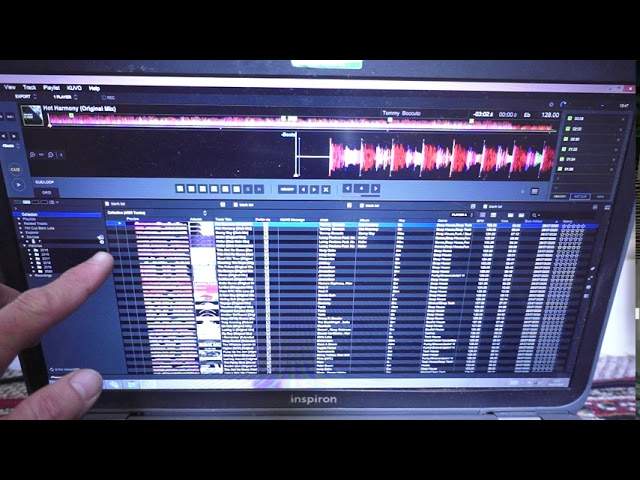
Okay, so first of all, yes, I am pointing the camera directly at the laptop. I'm old school, I'll be honest with you. Okay, so we've got rekordbox software at the moment. I am in export mode. So export is used predominantly for just maybe putting hot cues on your tracks, going through your songs, sing, put them into playlists and so on. So in this video we're going to cover a few things, one including exporting tracks to a thumb drive, to a stick drive, got one here, and also hot cues. Now, at the moment we have, as I said, we have export mode and more than likely if you're going to use rekordbox in conjunction with the hardware, you need to go to performance mode. So export, top left hand corner, click that icon and when you're plugged into your...
1:24 I'm just going to pause that or stop that
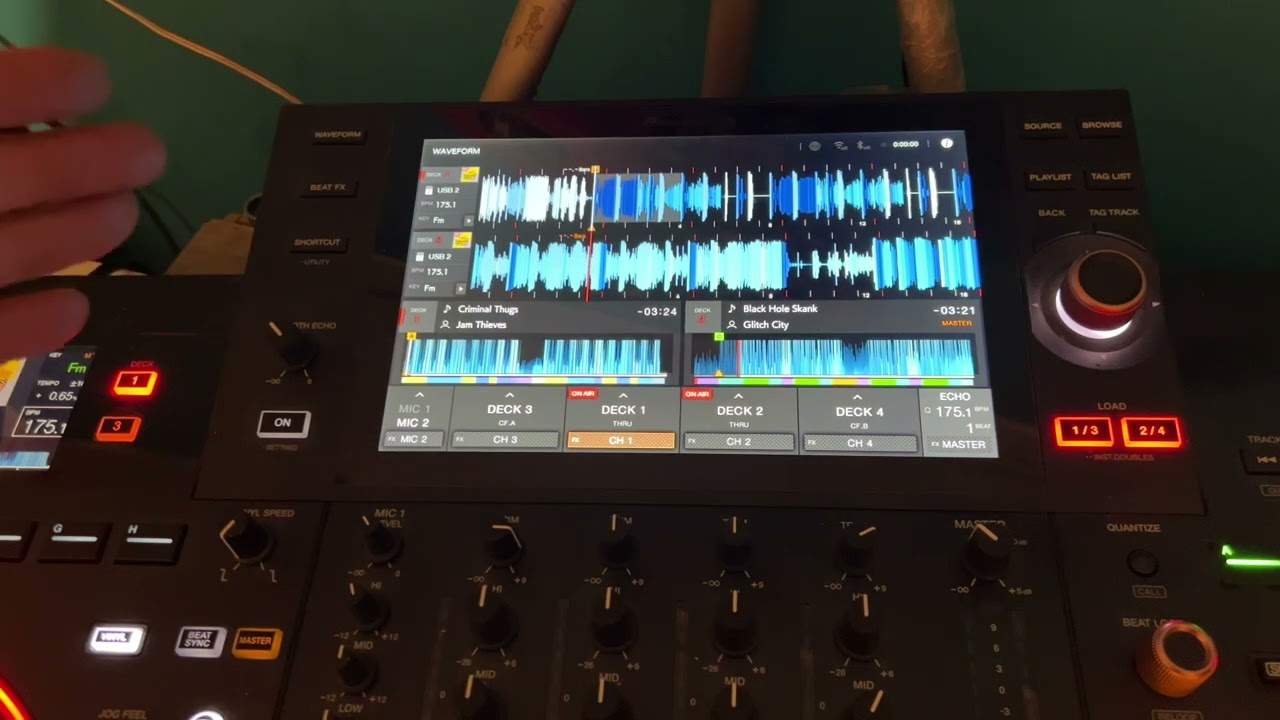
Your controller, go to performance mode. Okay, so at the moment now we can see large wave format and we can see the entire wave format of the track there. We can also see on the left hand side a smaller version of the wave format. So this is great just to flick through the track. So for example, if I wanted to just flick through a track, I can press here and now I can flick through part of that track. Same here, all the tracks I'm using, by the way, are from Karmic Power Records. Now if I now... I'm just going to pause that or stop that. Okay, I'm gonna drag that track up into the icon up there. Okay, now if I now... You should be able to see A, B and C highlighted up here. So they're hot cues that I've already set.
Now I've clicked on the right hand side on the hot cue icon. Okay. And those hot cues have come up. Also, we can see them in the long wave format at the top, which again is the entire track. So let's say I want to set another couple of hot cues. So let's randomly go to a position in the track. So I'm going to use my mouse click on part of the track about there. It's not gonna start until I press play. There. Now I can go over to my hot cue icon on the right. And I can press another one. Maybe another one there. Another one there. Okay, so let's cue that up. Okay, so now I've got 1, 2, 3, 4, 5, 6. Now again, there's 8 because on a lot of controllers now you have 8 pads. So I've now set 8 hot cues. So let's imagine now I want to export that track with those hot cues.
Okay. So what I'm going to do now, I'm going to plug my USB into the laptop. Okay, so that's plugged in. Now on the left hand side here we should soon be able to see an icon for... Hold on. Let me get rid of that. That's it. We don't need that. Okay. So here we go. So here is my thumb drive F and I can eject it if I want to. All right. So what I'm gonna do now just for this demonstration here. Um. I've now highlighted that one track. So what I'm going to do now is right click and now I have this drop down menu and I'm going to go to export tracks and because I've only got the one thumb drive in, that's F. I'm going to go over to there. I'm gonna click on that and you should see bottom left hand corner just there.
4:04 Press, those
Rewind if you need to. The icon for uploading the track from... Oh shit. Is it downloading? Uploading? Anyway, it's loading onto the thumb drive. Now again this could take a vast amount of time. It depends on how many files that was one took a few seconds. If you're going to do a lot of files, it's gonna take, you know, quite a few minutes, if not maybe hours depending on the amount you've loaded on to your external hard drive. All right. So there you go. Let me tip it like that. All right. Now I did a video recently on the different colours of tracks in the wave format and how the colours are part of maybe different sounds of the tracks. Now what you will find over time is that when you look at the large wave format,
You'll see slight variations in colouring. Now what happens is the software will recognise a certain sound of that track and give it a colour and then if that sound appears again, then that colour will appear again in the wave format. So it's a great way of visually seeing the track. So for example, you could have highlighted quite a bit of blue and that could be a baseline. If you see more blue during the course of that wave format, then hopefully if the track is being analysed correctly, the baseline could appear again. All right. So there we go. So we've now got all of those hot cues. Now if you want to check them in the software, all you need to do, I'm going to press play. I'm going to go to the hot cues.
And there you go. Now to the right hand side of the hot cue icon is a cross and if I press that, I've now deleted that or those hot cues. So I've got rid of them all now. There you go. All gone. And now let's just add a few more. There. So there's a whole bunch more. So press on those and again to delete, right hand side, press the crosses, and now you can delete them. All right. So a little video here and a big shout out. Thank you very much to Mr Lenny Fontana for letting me use his tunes from Karmic Power Records. Thank you. Practice and enjoy.
This transcript was produced automatically from the audio of the video and may contain mistakes.