 11:50
Simple Look at Obs Open Broadcast Software for Live Streaming Your DJ Set
Contents of the video
0:00 First and foremost, why don't you download OBS?
Right, a lot of people have been asking me how I get such good audio when live streaming and also the different windows when I'm streaming. So there's different images. So how is it done? First and foremost, why don't you download OBS? It's known as Open Broadcast Software. It's free software. You don't have to pay for it at all. My only advice is to make sure you get it from OBS, not from a third party because you may end up clicking on something and downloading a game or something like that, which you don't really want. But once you've got OBS, you should have something that looks a little bit like this. So in this video... I'm not going to go in depth on how to set up OBS because it's a nightmare in itself, but once you understand the very basics, then it's up to you.
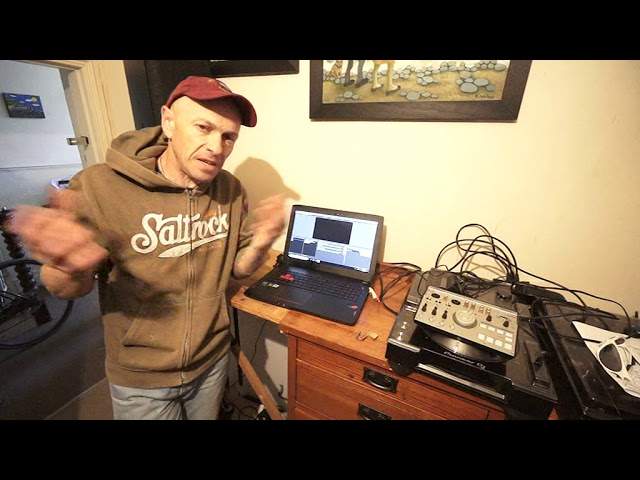
Right, now I've got this here. This is a bit of hardware. I don't believe they sell them anymore, but you can still get them on eBay. This is the PBS4 from Vestax. It is a piece of hardware. Now that in itself is really interesting. I will explain very shortly. So, right. What's behind OBS? Why use it? Well, you could just plug in a webcam and go directly audio out, booth out from your mixer into your laptop, set it up, and you could stream, I suppose. But you're only going to get one image and that's about it. But if you use OBS, you can have... As I said, different windows. You can have effects. You can have wording. There is so much more you can do. So in this video, I'm going to explain a little bit about OBS and parts of it to show you how you can set up different cameras.
2:17 Wide angle, angle lens, program
Now, I've got just a regular webcam there. I have a GoPro. All these are units that you can use with OBS and even the camera I'm using I have used with OBS. But I had a wide angle lens. Now, firstly, it's a great way of getting everything in wide angle because if you think about it, if you've got a small angle lens, you will need to have that quite a distance away to get everything in. On the other hand, if you have a wide angle lens or wide angle webcam, which I have up over there, which is another... If you did watch the stream I did last Friday, You may remember I had one of the windows from up the corner and it was that webcam up there. I also had the camera I'm using, which was here. And I had this webcam that's attached to a G-clamp about there.
So I had three windows. But if I wanted to, I could have loads and loads and loads of windows and I will show you how you can do that. So let's have a look at the OBS program. So I'm going to show you, again, a very simplified explanation on how OBS works. This is your audio. These are your sources and these are your scenes. Now, your scenes, first of all, are where you're going to stream to. So, for example, I do stream to Tribe, YouTube, and I've also got Ableton, which is when I do my streams and I'm using Ableton on here. These are the sources. Now, the sources are your video cameras, the capture devices, what you're going to use. The mixer is about the audio. Now, it isn't, of course, as simple as that because you need to make sure that the program is not only working correctly, but the program is talking to the website and the website is able to interact with the program.
4:37 This is something that is unique to YouTube
Now, let's just take YouTube. For example, if you're in good standing with your account, when you log into your YouTube account on the left hand side, you should see a small icon with streaming. What you need to do is click on that and then you should have a separate page with a window, which will be like the TV screen all the way below to the bottom of that. You should have what's known as the stream key. Now, this is something that is unique to YouTube. It's unique to you and you share that with nobody, not even your mom and dad or next door neighbor. Zip. That's your stream key. So what you will need to do is you'll need to make sure you have that stream key in the OBS software so the OBS software knows, oh, it's like, oh, I'm going to YouTube.
Not like, what am I doing? You've got to remember that even though programs like this are really clever and very intricate, they're also very dumb because you need to make sure you're able to do that. You give them the right information so they know what they're doing. So if I just zoom a little bit closer on the right hand side, now we have settings. So I'm going to click on settings and now we have general stream output audio video hot keys and advanced. All I'm going to do is just concentrate on stream. So if we click on stream, I have even though all right, it's a bit of a distance. I will explain the stream type. We have the service, which I put YouTube in and primary YouTube server and stream key.
6:32 On the left hand side here, we have our sources and below sources
Now that is the stream key. That's where you would put your stream key. So you just copy it from YouTube, paste it in there. Now, again, there is a lot more to this. All right. This is a very basic video on showing you, say, a little bit about stream. I OBS. I'm going to close that. OK, so once you've got that stream key and there's a few more little bits to do, but it's difficult to do this now. I do apologize. You should sort of be halfway there. But of course, you need to make sure you have cameras and so on plugged in. So on the left hand side here, we have our sources and below sources. We have a plus. So we can add sources. Now, this is about adding your cameras if you want to and you have no cameras, no external cameras, nothing at all.
You can still stream video so long as you have a webcam on your laptop because even that can be used. Alternatively, you can use two, three, four external webcams so long as you have the capability of plugging them in, which is where the likes of something like this can be used. So I'm going to close that out. Now, this is the PBS for it's from Vestax and if you get this, make sure, of course, you have the disc with it, which is the driver put that into your laptop so the driver will let the software, the computer be able to talk with this, the hardware. Now, the PBS for you can actually plug in four cameras into this. So once you, if you think about it, once you've got four cameras plugged into this and then this then is talking to the OBS software and you have, say, a quarter of the window used for one of the cameras at one time, you can then flick through four different cameras so that small window can change from four different angles depending on where they are.
8:38 Is, of course, the audio
So again. That is a great thing to use. Alternatively, if you don't have the likes of a PBS for then I recommend the cheapest alternative is just to get a couple of webcams ideally get a wide angle webcam very important as I said earlier because it means you're going to not only be able to have the camera closer to your kit but also get a wider angle so people can see a lot more of what you're doing. So that's the first thing. The next thing is, of course, the audio. Now audio is really important. What you don't want to happen well, you can if you want to, is, you know, you can have one of the webcams picking up the audio. It will sound adequate but it's not going to sound professional. So what you do is you go for example, if you're using a mixer that has a booth output.
Now this is what I will always do. I will have an output from the booth output. But I won't be able to get any audio out of my microphone because then it would be very difficult to hear. But I'm going to try and get audio out of my microphone. So just make sure you've got audio on your microphone so that's very important. And I'm going to get some of that audio in there. You've got audio on your microphone. booth output of my mixer to the input, the line-in of your laptop. Now if you only have one plug and you use that headphones and line once you've plugged it in make sure you go into your settings and make sure the computer knows that that now is a line-in and not headphones otherwise you're not going to get audio in because it's going to think you've got headphones plugged
In and the computer's going to just think you're an idiot. Right so once you've done that then that is your audio input and if you've set these settings correctly then you should be able to see the audio here. Now I've used this and I believe it's good quality stereo it definitely is from the mixer to OBS because when I've used the balance on the mixer I've seen the readout to go from right to left so you do get proper audio. All right so this is a little kind of insight but even if you only learn one thing from this video it is to use OBS. It's free, gratis and for nothing and also it will let you stream whatever you're doing. Now you don't just have to be a DJ in stream you could stream anything it doesn't matter. The only how can I put
It just be careful about what you do stream because many people including myself have been blocked on certain channels for example YouTube and Facebook simply because I played copyrighted material. If you are concerned about the tracks you're using I'm going to try and find it in fact I will in the description there will be a link that will take you to a page on YouTube that will say yes you can use that track yes you can use that track but you'll get adverts. You can't use that track because it will be blocked in Germany and if you use that other track you'll have your testicles cut off which you wouldn't really want that to happen would you? Okay so it's a great way of knowing what you can and can't play it's a little bit laborious
Because you have to go through your set and you have to try every track but if you're concerned about having any issues then I highly recommend you do that and hope for the best. Right that is it thank you very much any info or any questions stick them in a comment underneath practice and enjoy thank you.
This transcript was produced automatically from the audio of the video and may contain mistakes.











