 6:33
stanton Scratch DJ Academy MIX Software
Contents of the video
0:00 A bit of a review on this software from a company called Stanton
Alright guys, a bit of a review on this software from a company called Stanton. It's known as Scratch DJ Academy Mix. It's DJ software for mixing and analysing tracks. It's Mac and Windows compatible. First and foremost, I wouldn't class this as for the professional.
Alright, for example, if you are a professional DJ and you want your tunes, say you want the BPM and the keys of your tracks, then fine because it will do it for you. But if you're, let's say, a beginner DJ or intermediate and you want to just say know how a mix is constructed, you know, what BPM will go with what BPM, what keys will go with what keys, then it's an idea because it will help you to construct a mix. Visually, this is the deal because not only can you hear what you're doing, you can actually physically see what you're doing here. I'll explain in a bit. Alright, I've had some tracks on there already. I've dragged a few more on there. You'll notice here we have track title, artist, BPM, key and length.
Now if you've tagged all of your tracks correctly, then when you drag them in, I'll show you that in a second, you will have the track title, artist, BPM, key, length. If you haven't, you've just got a track with no name, no artist, don't worry about it because you will still get the most important parts which is the BPM, the key and the length. How do we do this? How do we do this? How do we do this? We add a song. Very simple. Add songs. Top here, you can go through to your files so you'll notice there CDEF. So go through to the relevant folder. Once you've hit that relevant folder, then you can just drag through your tracks. Click one, open or if you're familiar with your keyboard, you can drag as many in as you want to so I'll just cancel that.
1:52 I've highlighted it, I'm going to drag that over, plonk that there
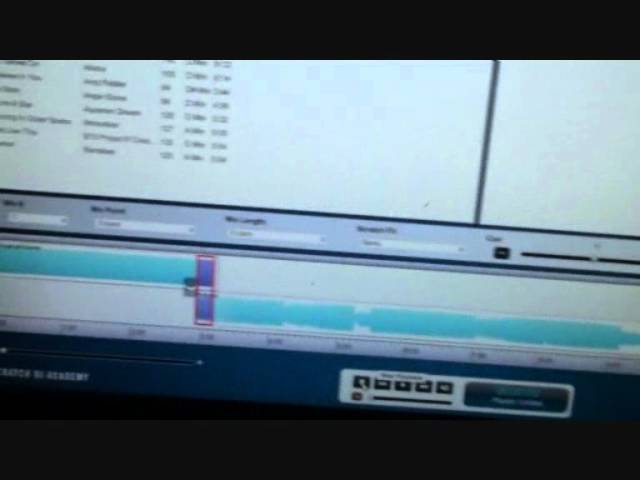
Right, if you're familiar with the Camelot wheel, then theoretically... ...you should know what keys go with what. So, for example, let's have a look. If I've got that track there, let's go get some DJ Fresh. It's 127 BPM and it's in C. So what I'm going to do, I'm going to grab that one there, Air Attack, and that's 125 and it's in F. So, I've highlighted it, I'm going to drag that over, plonk that there. Right, now let's have a look. Now, that is the wave format and you can see Mix 1. Mix Point is at 8 bars, Mix Length is 4 bars, Scratch Effects none. So for example, if you just notice this area here, what I can do, Mix Length, if I go to 8 bars then that has increased. So there you go, you can work that out, it's pretty straightforward.
This is Mix 1, Mix Point at 8 bars, Scratch Effect none. Uh... If I want to, I can have a Bass Effect on there. Alternatively, I can have the Fresh Sound or I can have a Tone. If I want to, I can customize my Scratch Effects so I can have the length of it 2 bars. I can do a combo, uh...the tone as well. So I can have no tone, bass, fresh, tone. Uh...I can even preview it if I want to. So I'm just going to go for bass like so. Right, um...we can review that. Or sorry, preview it. I can't...save me life. I'm just going to turn...hold on. Let's turn it up down here. Now first thing, I don't know if you find something that should be quite apparent. Uh...you'll notice the BPM here, 127 and 125. Now what it will do for you, it will actually slow a track down or speed a track up so it will mix it for you, alright?
So, you know, what we have to be careful of here is that we're not going to start thinking, well, you know what, I don't need to mix it anymore, just let it do it. Um...I think one beauty about this particular software is that it will help you construct a set and give you an idea of the whole philosophy behind constructing sets.
4:20 We've got our track playing now
Okay, we've got our track playing now. And...small point here as well, you'll notice a small icon there. Zoom waveform display. So, as I move the cursor... from the left-hand side to the right-hand side, you can see what's happening now with the waveform. If I grab hold of that, I can take that as far as I want to and I can have that just before, after, during the mix. So I'll put it there. Now again, what we can do here is we can record the mix and you can get this so you can play it back on your iPod. Right, well, what do I think of it? Well, if you want a bit of a mess around but more importantly I suppose the way I look at this is it's a great way of analysing your tunes getting the BPM, the key, of course the length.
The length really doesn't matter that much. What is vitally important for a DJ who wants to do a good quality mix is of course the BPM and the key. So, if this software will get the key for you and the BPM then that's really all you need to do. The rest of it... of actually putting the tracks together is a bit of fun. I mean, for example, what you can do is we could take the track up here, the track down there give them a mix, see what it's like. Maybe the track there and the track up there give them a mix, see what it's like. So before you know it, what you're doing is you're having a mess around with a mix even before you've maybe brought that out or put that mix in front of the public.
Right, so there you go. If you want any more information on this as usual, what I'll do I'll put a link in the description and go and check it out. Just have a look and let us know what you think. Practice and enjoy.
This transcript was produced automatically from the audio of the video and may contain mistakes.