 6:21
The Pioneer MEP-7000. How to load a play list
Contents of the video
0:00 Set a playlist here on
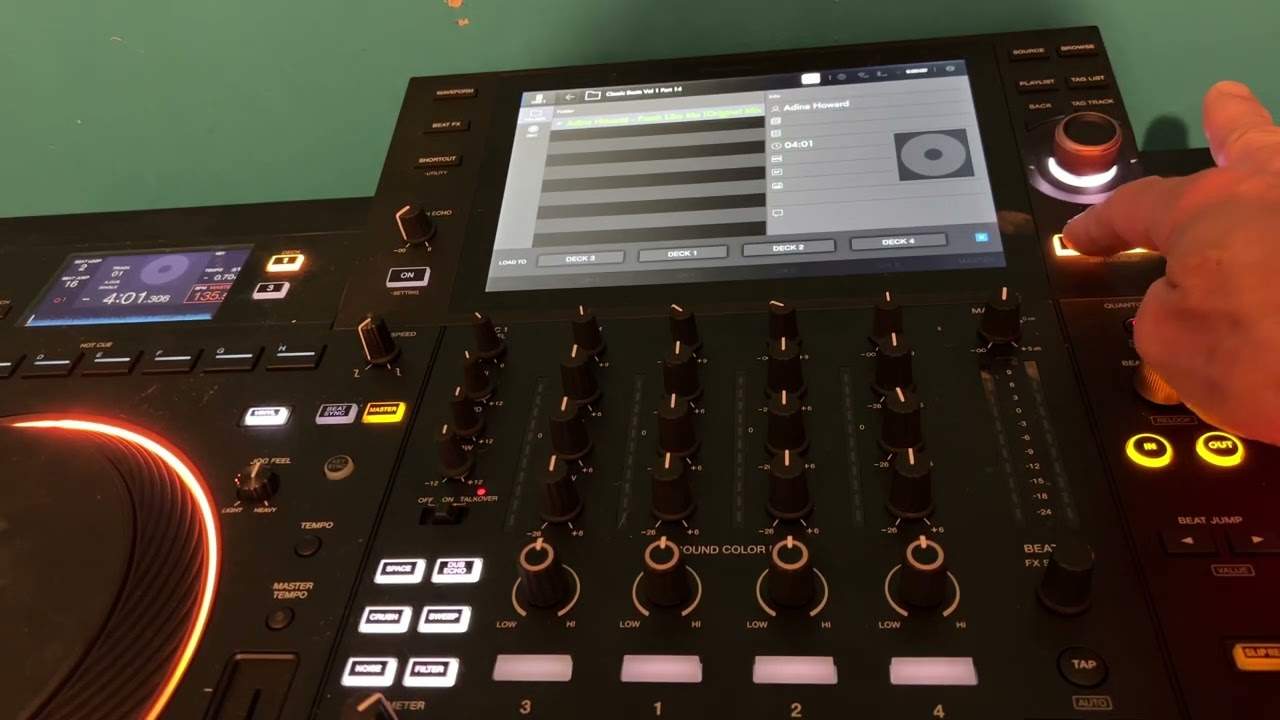
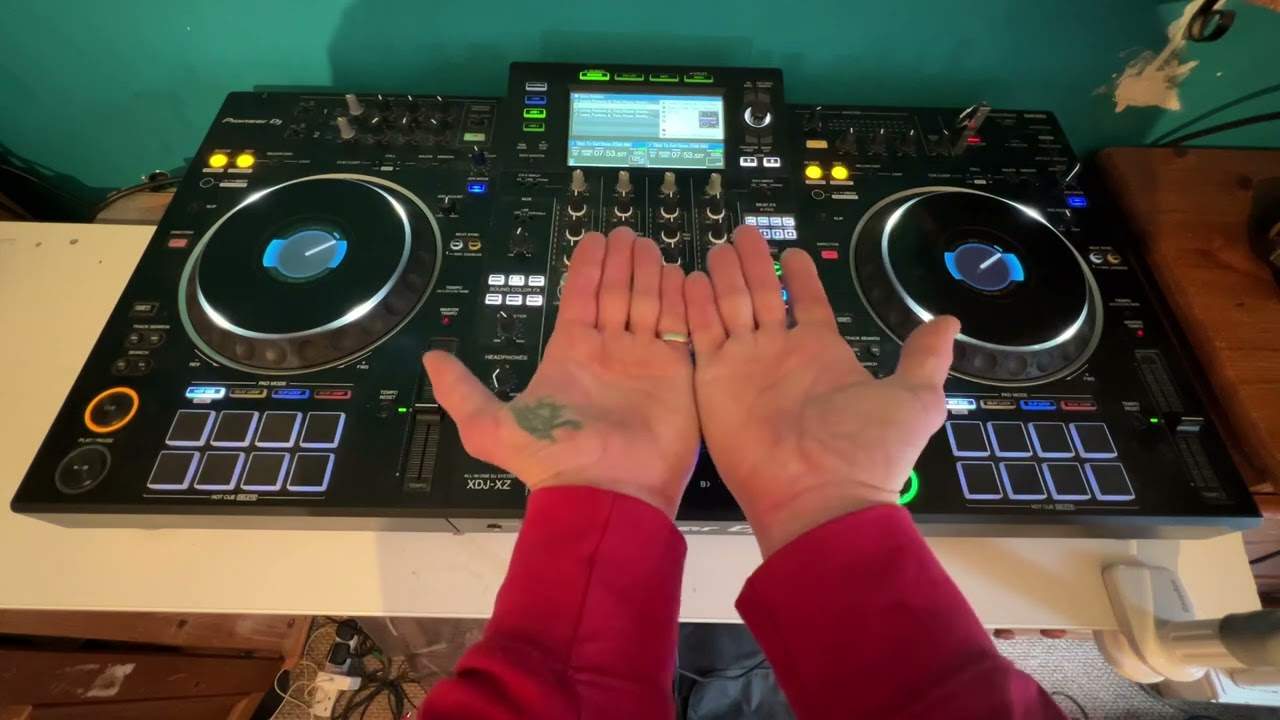
Alright folks, in this video I'm going to show you how to set a playlist here on this guy. It's known as the MEP7000. Now first of all, disc 1 is the button just below the actual screen to the left hand side of the screen. That's empty. There's nothing in this tray here. Exactly the same, there's nothing in disc 2 which is this guy here. Nothing in USB 1 which is the USB port at the back. We've got music in USB 2 which is the flash drive at the front. Next icon, next button shows us this is PC compatible. The next one is playlist. Now we're in browse mode at the moment which is the button on the far left hand side and that's above the actual screen. Okay, so we're in playlist mode and if you can see there all of these playlists are all empty now from 1 through to 20. So let's say for example I want to put some music in playlist 20. So we'll set that to playlist 20 and the actual playlist icon there is just highlighted. If we scroll over
We can scroll over two ways, one by pressing the button to the right of the centre dial or alternatively we can just press the centre dial and that will take us to the playlist. It's absolutely empty. So what I'm going to do now is press USB 2 and that's where I've got the music at the moment. Using the centre dial I can now scroll through the tracks. OK, if I want to choose any of these tracks all I've got to do is go through to that track until it's highlighted and then press the centre button. Hopefully you'll be able to see there An icon just below where it says playlist, that flashed a little bit. That tells me now that that particular track is the first track in that playlist. For argument's sake, just for this video, we're just going to use three tracks. And then I'm going to go through to another track, just at random this is. Press that again, that's our next track. Another one, press that, that's our third track. Okay, now with three tracks loaded, let's press the playlist, playlist 20, scroll over.
2:00 We know we've got those three tracks in there
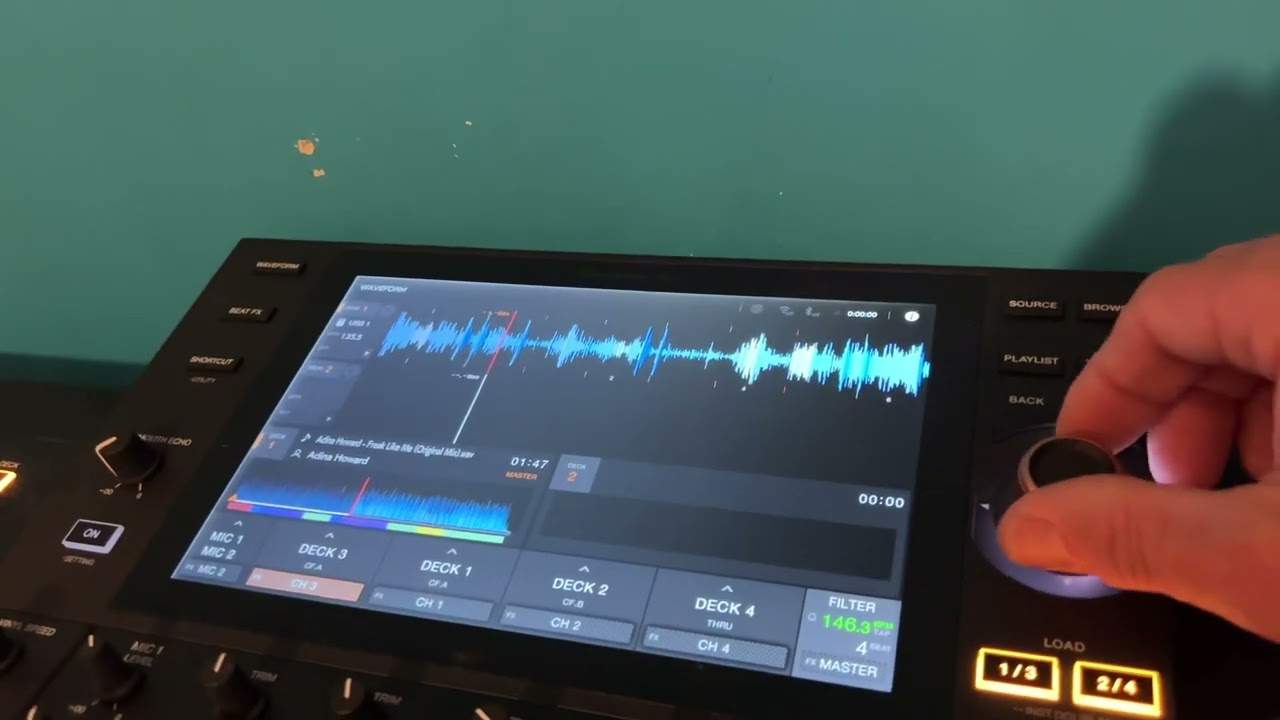
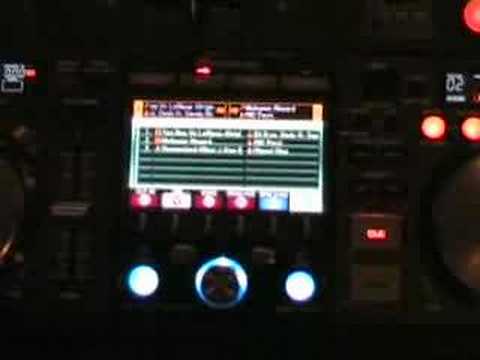
1, 2 and 3. So now we know we've got those three tracks in there. Now what we need to do is we need to go into something called mix mode. What this will actually do, this will mix those three tracks for us so we don't have to stand by the actual unit and press play, pause, play, pause all the time. So go into mix mode. Now at the moment we're there, I mean it actually says there playlist number 2 but no panic because all you've literally got to do is just scroll back down to the playlist 20 Which is where we actually put the music. Scroll over, 1, 2, 3, so we can see the three tracks. So what I'm going to do now is I'm going to press this button which is again, it used to be the playlist button, now it's auto mix. So if I press that, what happens now is automatically now we've got track one on this side, the left hand side player ready to go. And we can see there, if I just get a little bit closer, we can see there
A, which is A, which is over this side. And then B there, which is B, which is over that side. So I'll just zoom out again a little bit. Okay, so now basically what happens is if I press play there as soon as that one finished, that one would start. As soon as that one's finished, then that one will start. So we'll go track 1, track 2, track 3 because I've only got three tracks here. Then it'll go back to track 1, 3, 1, 2, 3, etc. But again, you don't have to have three tracks, you can have quite a few, don't panic. Alright, what also, what we can do as well, we can have small features, we can actually cut in, we can have a zip feature and echo, crossfade, we can beat sync these particular tracks as well. So in other words, what that means is instead of one track just finishing and the other one coming in, we can add small features. So what I'm going to do, we're going to set it to let's say
4:24 We're back to the last 30 seconds
I don't know, say to the zip feature. So that's highlighted there now. So I'm going to press play here. Look to the side of the video for the actual track names. Now we don't want to listen to the whole track so what I'm going to do, I'm going to get it to the end of this track and show you what it's like when it goes from the one track into the other. So how are we going to do that? I'm going to press the search button here. Like so. And then with my finger on the jog wheel, I'm going to move the jog wheel clockwise so we can go through the track a lot quicker. Okay, we're back to the last 30 seconds. There you go. So now we're on track two. I'm going to do exactly the same with the track two. Press the search button and then go forward. And then we're back there, that side, and we're on track three. And if we have a look now at the centre area...
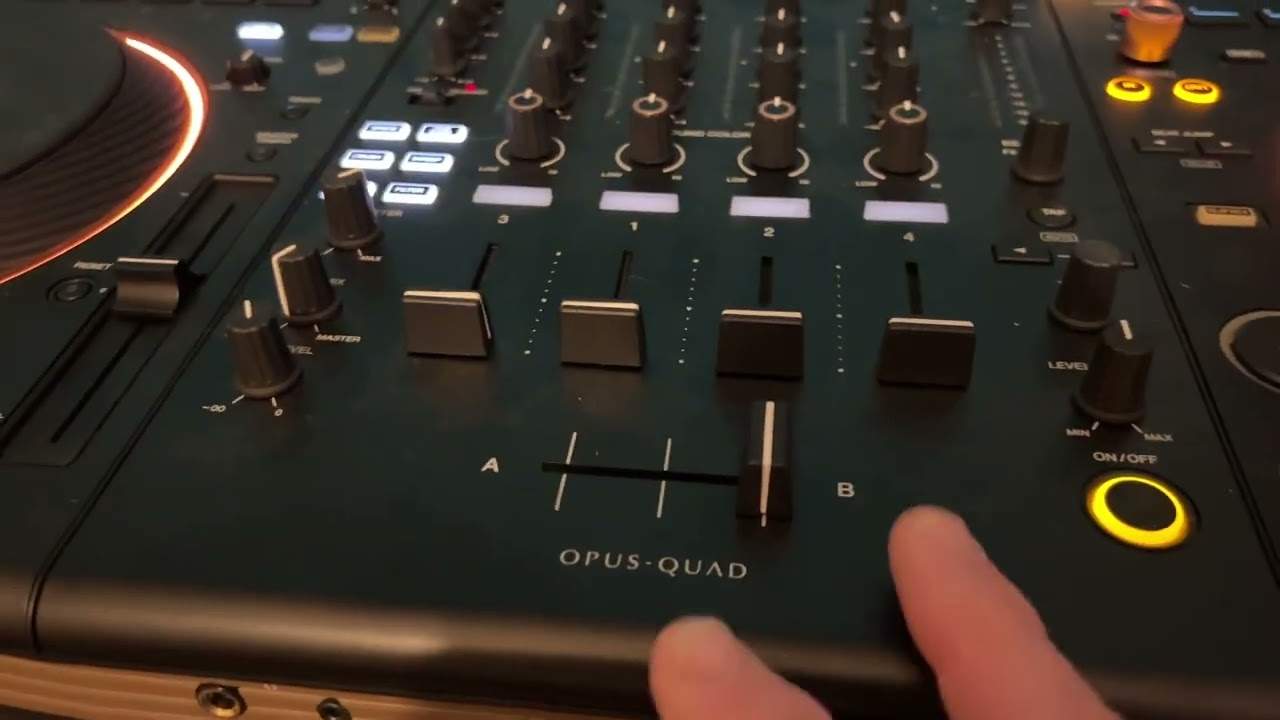
Bearing in mind we've only got three tracks. So, we had started off track one was A, then we went to track two which was B, and then we went to track three which is A, and now what's happened, track one is B again. So, we'll just go through these three tracks continually if we want to. Right, I'm going to stop that. Alright, one thing you have to take into consideration as well is always make sure the two volume controls are up on your mixer because if you've only got one volume up The DJ Tutor offers a variety of options to choose from, but you won't have any sound, so make sure two volume controls are up and also your crossfades in the middle. Now alright, I mean, the way I look at this, what is quite neat about this, from me being mainly a mobile DJ, you turn up to some sort of function and people are arriving etc., and if you've got a young crowd, what you can actually do, you can go through your flash drives, you can choose a good selection of music that you know they'll like, it'll take you five minutes to get a bit of a playlist together.
And then you can go and munch at the buffet. Alternatively, like a wedding, you know, they want more laid-back music, so you can do that as well. Alright, small insight, excuse me, I've got hay fever, into the MEP7000 and in this video I'm showing you how to do a bit of a playlist. And bearing in mind as well, you can do 20 playlists. Practice and enjoy.
This transcript was produced automatically from the audio of the video and may contain mistakes.
Related videos
-
Complete Beginner DJ Lessons Tags Key BPM Etc
A more advanced lesson folded in early, and worth doing once rather than putting off, because everything it sets up gets used for years…
-
Complete Beginner DJ Mixing Lessons Video 19 Getting Your Kit Ready for an Easy Mix
A whole lesson on getting ready, which is the right call - the exercise in the next video only teaches anything if the two decks are…