 7:31
Tips on Live Streaming Using the Vestax PBS 4 for the DJ
Contents of the video
0:01 First of all, let me just turn the light down a little bit
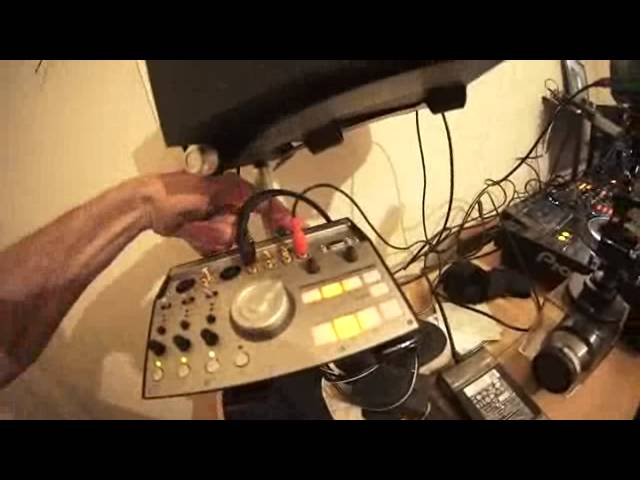
Alright guys, my name's Jonathan Olsen and as the DJ Tutor in this video I'm going to run a few, a bit of the, or little bits of the setup if you're going to start to live stream using Live Stream Podcaster. So, first of all, let me just turn the light down a little bit. We can see the screen, we can see the chat and, well, right, I'm not going to mess around with that in this video. What I am going to show you though is how I've got everything set up. So, I have here this rather nice piece of kit from Vestax. It's the PBS-4. It's the web broadcaster. You can plug in... ...one HDMI and or four, well you can plug in three normal run-of-the-mill cameras so long as you've got RCA out, or alternatively you can go four way HDMI but I will explain that very shortly.
Now, a great feature about this as well is that let's say you're a guitarist, you're a keyboard player, you can plug in your audio as well. So it's not just four video signals. It's audio in as well. And you've got the capability of monitoring via headphones so it's a really good piece of kit. Alright, there could be other items out there now but alright we have a GoPro 4 there. We have a GoPro 4 up there and if you look at the screen there I'm just going to go from one to the other. So straight away you can see I've got two angles. Now bearing in mind that's just two imagine what it would be like...
1:50 ...if you had four
...if you had four. I'm now starting to use GoPros simply because they're a lot smaller, they're easier to use and they get in those nasty little corners. Okay so very briefly how have I set this up? Now what I've done, I've gone from the booth out of the mixer into the audio in or one of the channels of the audio in of the PBS4. Vestax PBS4. I've then gone out of that very quickly, that goes out to the PC via USB. You'll probably have to download the driver for the Vestax unit. And what I have bought which is a wonderful piece of kit. That's the GoPro turning off. It's the HDM12AV. Now this is NTSC and PAL so it's interchangeable. What is it? Right if you have a look there you can go in HDMI and you can come out via your normal, that's CVBS.
Alright so you have yellow and alright yeah I'm confusing things here. I've got an RCA that's red there. White and red. Red and white are actually your audio left and right. This one here that's yellow inside there and that's for your video. So all I've done, I've gone from that GoPro 4 via mini HDMI from there the GoPro 4 into a large HDMI. That then has converted it to the VGA. I think it's VGA or well yeah normal video. I'll put a link in the description or something. Anyway chocolate drops. And I've gone in via here. Now if we look at the PBS4 we've got inputs 1, 2, 3 and 4. So if you want to you could just go directly through four basic cameras. You don't need to use HDMI. Alternatively there is HDMI at the back which I've done here.
So at the back of this I've gone into this GoPro. So at the moment I am using one GoPro HDMI.
4:05 Like I said you can have four setups here
The one over there is HDMI into the converter and then converted to the RCA in. Right, like I said you can have four setups here. So for example let me just move that. You could really I mean because GoPros are so small you could have one on your head. And while you're moving you know people will see what you're doing. And that one there what I'm trying to do, what I will do in the future is I'm going to have that so it's right above me looking down. You want to get as many angles as possible. Now at the moment I am streaming but I'm not doing anything. I'm just sort of having well I'm just setting up doing this video. Let's go to the mixer. So let's just show you a couple of the features of the Livestream Podcaster.
Now what's good about this, what's fantastic is it's not just one screen. You've got different almost like widgets and you can move those around. You can set them wherever you want to. So this is the screen that you will be looking at people will see. This is your chat and this here is your audio levels. Now again it's vitally important that you don't go too high with the audio so I highly recommend you check first. Again it's always a good idea to go all flat signal on your mixer and then turn it up maybe here or alternatively you can turn it up here or here. So there's loads of different ways. Also recommend you have a test, have a mess around see what it's like. Now the streaming at the moment I'm streaming
Very low bandwidth because I've got not so good internet connection here at the moment. If you are using a laptop what I highly recommend you do is you have a LAN cable directly into your laptop into the hub. That means that you will be able to transmit good quality high signal instead of relying on what your laptop can transmit and receive. That of course is very dependent on what you've got inside here. You could have fantastic super fast broadband but if your laptop can't cope with it then you won't be able to get a good quality stream out. So that's pretty much it really the normal setup is yeah your decks, your mixer, your speakers that's normal. But the main part is audio out and what I've done is I've gone booth out.
I can then move this according to the volume I want. Make sure that we don't go over here because this will peak as well. Audio in, the USB out into USB here very quickly as well. The HDM12AV is USB powered as well so it's a really simple piece of kit I got that off eBay. So there you go I hope that's been a help and I will be live streaming. Go and check out my channel I'll put a link in the description as well to the live stream podcaster. And all being well I might even have a bit of a set this Friday. Practice and enjoy thank you very much.
This transcript was produced automatically from the audio of the video and may contain mistakes.











