 3:42
Touch by Intimidation. Video 2 .Latency
Contents of the video
0:00 Another video on this PC program known as Touch
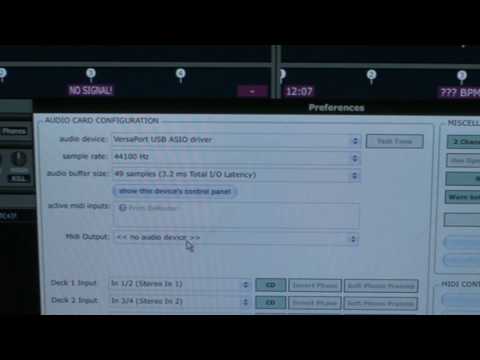
Alright folks, another video on this PC program known as Touch. It's from a company called Intimidation. What I'll do, I'll put a clickable link in the description of this video as well. Now I just want to show you this. I'm going to go down to the bottom right hand corner where we've got preferences. If I click on there, what I'm going to show you... This is how you can set this program to work. First of all, this is very important. When you have the program working, it will be at the forefront of your PC. In other words, this will be above everything else that's working. As soon as you turn this off, then your PC will go back to its normal functionality, let's say. So what I'm going to do is go to show this device control panel. So if we click there and I go to ASIO.
1:11 The latency to 3.2 milliseconds
Now at the moment here, application priority. I've set that to high so we can have low, below normal, normal, above normal and high. So I've set that to high. System preferences, high speed. So relax, no, I'm going to have that at high speed. Okay, so I'm just going to close that. Now at the moment, the audio buffer size, 49 samples, I've got it. The latency to 3.2 milliseconds. Now of course, dependent logically, if I just go a little bit closer so you can see exactly what's going on. Now again, a lot of this is down to the speed of your PC. If you've got quad core and you've got a whole bunch of RAM in there, it can get up to 2.2 milliseconds which is pretty damn good. Now also, this particular program is mapped already for the CDJ-400s. Now, one thing I want to show you with this guy. Alright, let's have a look. Now first of all, it's very important, what you need to do is you have a camera going all over the place there. Punk TV guys, here we go. Right now, what we've got there, we've got output.
2:27 Zoom out and I'm going to click off
And we've got input. You need to go from your music source, from your CD, your vinyl turntable to the input. Then you go from the output into your mixer. Now you'll notice there is a switch, phono and line. Just make sure it's set to line because there is an internal little amplifier there anyway. So another little tip for you. Okay so let's just go back up there. Zoom out and I'm going to click off. No, shall I click off there now? No, I won't actually. I want to show you this as well. Hold on, if I just get a bit closer. Now at the moment, I've got one CDJ plugged in. Right, again, this is quite important. OK, we can click here, CD. If I click over there, it's gone to phono. So again, if you're using CD players, make sure that you're highlighted to CD.
We've got soft phono preamp. Make sure that is not highlighted. Now again, can we see down here? At the moment I've only got one CD player in. That is the sort of picture you want to get. Something that looks a little bit like that and if I start moving the CD player around, you can see, you can hear that. That shows me that we've got everything working hunky-dory there. So I'm going to close that And in a future video, we're going to be looking at bringing the music into the program itself. So there you go, another video on this PC program, DJ PC program known as Touch from Intimidation. Practice and enjoy. Thank you very much.
This transcript was produced automatically from the audio of the video and may contain mistakes.











