 3:47
Traktor Scratch Pro Video 15 Export playlist
Contents of the video
0:00 How, let's say, you can take
Alright folks, quite a long one here but hopefully you'll be able to follow me. Now in this video I'll show you how, let's say, you can take some of your tracks, put them into a folder or into should I say a playlist and then take that particular playlist, put that into an external hard drive or a flash drive, then take that external hard drive or flash drive and you could walk down the road or you could jump on a plane and take it to your mate's house, plug it into his or her PC And then, in essence, you've got your music on their program so you can have a bit of a mash-up and a mess around. Okay, so how do we do that? Okay, if we look at this area, I'm going to just scroll down and I've got a folder here called Export. Now I've called it Export because we're going to export a whole bunch of tracks. Now again, if you're familiar with the likes of this, all you do need to do is highlight all the music you want to export.
1:22 We've got the playlist title which I named export
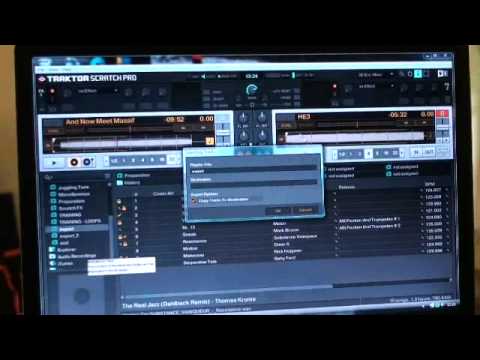
I'm not going to do that now, but basically it's a case of once it's all highlighted you can left click and drag all of those tracks to that area there, export. Alright, now once you've done that what you need to do is right click and you can see just there highlighted export playlist. So what I'm going to do now is I'm going to click on there. Okay, we've got the playlist title which I named export. It's a good idea because it basically means you know that particular folder is let's say for all the tracks you want to export onto like I said external hard drive or a flash drive. But of course we need to know the destination where we want that music to be taken to. So click on destination, click on my computer and in this case I'm going to put it to a small flash drive.
It's taking its time, double click, come on. Right, there we go. OK, I've got removable disc, so I'm going to double click on there and we've got export. Now logically I don't want to do this because it will take quite a bit of time for all that music to go to the flash drive but if I click OK, which I'm not going to do now, I'm just going to click across. So if I have clicked OK there what would have happened or what would be happening now is all that music The small little flash drive here. Once that's done, I can take this out. Now let's say for example we're at the new person's PC. Plug that in. So how do we then get the music from there to there? I'll show you. Right, if I go again over up here to this left hand side, we've got playlists. I'm going to right click on playlists. I'm going to go to import playlist. I'm going to click there.
2:49 Down there, if I click
Okay, what I've got here now is export.nml. I'm going to double click there. During import use, tags from files instead of tags from collections. I want to do that, so I'm just going to click yes. Don't show me this again, you can click that if you want to. So if I click yes, bang, like so. If I just show you down there, if I click there, yes. What will happen then is all of the music I've taken from my PC, from my particular playlists, I've transferred that logically onto the flash drive. I've taken the flash drive out. I put the flash drive into the new PC. Then all of that music now will be on the new PC on my friends program and I can do this wherever and whenever I want to. I hope you get a general idea. Practice and enjoy.
This transcript was produced automatically from the audio of the video and may contain mistakes.











