 1:34
Traktor Scratch Pro, video 7 Managing you'r FX
Contents of the video
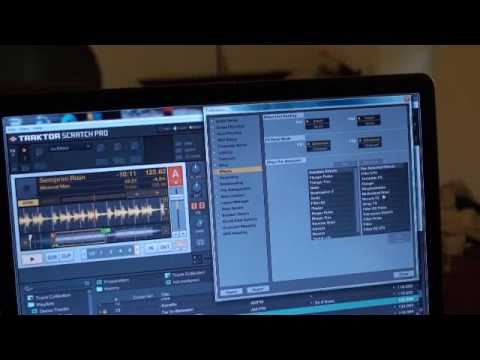
All right guys, another video on Traktor Scratch Pro. In this video we're looking at the effects and at the moment if we look in this box here and I click there, we've got a certain amount of effects. Now let's say for example we want to reduce or expand the amount of effects we've got in here. This is what we need to do. We need to go to the top right hand corner and I'm going to click on preferences. Now here I've got effects. Now again logically I can click through All of these different icons, but in this one we go to effects. Here we've got remove and we've got add. What I need to do if I want to remove some of the effects on this side, I need to go to remove here and highlight one of them or any effect I want to remove, highlight that and double click here. So I'm going to double click down there and as follows, double click.
And I can remove all these. Now what's happening, they will not be removed from your computer at all. They'll just be over here in the add section. So for example now if I just go up and again double click there and there we can see flanger, we can see ring modulation and filter. So I'm going to cancel that and if we go top left hand corner we go to effects. Then I've just got those effects there. So basically now we're left with that amount as opposed to all the initial effects. Another quick video, Traktor Scratch Pro, practice and enjoy.
This transcript was produced automatically from the audio of the video and may contain mistakes.











