 7:00
Virtual DJ Tutorial on Making a Play List BY Ellaskins the DJ Tutor
Contents of the video
0:01 We've got the Pioneer WeGo 3
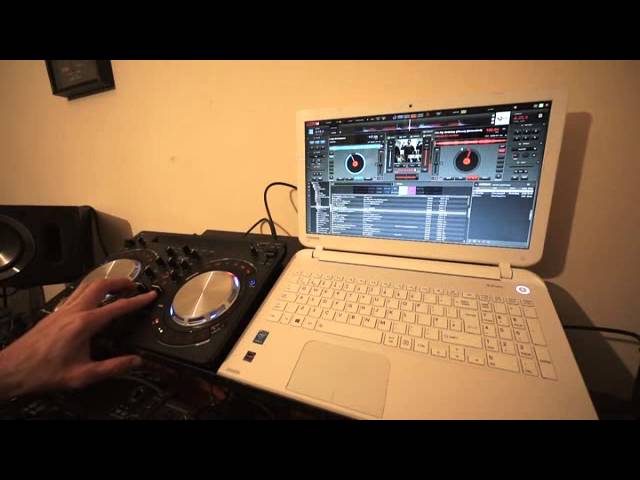
Alright guys, we've got the Pioneer WeGo 3. Also got VirtualDJ. We're using the video version and that's what this video is about. It's about VirtualDJ helping you to form some form of playlist. At the moment we've got Lady Marmalade. There you go. Imagine you're halfway through your set, all of a sudden you get inundated with requests, which does happen, believe me. You're sat there all night, you get one or two, then all of a sudden you just have 20 or 30 come in. Years ago it was a pen and paper. Scraps of paper all over the place. You wrote it down, then you dug through your vinyl or your CDs. Nowadays you can form a playlist on the fly. I think that icon there is side video or side view. Next to that we've got info for the partially sighted.
What I'm doing is I'm clicking on... I'm clicking on two icons to the right hand side, lower right of the software. When we go to info what we get is we get all the information about the track that we have selected here in the search down bar. So at the moment it's my birthday, Will.i.am. So right, I'm just going to move that info out of the way. That's not what we're looking at in this video. OK, so imagine all of a sudden someone has asked for It's My Birthday. Will.i.am. What you need to do first of all is just type in any part of that track title or artist and you should then come up or you'll probably get a lot of info there. But for example, if you put birthday, you could have Stevie Wonder birthday.
2:20 I've now grabbed three
You could have It's My Birthday from the 80s, you know, happy birthday, it's my... Whatever that is, please tell me, forget. But you should then be able to find it. OK, so there. It is Will.i.am featuring Cody Wise, It's My Birthday The Extended. So what I'm going to do now is I'm going to left click there and drag it over into that box there. Now, there it is. It's there. It's happy. It's not doing much at all. OK, let's grab another one. John Legend, all of me will put that over there and we'll go to some 60s classics and we'll grab that one and put it over there. OK, so what I've done? I've now grabbed three. Three tracks that the crowd have requested into this sort of playlist folder on the right hand side.
There's a couple of things I can do here now. One, first of all, is, of course, those tracks are readily available for me to play whenever I want to. So, for example, there you go. All I need to do now is just go and drag one of those tracks and away you go. You can hear that in the background. I'm not going to play this too much too loud because I don't want. YouTube to think that I'm trying to nick their tracks by playing small parts of the tracks, very low volume and talking over them as well. Yeah, exactly. So we just played that track. Now there's another thing we can do is we can go to auto mix. It's entirely up to you if you want to auto mix now the the auto mix don't think all of a sudden software is going to perfectly beat match every single track with a seamless sort of.
4:22 Just going to click to the very end of that track
Seamless. Mix that's perfectly in time and phrase. It's not what it will do, though, is it will blend one track into the other if you're going to use auto mix and you want to form some form of continuity in the music, then I highly recommend that you make sure the tracks that you select are musically matched when you put one next to the other. To the right hand side is off. Just next to we've got auto mix and then we've got total time, and we've got small icon far right. I'm going to click on that now what's happened is all of a sudden the will I am track the way format has now got a new way format underneath it, so I'm just going to put the volume up again on the right hand side. Okay, we can hear that now what I'm going to do.
I'm just going to imagine that we're coming to the latter part of that track. Just going to click to the very end of that track. There it is. So what should happen now is we should now go into the next track there another next track is starting, so the will I am was the top way format. We went straight into the John Legend, which again is back to the top way format and now we've got the next one here. So what's happening is not only. Have we got a playlist were able now to make that playlist into something called an auto mix, so the tracks are just playing one after the other. So two things to think about firstly is during the course of your set if you do get inundated with tracks, you can bring them over into your playlist here ready for whenever they're asked for again or for example someone comes along demands it straight away.
Macarena bung it on fair enough, the other one is let's imagine you've just turned up your setting up and you want some background music, but you don't want to just carry on starting and stopping. You can just drag over if you wanted a complete folder alternatively depending on the night. The crowd may like hip-hop they may like R&B so you can go to hip-hop R&B folder you can drag over tracks that you feel they will like or the classic tracks the ones that you know they're going to love and sing along with them. To put them over and then just hit the auto mix icon. And you should notice as well done if you can see, but again I've got a wide angle lens. I'm trying to get the whole all the kitten is the auto mix icon has gone green now and that tells me that we're in auto mix one important factor as well is that you don't need to mess around with the hardware.
All you need to do is put the volume up. Which I've done like that. We just go to the end of John Legend again or there will not again. We'll go to the end of John Legend. I'm not going to touch the hardware at all on what should happen out if you should get to the next track Venus shocking blue. There you go. So I haven't had to touch the hardware at all. We've just come straight into the next track. All right, hope that's been a help what I will do. I'll put a link to the virtual DJ website and also to the pioneer we go three as well. All right. Hope it's been a help practice. And enjoy. Thank you very much.
This transcript was produced automatically from the audio of the video and may contain mistakes.











