 7:57
VJ Demonstration How to Keep Video Continuity in You Set with Just an Audio Track Playing
Contents of the video
0:01 You don't want to have that blank screen
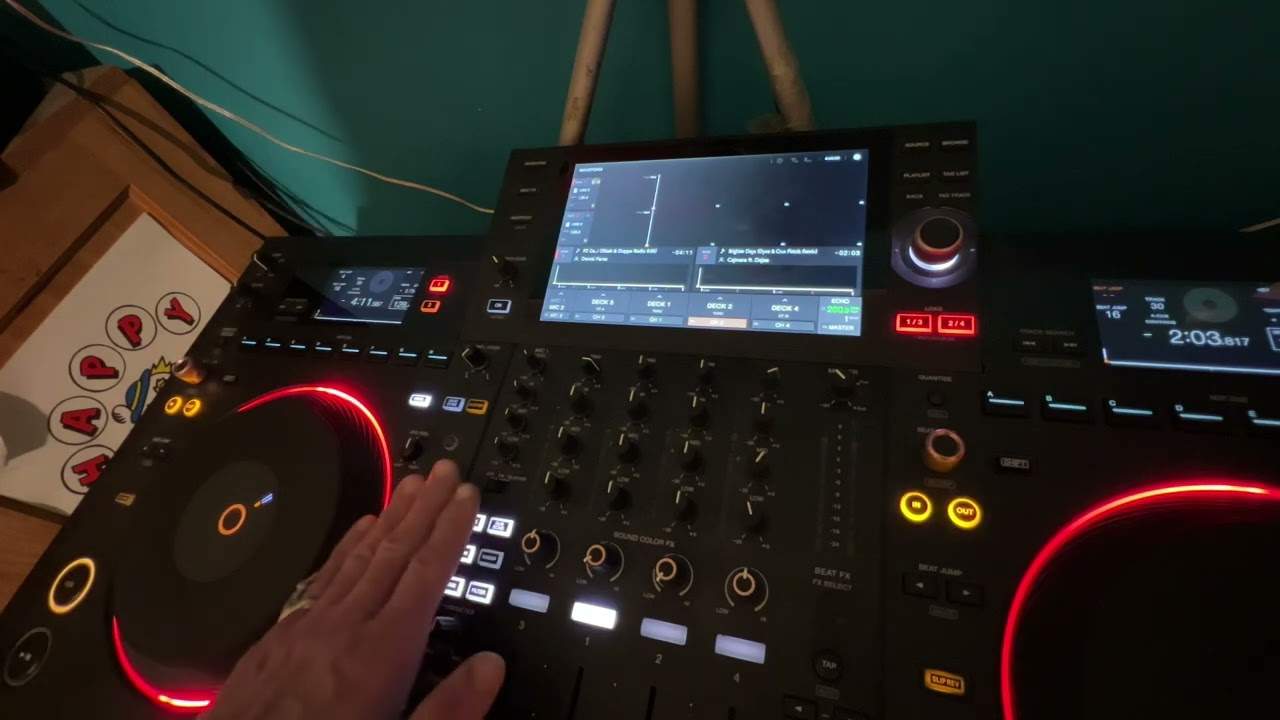
Alright guys, here's a demonstration on showing you how you can keep continuity in your video VJ set. First of all let's imagine 90% of your tracks are video but you've got 10% that's just audio and what you want to do, you want to keep the continuity of the audio but also video. You don't want to have that blank screen. So imagine... You're playing video all night long and of course someone comes along and they say, look have you got this track or that track? You go yes but you haven't got it in video format. Now the last thing you want is a blank screen because if it's just audio the screen that is projecting or the televisions that are projecting the video will of course just go blank and you're left with virtually nothing. So what you need to do, you need to try and keep some form of continuity so there's always something for the people to watch.
Now of course what you will need is you'll need other videos for example on your PC. They could be home videos, they could be random videos you've downloaded or anything. So following these very basic steps you can have a continual supply of not only audio but video. Now again I'm going to do it step by step we're not going to do any super fantastic mixing transitions this is just showing you the steps you'll need to take. Now first of all let's imagine we have A video playing on track, or sorry, on fader number one. So you can hear that playing there and if we look at the top, that is our video. So I'll just pause that. So what we're doing now is we're finding of course the next track to play, the next video. So blah blah blah, we've found the video and we're doing our transition, press play and over we go.
2:16 This area here, this is almost part and parcel of the computer
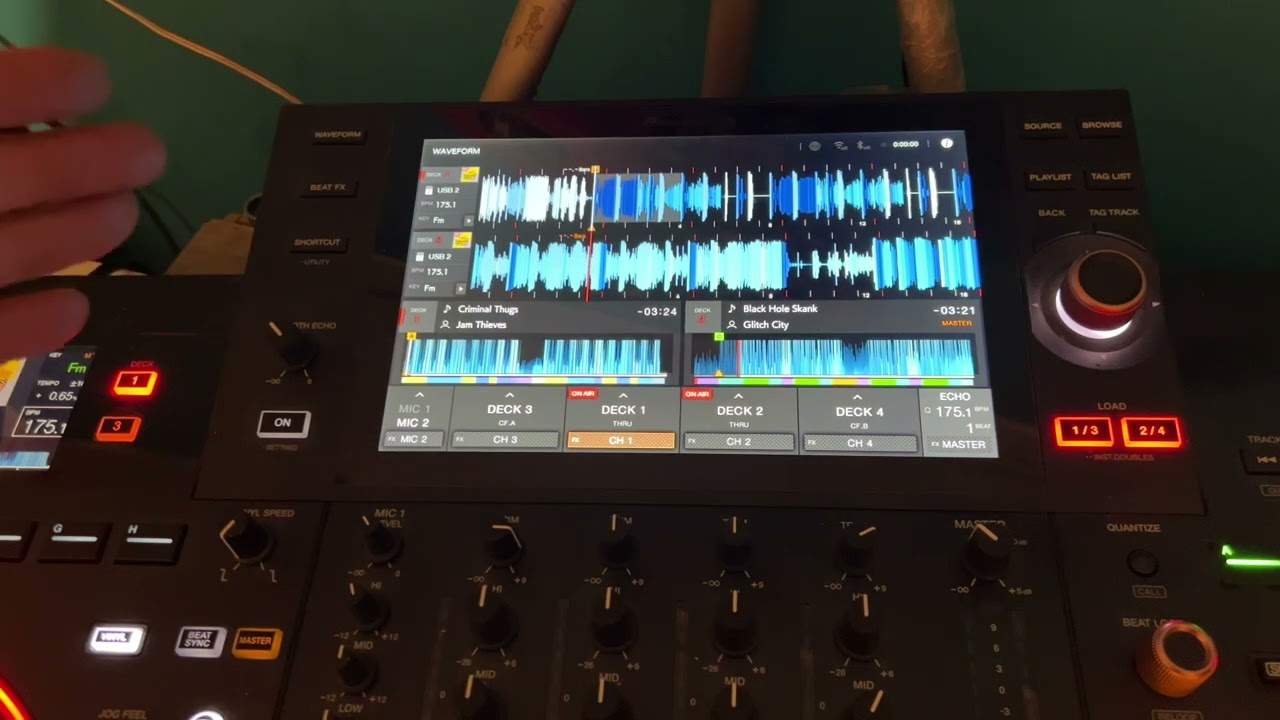
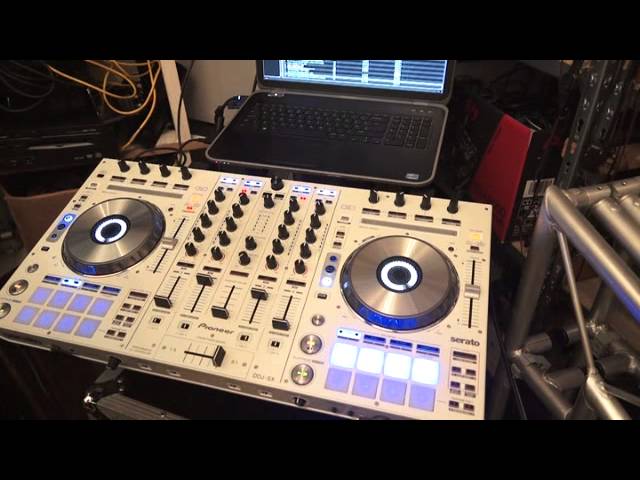
Alright, now I'm just going to pause that. Now this is where it starts getting very interesting and also you've got to imagine that that track is being played, people are watching the video and listening to the audio. What you'll need to do then is go into your PC, go into the settings and if I just zoom in to the screen now, I will be able to show you. So if we have a look at the screen... This area here, this is almost part and parcel of the computer. Now what I've done, I've gone from OS, the C drive, into users, into myself, into videos, and then here I did some live podcasts. So all I need to do now is on the hardware, this is the important bit, if we go down to the hardware... I'm going to press on number four, which is dual deck mode. So now what I can do, I can choose another audio track. So I could choose anything if I wanted to. I could even choose one of the videos because I'll just get the audio from that video. So I'm just going to load that up there and press play, make sure we've got some form of audio.
There we've got audio. But I don't want to play that yet because imagine that's just the audio of the track, or should I say that's just an audio track, no video. What I need to do either before I've done that or afterwards, I need to then go back to channel one and I need to find a video or something that I can overlay the audio on. So like I said, I showed you that earlier on. Here we've got... This is the important bit, this is really important, is you need to make sure that now the channel that you've put your random video on, the audio is turned down. If you don't do that it's highly likely you're going to get a clash of audio which you don't want. So if I now press play we've now got the video
That's the video that I did earlier on, which is exceedingly random. So hold on, we're on channel one and there's the video. So that's the video there. And if I go to about there, in fact, I think this was actually a very random video of the ceiling, which isn't very interesting. So what I might do is put an even more interesting video of something that isn't the ceiling. Press play, or even that one. Let's have a look. That's a bit better. There you go. Just a demonstration. So there's my video now. So if you imagine now this track is still playing and even if we've got the crossfade over again, making sure you know which side you're assigned to on the crossfade for this demonstration, if I just put it to through position like that. So we have this track playing still. If you imagine if we go to deck two again, press play.
5:06 We've still got that playing, but of course I'm just pausing it for no
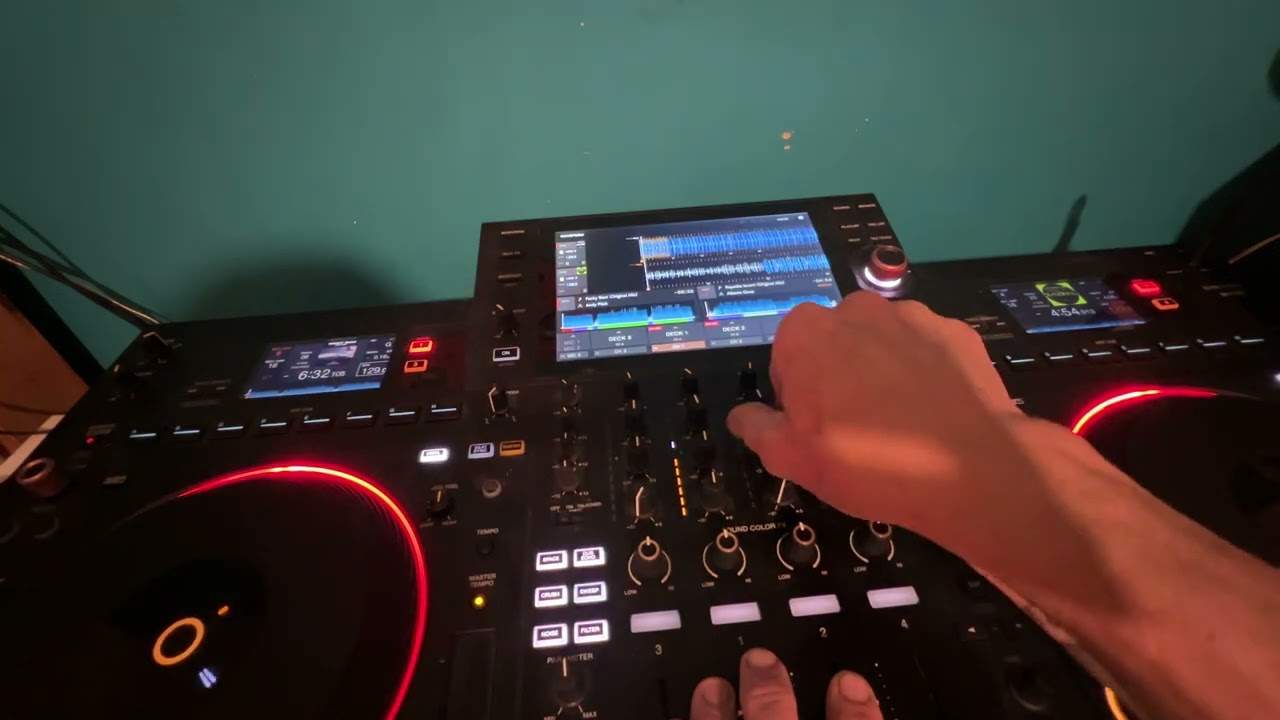
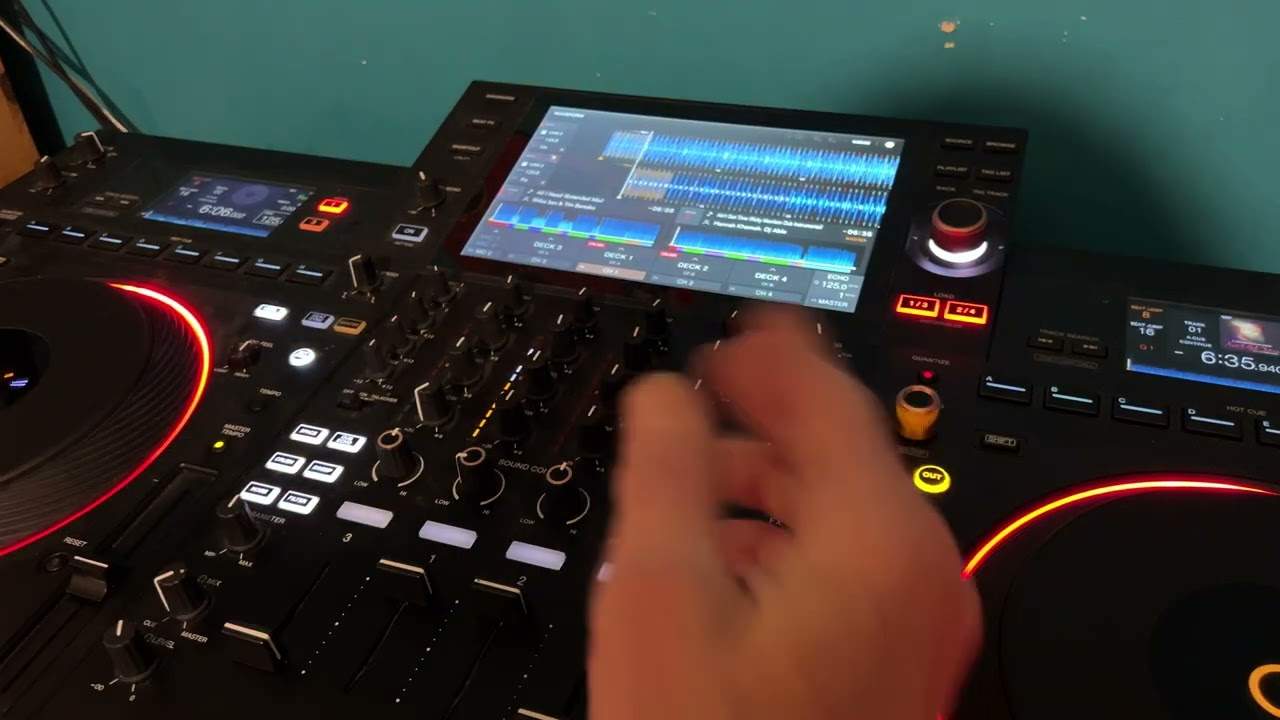
We've still got that playing, but of course I'm just pausing it for now. All I've got to do then is cue that up. We're ready now on channel 4 to bring in the next track. So of course I can press play. So again, this is a demonstration, but I hope you get the idea. So this track is still playing on channel 2, the video. So as soon as I start to bring this one down, what I can do is bring the other two up, press play and now we've got the video, the original video with no audio and we've got the audio from the track with just audio. So what I'm going to try and do now is explain it in slightly less detail but try and explain it relatively quickly because the camera was moving around everywhere. Channel 1, which has got an audio and a video. It's got a video VJ sort of track playing. We then choose our next track on the next channel. So we do our transition and now we've got the video playing on the next track. What we'll do then is because the SX has layer decks, we can go from channel 2, 4 or 1 and 3. So 2 and 4 on the right hand side, 1 and 3 on the left hand side. So of course I was on channel 2.
Originally, in fact, if I just start again. Cut, edit, right. OK, we've got our one track playing on channel one. That's our video. We do our transition video onto deck number two. Then I go and search through my PC some random video and I get that set up and ready on channel one. Just... After doing that or before, I make sure the audio is down because we do not want the audio playing. I then press channel 4 just below the dual deck and now I can choose the audio track. So I've got the audio track ready, that's good to go. And then when we're ready for the transition, all I need to do is press play on the audio, bring the video down and bring the video up. Thank you for watching.
This transcript was produced automatically from the audio of the video and may contain mistakes.