 6:40
Vjay Tutorial 1
Contents of the video
0:00 I'll put the hyperlink in the description
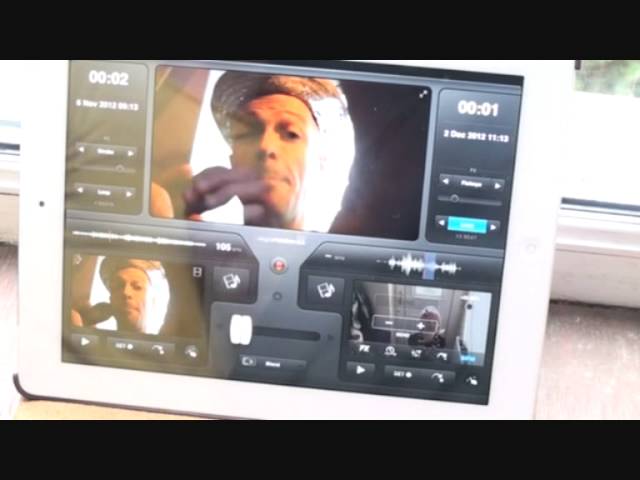
Alright guys, video one, short clips on how to use the VJ app from a company called Algorithm. I'll put the hyperlink in the description. This particular app can be used on the iPad or the iPhone. First of all, as soon as you've loaded up the app, you should have a screen like that, but not this main area and one either side with the images you see. Those are images I've already uploaded. What you'll first need to do is find the images your video worked to put on either side. Now, below there's a small dot in the centre point of the app and to the right and to the left hand side you should see some icons. It's a bit like a camera roll and a musical dot. What you want to do is you want to press one of those sides to load up the video footage.
I'm going to press the left hand side and you'll get a box like that. Now, below that box you should see Featured, then Video, then Camera Roll, Music, then iTunes Store. If you go to the iTunes Store... ...that's where you can buy music videos and load them on to your iPad or your iPhone. If you press Music, then you will go through to the music selection you've got on your iPad or your iPhone. Camera Roll, what that'll let you do is choose the images that you've already recorded on your particular unit. For example, you've done your own recording of your friends, your family. If you want to as well, when you go to Camera Roll... ...top right hand corner... ...you'll see that small icon, Camera. By pressing that I can now record whatever I want to...
...so I can quickly record that, move it around and stop. And then at the bottom right hand corner I can press Use and now I've got that. Move it around and stop, move it around and stop. So I'm just going to pause that so we'll go back to this icon here. And if we press... ...Videos, no results. That's because I have not downloaded any videos on this particular unit. And if I press Featured, those are some preset videos that you may find with the app. So that's small snip number one. I'm going to show you how to load up a video. In this particular snip I'm going to show you how to load up the video that I've done. So I'm going to press on the icon again. We're on Camera Roll and I can scroll through any of the images or the videos should I say I've done.
I'm going to press on one and that's how you'll get it. Press Play and you'll actually pause it. Press Play again and it will play.
3:00 How to find one of the preset featured videos is very simple
How to find one of the preset featured videos is very simple. You press on the icon again and far left hand side you should see Featured. You can scroll then up and down and press on the particular cut you want and away it will go. Bottom centre we have the crossfade. Just place your finger on the icon and as you move your finger, the icon will move with your finger. Below the crossfade we can set how we'd like the transition to be from one of the video images through to the other. So if I press below the crossfade we can see Push, Mosaic, Grid, Swap, Cube. And Blend. Push looks like this, then we have Mosaic, Grid, Swap, Cube and Blend. Any time we want to change the transition we just have to press the icon again below the crossfade and select which one we want.
4:27 Press that and we're now recording
We can as well at any time record the video mixes we do. We can press the centre icon which is highlighted in red and once we press that you can see Start New Recording. Press that and we're now recording. You'll notice that the icon is starting to flash. As soon as we've finished our set and we want to finish the recording, we need to press that again and then press Stop Recording. You'll see it processing. If we press on the recording we've done, there it is. We can either delete that or share. If we press Share, you can delete, sorry I beg your pardon, you can share it to Camera Roll, Facebook or YouTube. If you don't want to, you press Cancel. You can press Delete. Do you want to delete it? Yes. You can either Start New Recording or if you press the recording icon again
Then you're back to square one. And if you do want to then start to record a new set you need to press the recording icon again. Below each screen you've got Play, Set and you've got an arrow with a dot and then you've got sort of an image of someone's finger. By pressing Play you can start what you've recorded and by pressing Play again you can stop it. You'll notice at the top of the image you've got this little wave format so at any time if I want to, I can set a cue point. So by pressing Play and pressing Set where I press that Set icon that will set my cue point. So at the moment you can see a little red line there. If I press Set you'll notice we have two small white lines and in between we have the red line.
I've now set a cue point so if I press Play If I press now Touch the icon with the arrow and the dot it'll carry on going back to that point there. First video on VJ from Algorithms. Hope that's been fun. Practice and enjoy!
This transcript was produced automatically from the audio of the video and may contain mistakes.











