 4:44
Tags: key, BPM and the rest
On YouTube this video is called Complete Beginner DJ Lessons Tags Key BPM Etc
What this lesson teaches
A more advanced lesson folded in early, and worth doing once rather than putting off, because everything it sets up gets used for years.
Adding columns
The bar across the top of the track list - title, artist, length, BPM - is configurable. Right-click anywhere on it and a menu appears listing everything the software can show. Pick key and a key column appears.
Most people never discover this and spend years with the four columns the program shipped with.
Analysing in bulk
If the BPM and key columns are empty, the software has not examined the files yet.
Select a track, hold shift and press down to extend the selection over as many as you like. Right-click the selection, choose batch, then analyse for BPM. The software works through them, filling in the tempo and the key for each.
Do this to your whole library once, with the laptop plugged in, while you do something else.
The payoff: sorting
This is the part that makes it worth the trouble. Click a column heading and the list sorts by it. Click again and it reverses.
- Sort by length to find something short enough to fit a gap.
- Sort by BPM and every track at a workable tempo is together. You are no longer hunting for something that will mix with what is playing; you are looking at a shortlist.
- Sort by key and harmonically compatible tracks sit next to each other.
His example is the practical one: a set of house records at similar tempos, sorted by key, is most of the work of a smooth-sounding mix done before you start.
That is also the groundwork for the mixing-in-key course much later in the curriculum. None of that is usable until the tags exist, which is why this lesson belongs here rather than there.
Contents of the video
0:01 Tagging our tracks
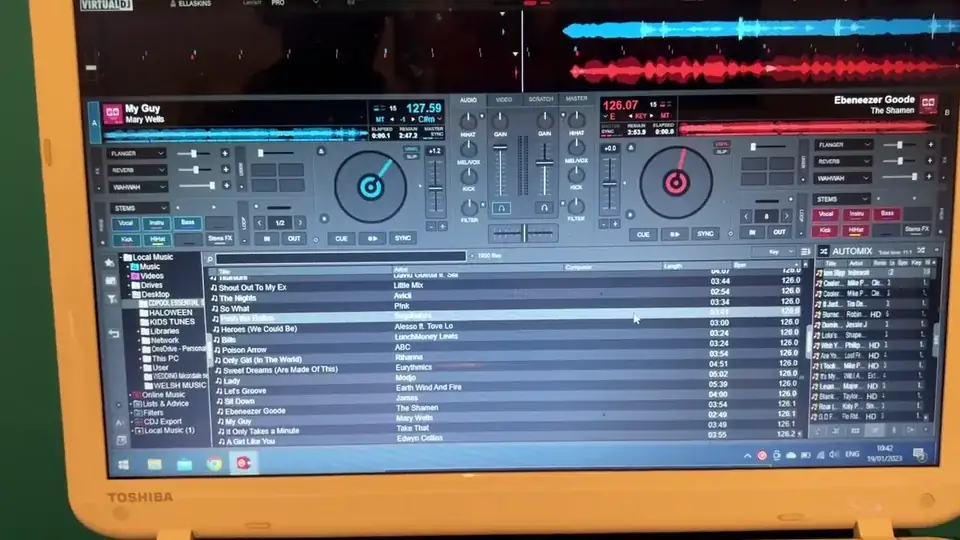
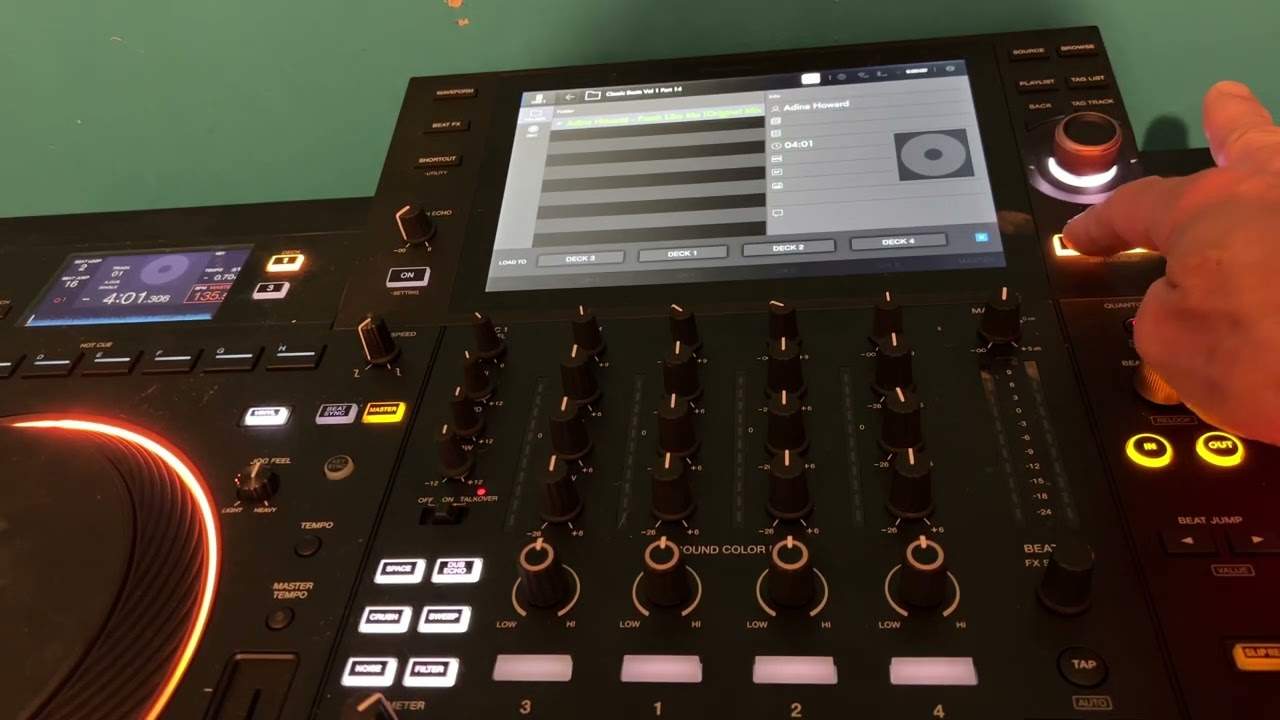
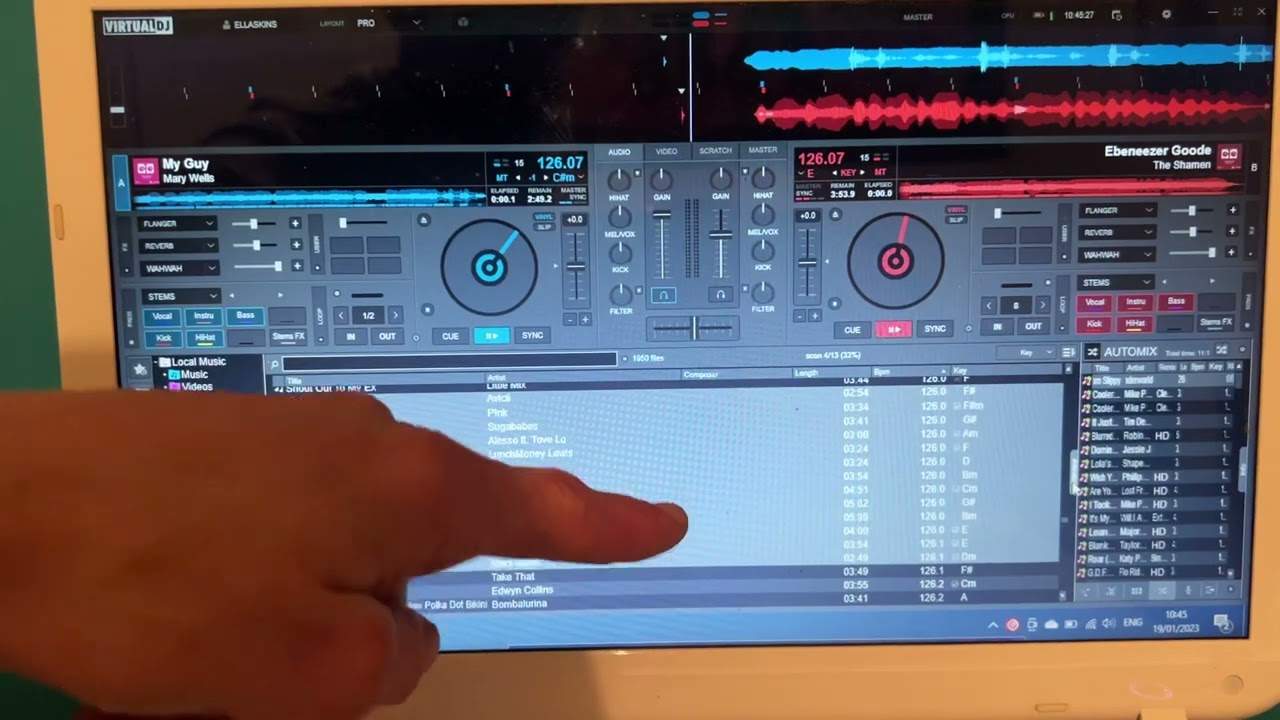
Right, ladies and gentlemen, video number six for the complete and utter beginner. We're looking at DJ programs. Just for this demonstration, I'm using VirtualDJ and we're going to look at tagging our tracks. Now, first of all, when you do load your tracks into the central box, all you will have is the tags that you originally had on your computer. So in other words, you had a hundred tracks which were just tagged with, say, title and artist. That's probably what you will only get. But what you can do following these instructions, and this is just for VirtualDJ, but I'm sure it's very similar for other programs, following this demonstration, you'll be able to get the BPM, etc. So very quickly, what we have here is the area where we have title, artist, composer, length, BPM.
1:38 I've got a drop down menu
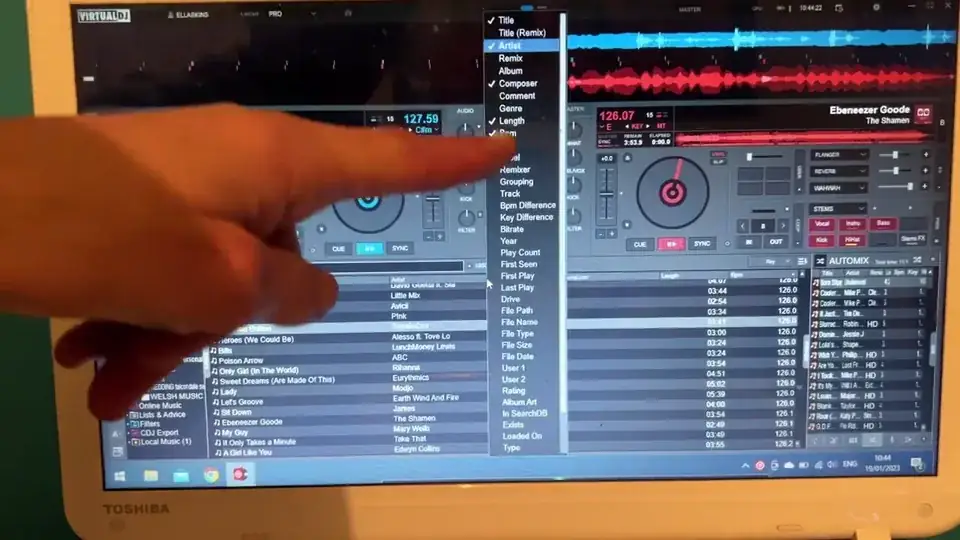
So this is the same in practically every single other program. This area will show you, this bar will show you, of course, how the tracks have been tagged. So title, we have the title of the tracks, artist, the artist of the tracks, the length and the BPM. But let's imagine, first of all, I want to add the key. So what I'm going to do, take my mouse and I'm going to just put the mouse over that bar. I can put it anywhere I want on that bar at all. So I'm just going to put it, say, there, for example. I'm now going to right click. Now I've got a drop down menu. And I can add any of these things. I can add any of these to that bar. So, for example, I want to add key. So I'm going to add key. And now the keys are already there.
But let's just imagine that the keys aren't there. And I want to get the keys of those tracks. So what I can do, even though I've got the tracks already, I'll run you through what you need to do. Now I'm going to highlight one. I'm going to press shift and arrow down. And you should see now. Those tracks highlighted. Now I'm going to leave the mouse over those tracks. I'm not going to right click and you should see tag editor, editor and batch. Now I'm going to highlight on batch. Click down. Oh, sorry, I need to do that again. Right click. Sorry, click batch or highlight over batch. And now we can see analyze for BPM, etcetera. So I'm gonna press that. Analyze for BPM. And then you should be able to see now what's happening is the software is analyzing, even though it's already done it.
2:52 We have different lengths, different BPM
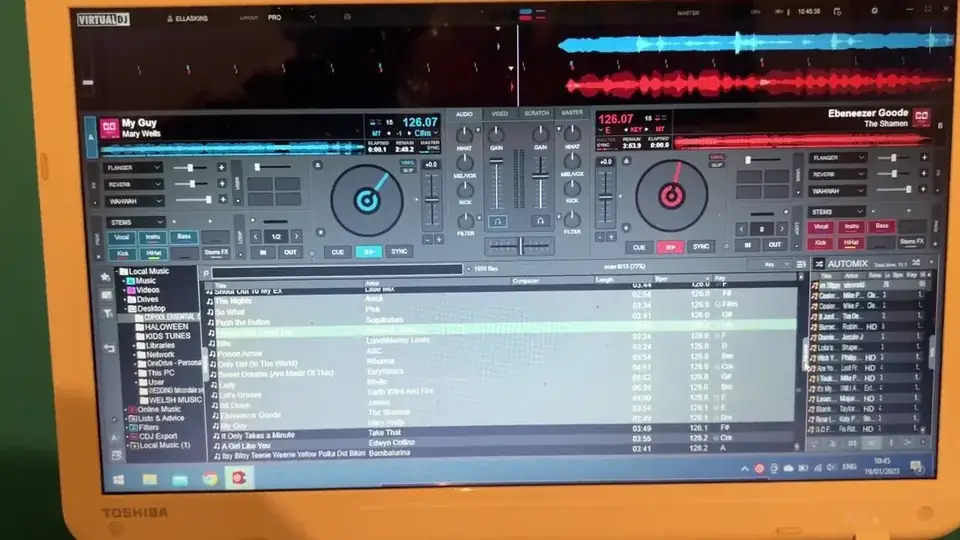
If your files haven't gone through this process as this bar runs through each file, you should indeed be able to see the BPM and the key. Okay, so that's a great way of getting BPM and key at the moment as well. You should be able to see that. We have different lengths, different BPM. Oh no, we haven't got different BPMs, but we've got different lengths and we have different keys. Now let's imagine I want to have all my tracks set in the shortest amount of time that they run for on the longest. So all I need to do now is click on length on what the software will do is it will set it out so we can either have the shortest amount of time for the track at the beginning and the longest at the end. But if I click on length again, it will turn around.
So now if I go up, all being well, I now have the longest amount of time at the top and the shortest at the bottom, we can do exactly the same with the BPM. So if I want to, I can click BPM and now they're all together in the same BPMs. So again, it should run from. From slow to fast or faster, slow. We can do the same with key so we can set all of the tracks into key. So for example, if you do want a key mix and most of your tracks say house music that are very similar BPM, click on the key and then all of the tracks are now harmonically put together, which means you should have a nice sounding mix. So I hope that's a help video number six. Thanks for watching. Practice and enjoy.
This transcript was produced automatically from the audio of the video and may contain mistakes.
This video is part of
Related videos
-
Complete Beginner DJ Mixing Lessons Video 19 Getting Your Kit Ready for an Easy Mix
A whole lesson on getting ready, which is the right call - the exercise in the next video only teaches anything if the two decks are…
-
Complete Beginner DJ Lessons Video 9 Setting up a Cue Point and Using the Play Button
Short, and it covers a piece of behaviour that will confuse you exactly once if nobody explains it. The normal case Load a track and the…