 2:47
Using the effects, and what they do
On YouTube this video is called Complete Beginner DJ Lessons Video 14 Using the Effects FX and What They Do
What this lesson teaches
Effects sections look intimidating and are not. There are four controls, they do the same four things on every machine, and the only thing that varies is the list of effects.
On / off
The simplest. When it is lit or flashing, the selected effect is being applied to the audio.
Level, or depth
How much of the effect you hear against the original sound.
At minimum you will barely notice it. At maximum the effect swamps the track. His advice - about halfway - is right, because that is where you hear the original and the effect together, which is almost always what you want. An effect that has replaced the music is not an effect, it is a different record.
Time
The effect's timing in relation to the beat, and the clearest way to understand it is with an echo.
An echo repeats the sound at intervals. The time control sets how long those intervals are. Clockwise lengthens the gap between repeats; anticlockwise shortens it, until the repeats are so close together they stop sounding like echo and start sounding like a texture.
On most units this is expressed in beat divisions - a half beat, one beat, two - and setting it to a division of the tempo is what makes an effect sound deliberate rather than slathered on.
Channel select
Which channel the effect is applied to - deck one, deck two, the microphone, or the whole mix.
Easy to forget and the usual cause of "I turned the effect on and nothing happened". It was happening, on the other deck.
The order to do it in
His sequence is the right one and worth following every time: choose the effect, choose the channel, set the time, set the depth, and only then switch it on.
Setting depth and time before engaging means the first thing the room hears is what you intended. Turning it on first and then adjusting means the room hears you finding your way.
Contents of the video
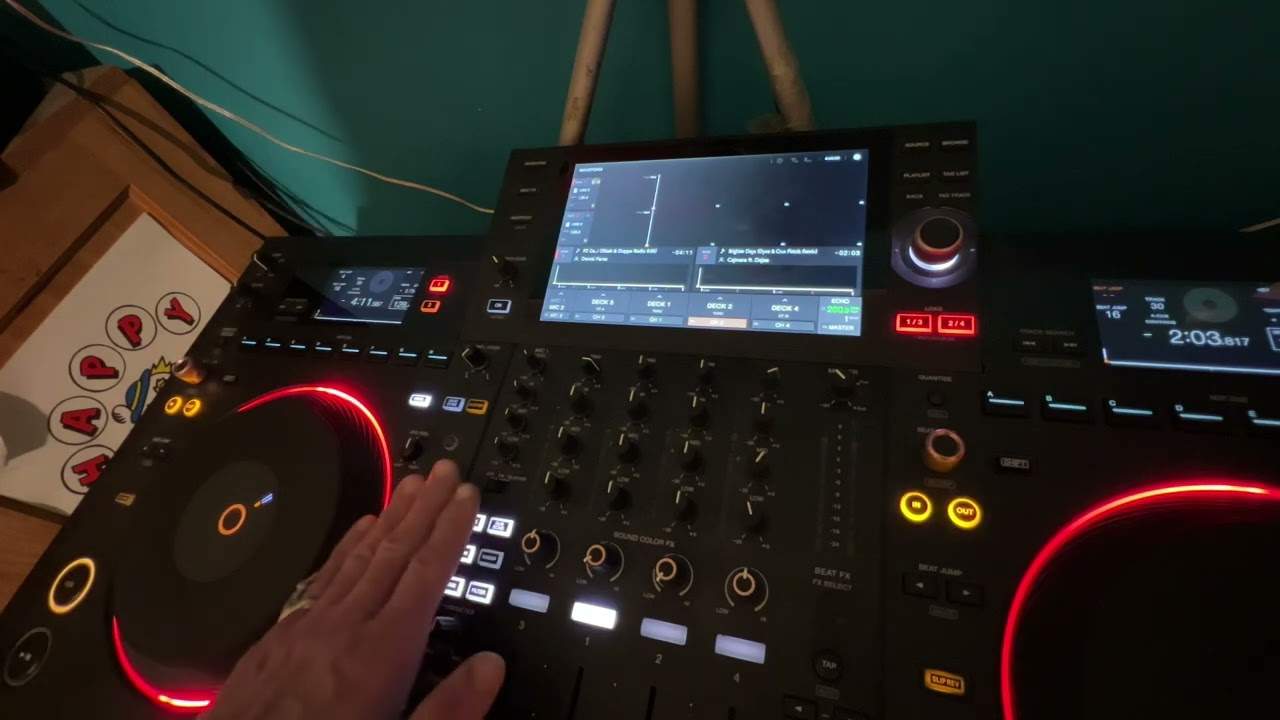
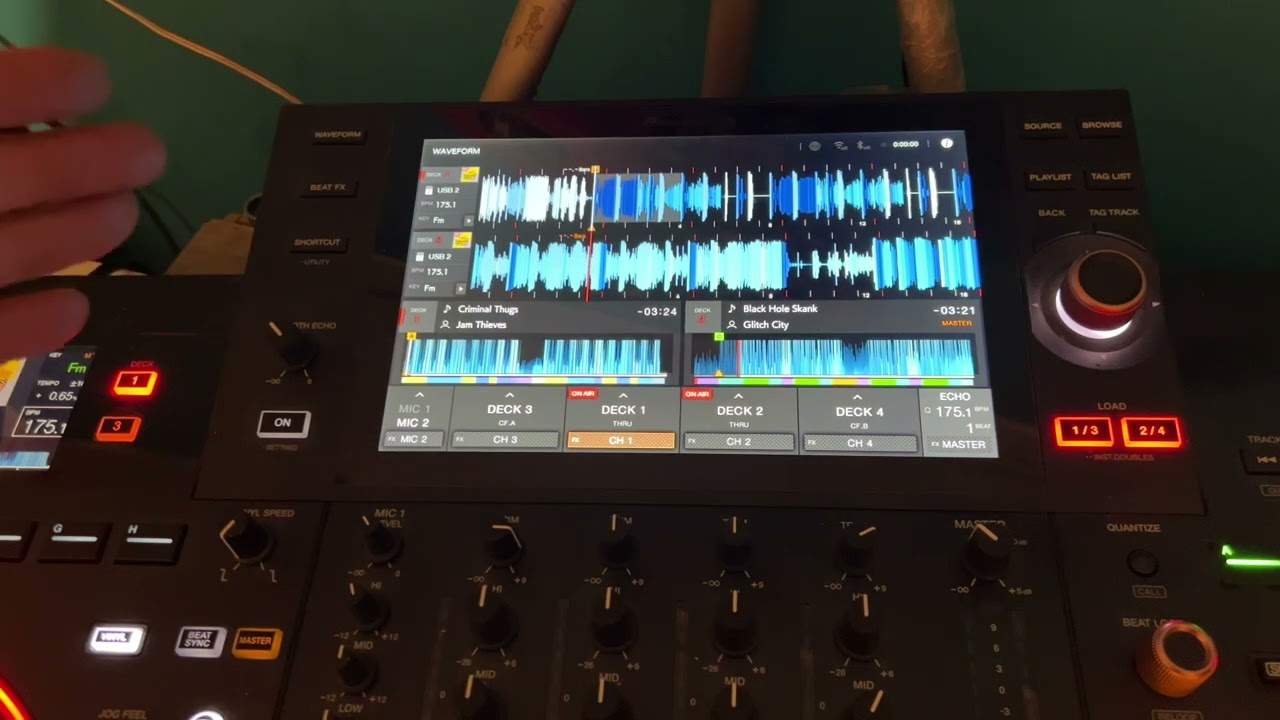
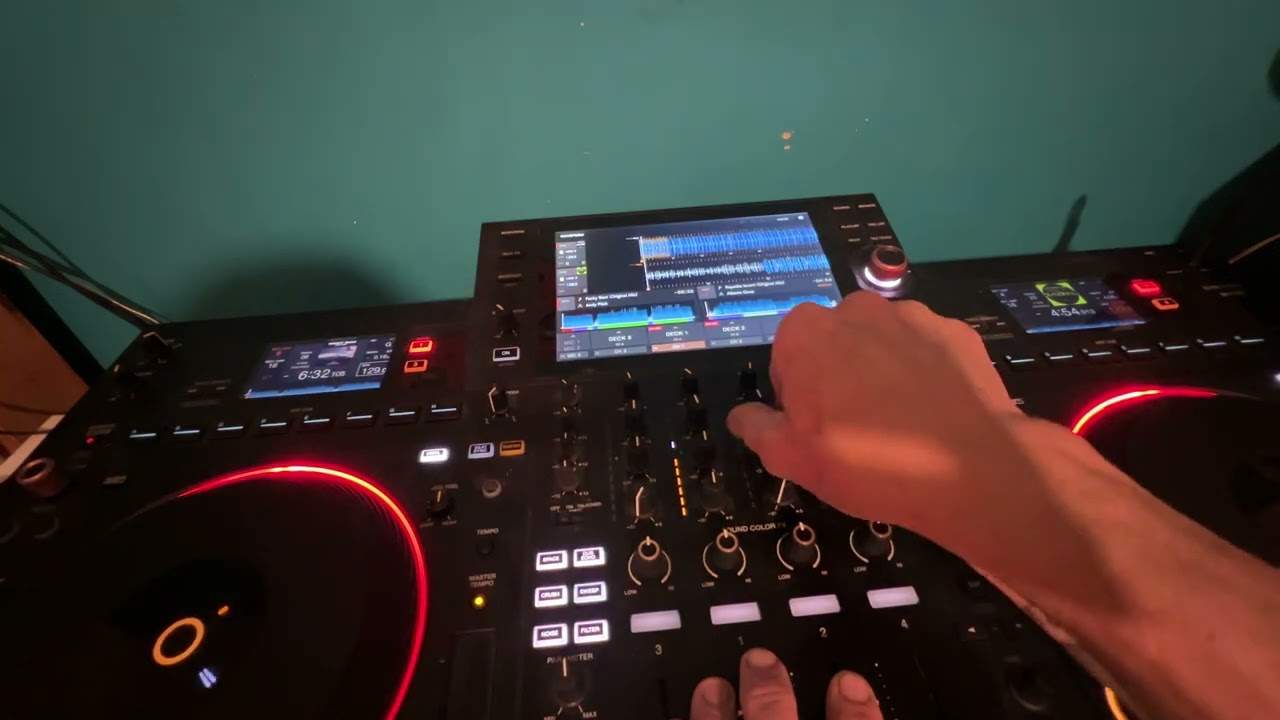
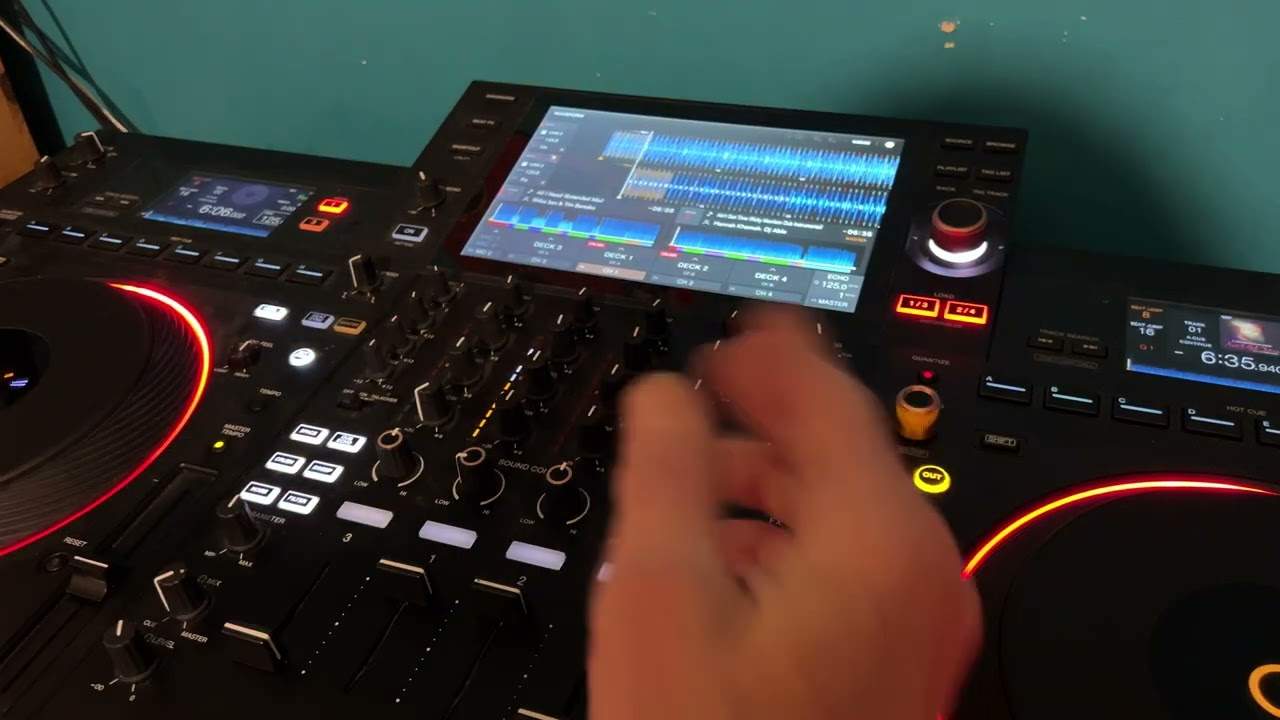
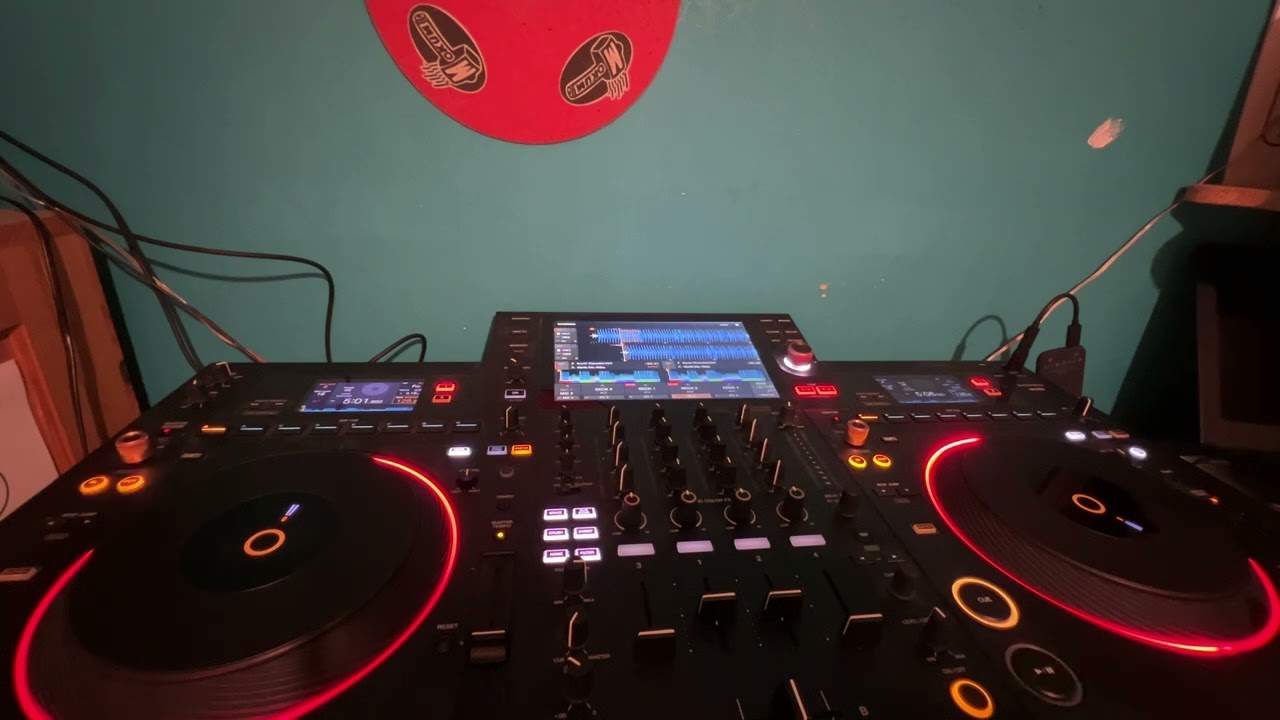
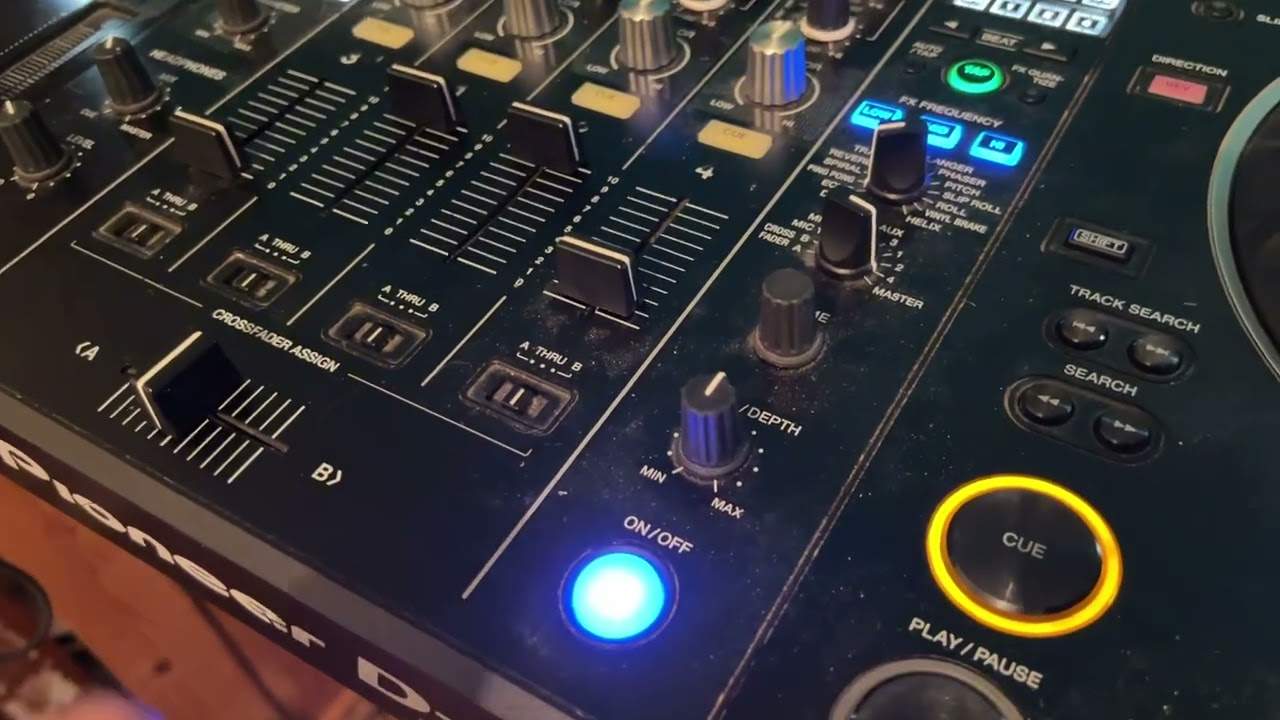
Right guys, video number 14 for the complete total and utter novice beginner on the effects. So we're going to really run through how to use them and in a way what they do as well. Now you can see the effects button here on off. We have level depth. We have something here called time. We have channel select. We have our effects as well. So what I've shown you there is very simple. Similar to what you should have either on your controller or on your software. So I'm going to run through exactly what these functions do, what these buttons, dials, knobs, whatever you want to call them. Here we've got a button on and off. Very simple. When that is flashing, that means that the effect that you have allocated will be happening over the audio. Very simple.
Level depth. Now that's quite a cool one because what that will let you do is have a certain amount of the effect over the audio. So if it's at minimum, you're probably not going to hear the effect at all. It's always good to have it about halfway so you have this the original sound and the effect over that sound timing. What that is, is very simply when you engage the effect, the effect will have a certain time parameter over the beat or the music that you're playing. If you want to increase that timing, you can turn it one way. If you want to decrease it, you turn it the other way. So for example, if you've got an echo and let's say in between each echo, there's half a second. If you move the dial clockwise,
You're going to increase the echo. So the echo, the gap in between the echo will increase. If you turn the dial anti-clockwise, the gap in between the echo will decrease. This style here, very, very simple. This is allocation for the effect. So we can run through microphone or channels. And of course this one here is for the effects. So I choose my effect. I choose where I want my effect to be used on. I set my time, I set the amount of effect and I press on off. And now I have engaged that effect. Hope that's a help. Video 14, practice and enjoy. Thank you.
This transcript was produced automatically from the audio of the video and may contain mistakes.