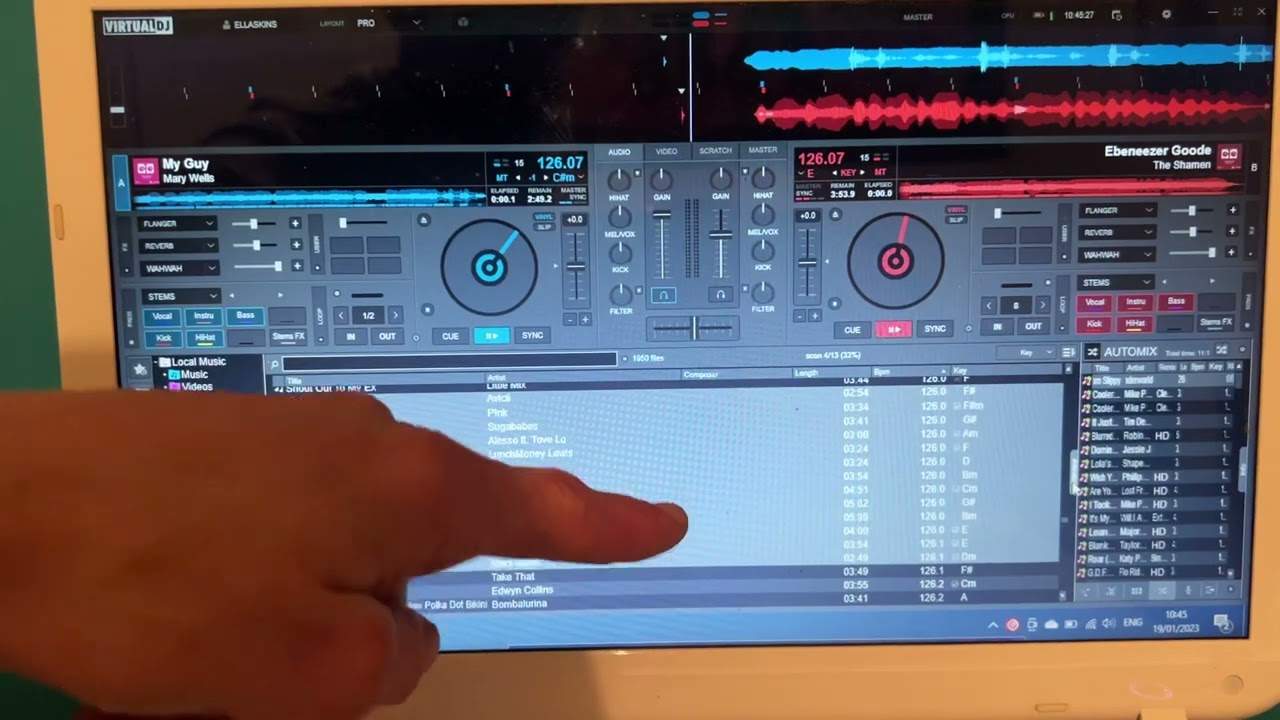
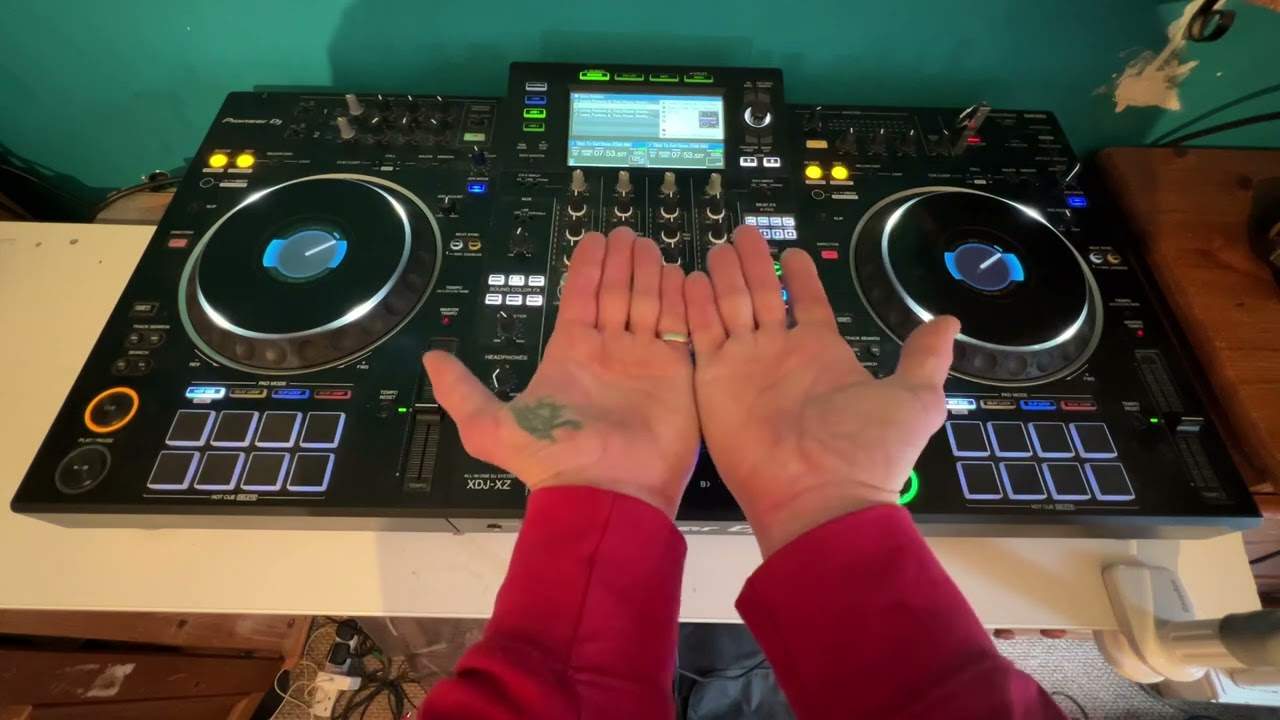
 3:48
The screen on a DJ controller - what it is for
On YouTube this video is called Complete Beginner DJ Lessons Video 2 a Look at the Screen on a DJ Controller What's It For?
What this lesson teaches
A lot of controllers now have a screen, and this lesson is about what that buys you: the ability to leave the laptop at home entirely.
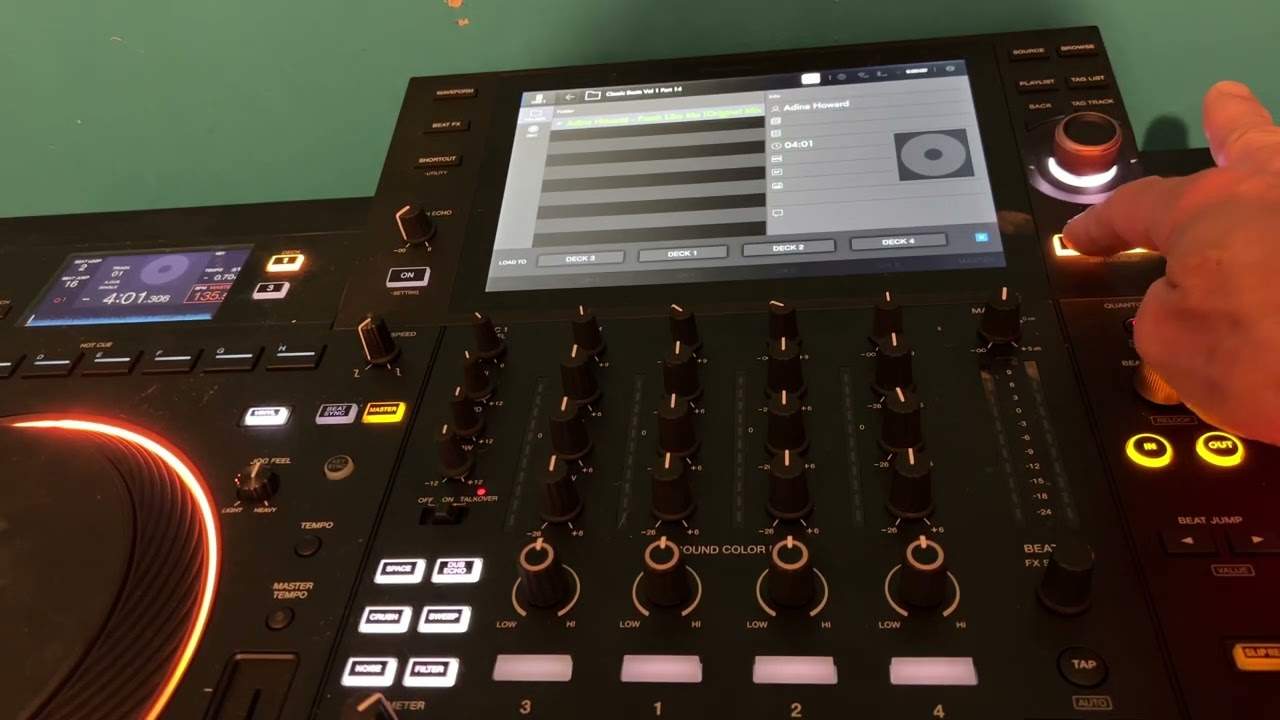
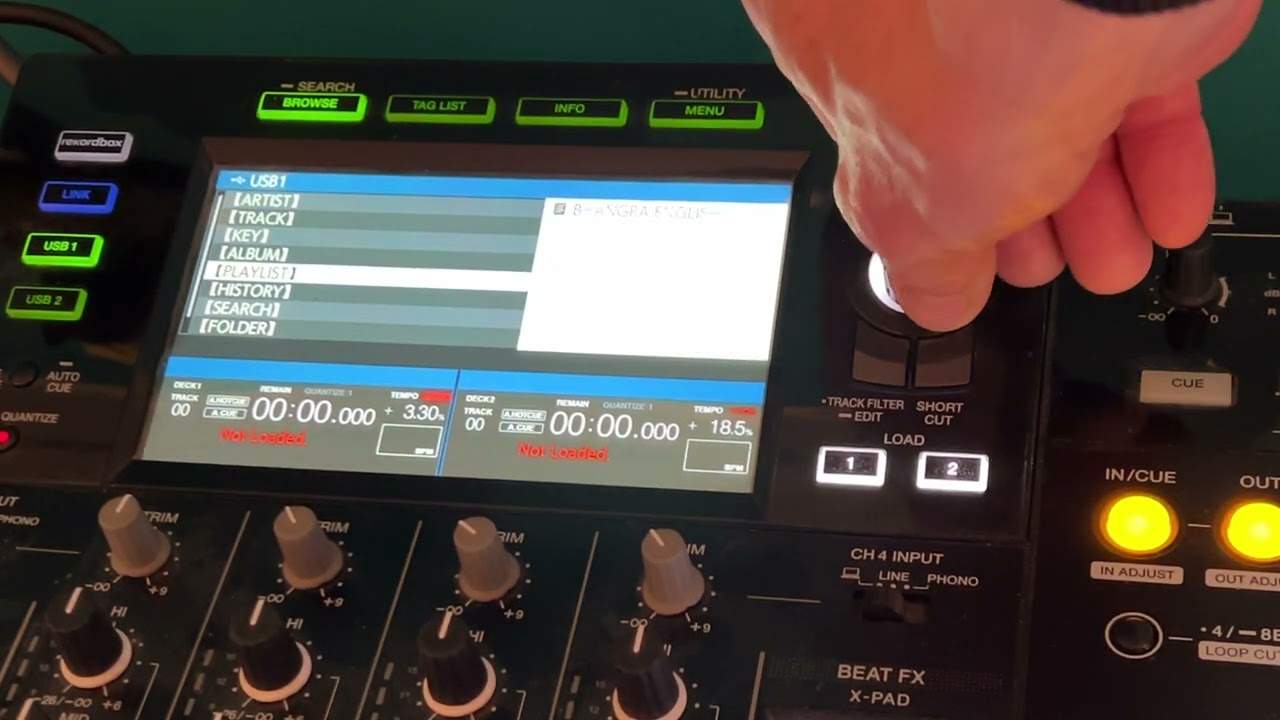
Plug in a USB stick and the browser offers seven ways in.
The straightforward ones
Artist, Track and Album list alphabetically, and the detail worth knowing is that pressing down again gives you an alphabet jump - A, B, C - so a library of several hundred takes two presses to get near rather than a minute of scrolling.
Key lists your tracks by musical key, which will matter a great deal later in the curriculum and can be ignored for now.
Playlist shows any playlists on the stick. Search gives you an on-screen keyboard; type a couple of letters and everything matching appears.
Folder, which is the one that frees you
Folder browses the stick exactly as your computer would.
That is more significant than it sounds. It means you do not have to prepare the stick in rekordbox if you do not want to. Drag a pile of MP3s into named folders on your laptop, put the stick in, and they are all there and playable.
You lose the analysis - the waveforms, the beat grids, the stored cue points - which is a real loss and the reason to prepare properly when you can. But the night your preparation did not happen, the folder view means you can still play.
History, which is the one people forget
Every time you play a set from that stick, the player writes down what you played and in what order.
So weeks later you can go into History, find that night, and see the running order. Anyone who has been asked "what was that one about an hour in?" the following morning will understand why this matters - and anyone who has tried to recreate a set that went particularly well will understand it more.
Contents of the video
0:01 Video number two for the complete, total and utter beginner DJ
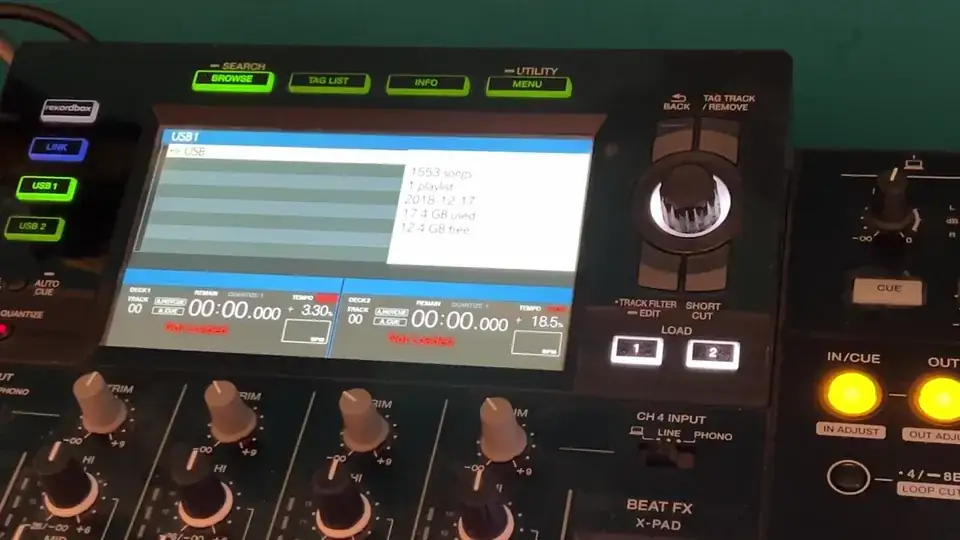
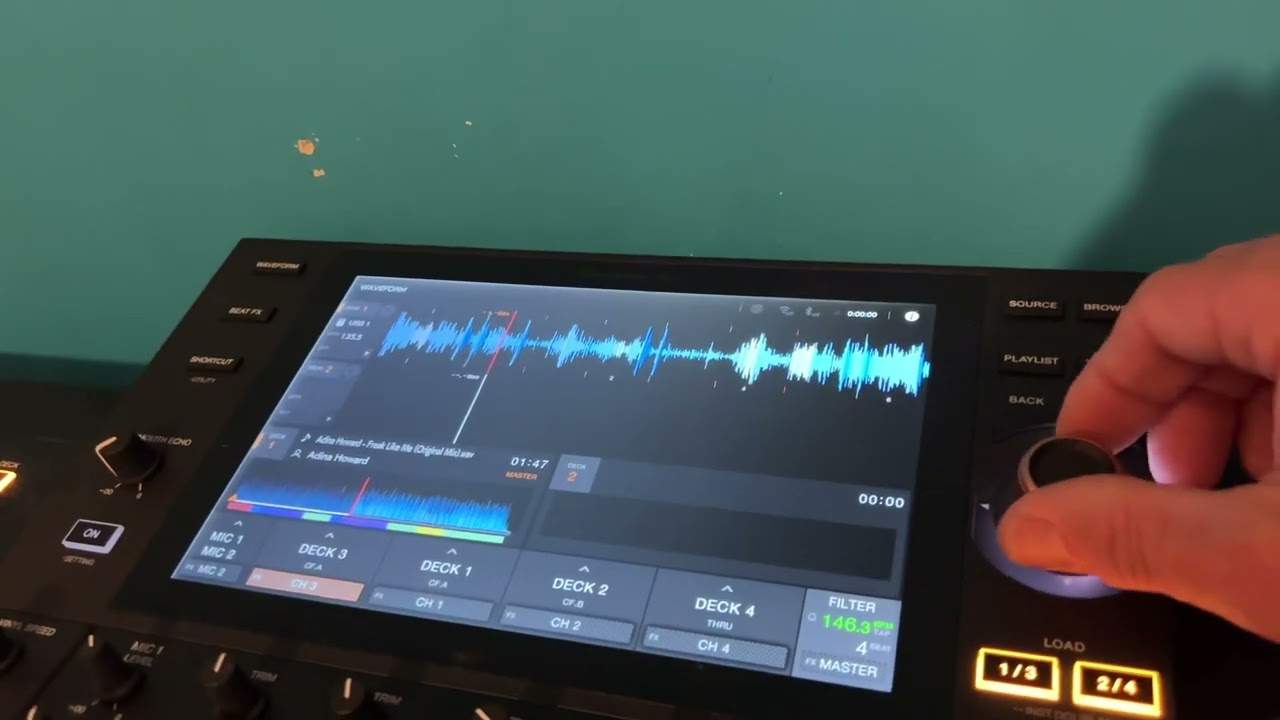
Video number two for the complete, total and utter beginner DJ. In this video we're looking at the screen and how we can find a track, load the track, also what you can expect to see very briefly on the screen. Be going over what you will be looking at on a laptop when you do indeed download your program, but for this video number two we're going to be looking at the screen because a lot of controllers now do have a screen and it gives you the opportunity of not having to plug in a laptop which really is the way forward. So I've got a USB plug plugged in also known as a stick drive going to press down and now we have a screen like this where we can choose artist track keys. We can also choose artist track keys for the album, playlist, history, search and folder.
1:15 Track, press down exactly the same
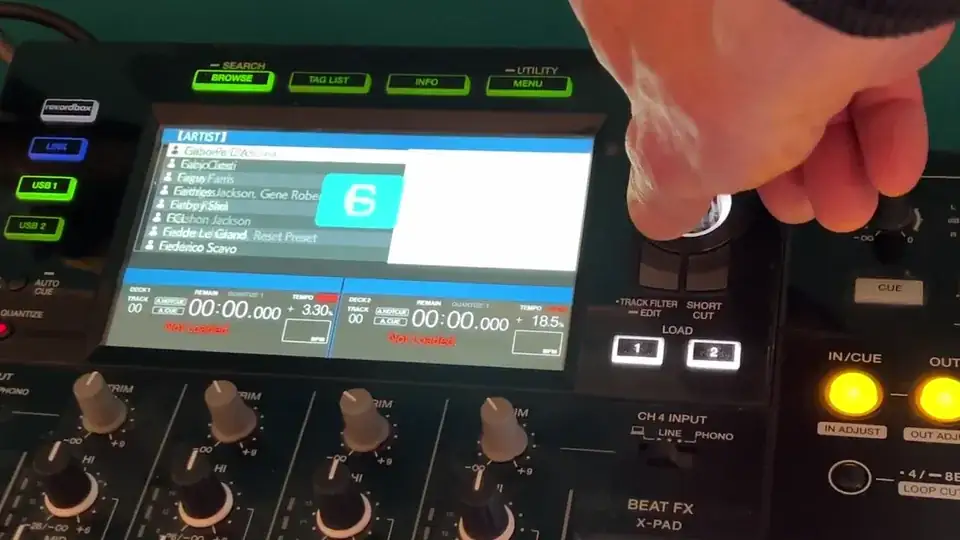
So we'll go over very briefly all of what I've just explained. So the artist is basically of course the artist of the track, so if you want to search via artist what I'm going to do is press down and now I can search via artist in alphabetical order. If I do have a lot of artists though, what I can do is I can press down and now you can see that I've got a list of artists on my list. You can see A highlighted. I can now go through the alphabet very quickly and search a lot quicker to find the artist I want based on the first letter of their name and so on. Let's go back, go to track, press down exactly the same thing alphabetical order but if I press down I can now search alphabetically. Go back. We have something called key which I will cover in greater detail in future videos so we can go through the keys.
2:22 History and it will make
We can choose a certain key if we press down and down again, we now have those tracks in that key back and back and once more album. Again, if you've tagged your files correctly and you have the album title, go to the albums exactly the same as artist and track. You can search. Search alphabetically. Playlist, that's if you've actually got any playlists on your stick drive. History, this is really clever because let's say four or five weeks ago you played five or six tracks and you just want to remember that set then you can go to history and it will make a note of every time you've played a set using the tracks on that thumb drive and it will be in your history selection and you can go through like so and also you can see a list of the tracks that it's played.
Search, this is quite clever we have a keyboard there so we can search a track and those tracks will come up. So let's just go back. So you can see I put AD there so basically anything that's tagged with an A and a D will come up and again. You can search and load the track easily there. Go back course here we have folders so any folders on your thumb drive will be found here. So even if you don't use the recommended record box software with pioneer and you've just got your thumb drive stick drive stuck in your laptop, you've got a whole bunch of MP3 files. You put them into a folder. You name it then they'll come up in the folder. All right, video number two. Thank you very much. Practice and enjoy.
This transcript was produced automatically from the audio of the video and may contain mistakes.
This video is part of
Related videos
-
Complete Beginner DJ Lessons Tags Key BPM Etc
A more advanced lesson folded in early, and worth doing once rather than putting off, because everything it sets up gets used for years…
-
Complete Beginner DJ Mixing Lessons Video 19 Getting Your Kit Ready for an Easy Mix
A whole lesson on getting ready, which is the right call - the exercise in the next video only teaches anything if the two decks are…