 1:24
Where to find the music folders
On YouTube this video is called Complete Beginner DJ Lessons Where to Find the Music Folders
What this lesson teaches
The shortest lesson in this block, and it answers a question that stops people on day one: the software opened, and there is no music in it.
Where the music is
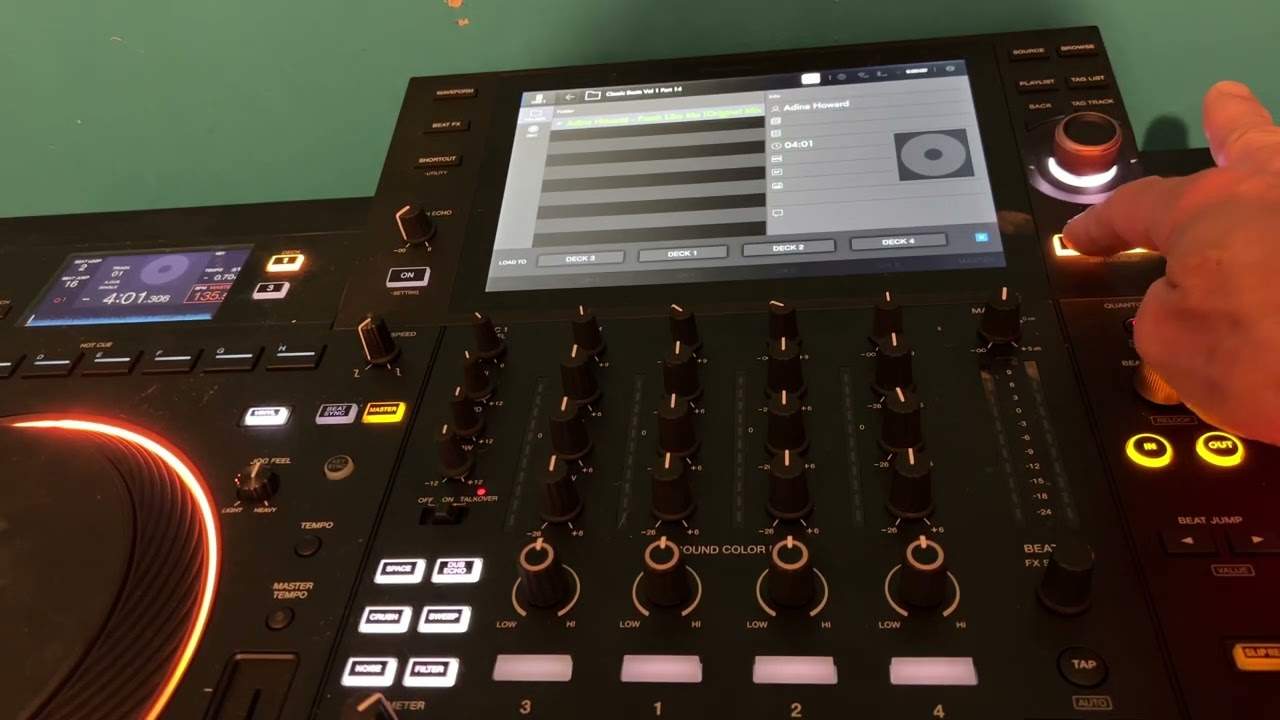
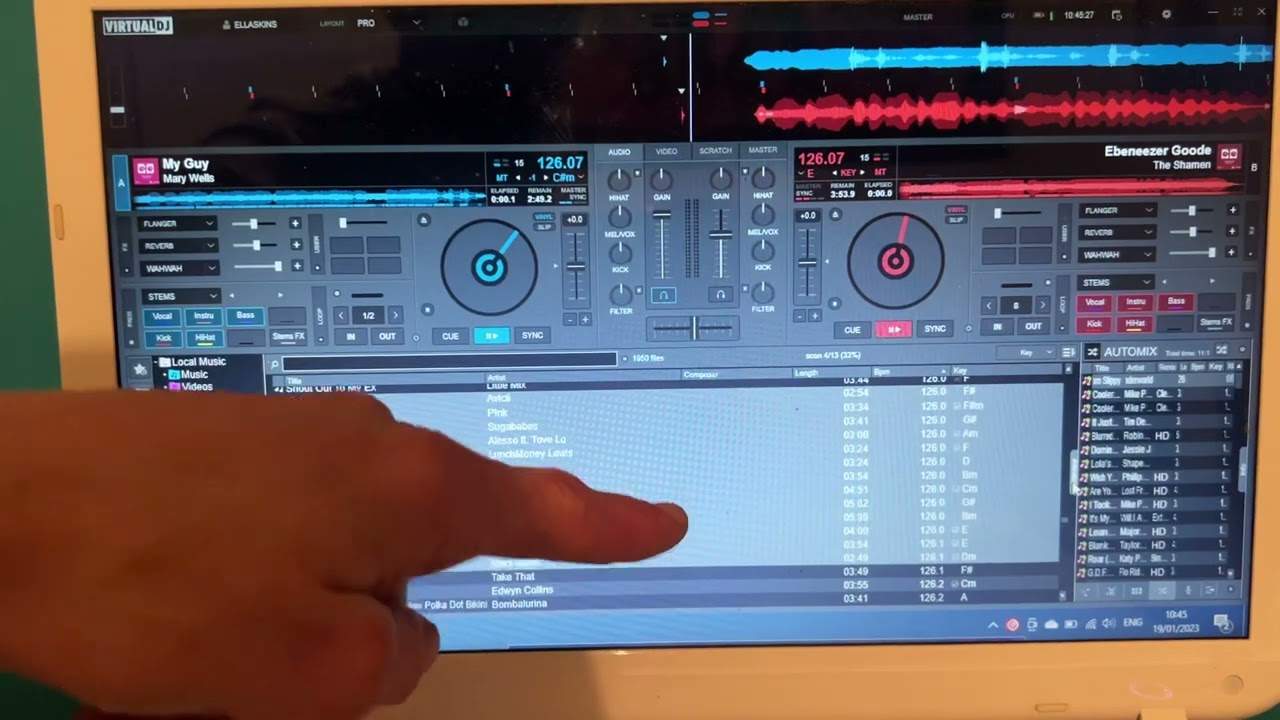
Down the left of the screen is a list of locations - the same drives, folders and shortcuts your computer already has. His music is on the desktop, so he clicks there.
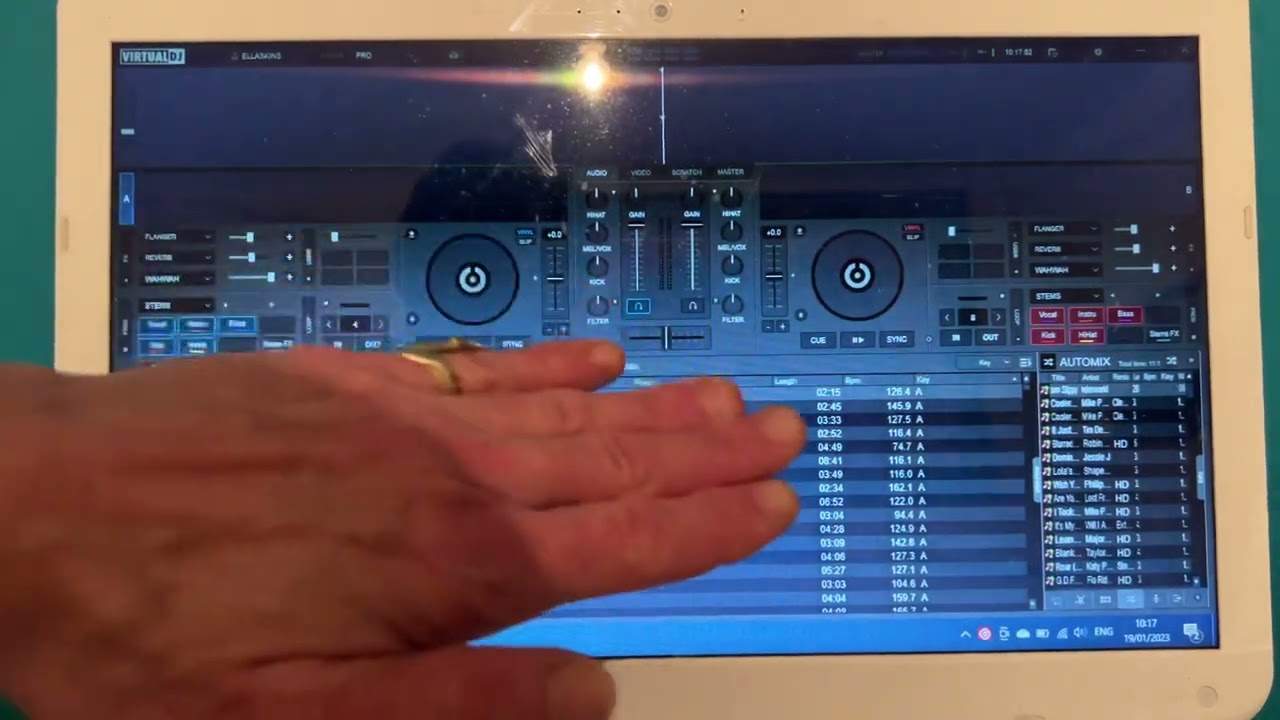
Click a folder and its contents appear in the main panel in the middle. Click a different folder and the first lot disappear, replaced by the new ones.
That is the whole mechanism.
The model worth holding
The reason to spend a moment on something this simple is that it sets up how you think about the software for everything afterwards.
The program is not storing your music. It is looking at folders that already exist on your machine. Move a folder in Windows or on the Mac and the software will lose track of it; rename a file and the program will not find it.
That is also why the next step - a library, with analysis and tags written into it - exists at all. Browsing folders is fine for finding something now. A library is what lets the software remember what it learned about a track the last time it saw it.
For today, though: find the folder, click it, and the tracks are there.
Contents of the video
Video number two for the complete and utter beginner in this selection of videos, we're looking at the software. And again, just to clarify, if you haven't seen video number one, I'm using the screen right in front of me so you can see it live as there we go, there I am. And I'm just using VirtualDJ. But basically, any program you're using will pretty much follow exactly what I'm going to explain. On the left hand side of your screen, you will see icons relating to your laptop, to your computer. And basically, all you need to do is find where your music is. So I've got my music on the desktop at the moment. So I'm going to click there. Now I've got icons here, I can highlight one of those icons, click down. And now we should get all of the tracks or the files in the main area here. So very simple, very quick video
Explaining how to find the tracks on the laptop you're using, and how to load them. Now if I want to select a new set of tracks, all I have to do is highlight to another folder, click down, and the one that was there is now gone. And the new folder is there video number two. Thank you for watching. Practice and enjoy
This transcript was produced automatically from the audio of the video and may contain mistakes.
This video is part of
Related videos
-
Complete Beginner DJ Lessons Tags Key BPM Etc
A more advanced lesson folded in early, and worth doing once rather than putting off, because everything it sets up gets used for years…
-
Complete Beginner DJ Mixing Lessons Video 19 Getting Your Kit Ready for an Easy Mix
A whole lesson on getting ready, which is the right call - the exercise in the next video only teaches anything if the two decks are…