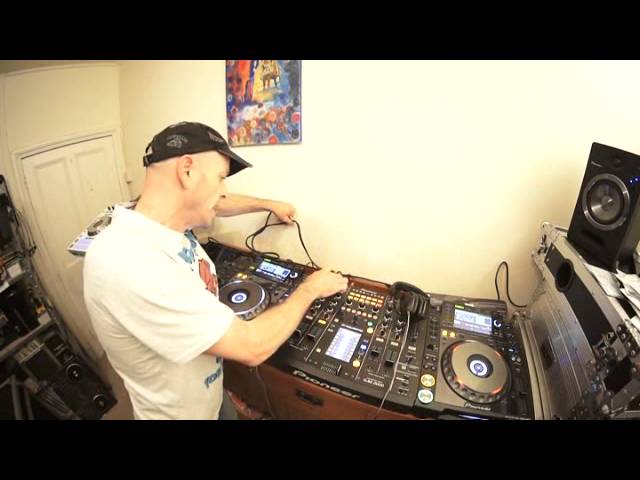
 6:06
Plugging a controller into a club mixer, live
On YouTube this video is called DJ Tutorial How to Plug in Your Controller to a DJ Mixer in a Live Environment at a Gig
What this lesson teaches
Filmed deliberately in real time, against the length of one record, because that is the amount of time you get.
The situation
You arrive at a club. The DJ on now is using the house CD players. You have brought a laptop and a controller. Their last track is playing.
The sequence
He does it in this order, and the order is the lesson:
1. Laptop stand and controller stand up first. Physical before electrical - you cannot plug in what is not standing somewhere. 2. Laptop out, open, powering up. It boots while you do everything else. 3. USB from controller to laptop. 4. Controller's power in - and his aside: make sure it is a socket that works. At a club, that is not a given, and finding out later costs you the changeover. 5. Controller on, then the software. Not the other way round. Most DJ software looks for its hardware at launch, and a controller switched on afterwards may not be recognised without a restart. 6. Close everything else - he closes Facebook on camera. Not tidiness: audio software wants the machine to itself, and a background app choosing that moment to update is how a set dies. 7. Start the software.
Then the audio
RCA from the controller's master output into a free channel on the house mixer - CD, line or aux, whichever is spare. He uses CD.
And the reassurance for a two-channel mixer: you can still do this, because one of the two channels has just stopped playing. There is always a free channel by definition, because the outgoing DJ cannot be using both.
If your controller has no RCA output, sort out the right cable from its master out before you leave the house.
The gain match - the part people get wrong
He takes the camera off the stand for this, which is a fair signal that it matters.
With both channels up, the meters tell the story: the outgoing DJ's channel is reading high and yours is reading low. Two different sources at two different levels, and if you simply push your channel fader up to compensate, the moment you cross over the room gets a jump in volume.
The fix, in order:
Go to the source first. Set the controller's own master output so it is tapping into the amber. That is where the level is really made.
Then the mixer's trim. Bring your channel's trim up until the mixer's meters sit where the outgoing channel's do - in the green, not the red.
His warning is specific and worth keeping: even if the mixer's meters are not in the red, a source output that is too hot means you are putting too much into that one channel. The mixer can be reading politely while the input stage is already being overdriven.
So: level set at the controller, matched at the mixer, and only then is the crossover safe.
What he got done in one record
Stands up, laptop open and booted, controller connected and powered, software running, a track loaded and cued, audio into a free channel, levels matched.
That is the whole changeover, and the reason it fits is that none of it involved deciding anything. Know the order, carry the right cable, and the last record is long enough.
Contents of the video
0:01 Tuned by the way in the background is Mr
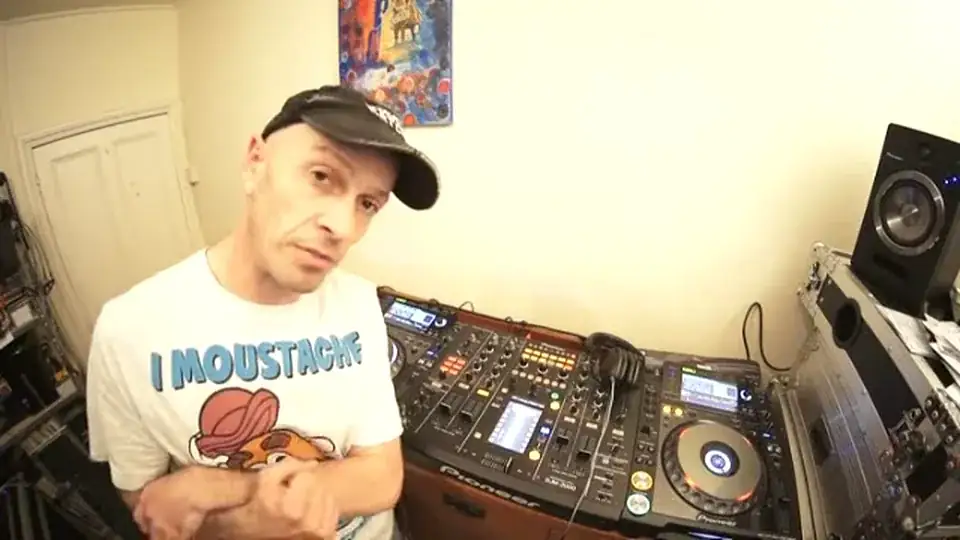
All right guys, I've only got, well, I've got less than six minutes to this video and there's good reason for it. You turn up at a nightclub, the last DJ is on CD players but you brought your controller, your laptop. How do you plug it in? I'm going to show you how. Tuned by the way in the background is Mr. Lenny Fontana, pay the price. So first of all, if I do this in real time as well, it'll give you an idea of what to expect, what to do and what you need to do. First of all, of course, you need your laptop stand and your controller stand or for that matter, whatever you're going to use. Okay, so in real time, I've got the controller, you can see nothing else is plugged in or set up. I'm going to get my laptop.
Okay, so I've got my laptop. Admittedly, I've got that plugged in. Put that there. Open it up. Start it up. Start it up. Get my cables. So of course, I need to plug in my controller. So plug it in and things like this you should know about anyway. So you should know how to plug your controller in. USB into my laptop and all the time this is happening, the last DJ has plugged in. Okay, so I've got my laptop. Played their last tune. So this is the amount of time we have really. Plug that in. Turn that on. And again, very important. Make sure I'm just going to close Facebook. Make sure that you put it into a plug that works. That works right. Okay. Of course, you have to turn the controller on first before you turn the program on. That tune is still playing.
2:10 Of course, this is the important bit
So I'm going to close all the other applications. Again, you could have had something on your laptop, same as I've got on mine. So I'm now going to start Serato DJ. Now of course, this is the important bit. It's plugging your controller into the mixer. Now even if the mixer is only two channels, you can still do this because one channel would have stopped playing the track. So you have one more channel or one. The two channels playing the track that's playing. What I need to do now is I need to have a connection like this. This is RCA to RCA. Now hopefully your controller will have RCA output. If it hasn't, you need to make sure that you have a correct cable from the output, the master output of your controller into RCA. What I'm going to do now is I'm going to go into one of the free channels on the back of the mixer. And I'm going to plug that in. So I've got my laptop.
3:34 Lenny fontana, press play, track
Output if it hasn't you need to make sure that you have a correct cable from the output the master output of your controller into RCA what I'm going to do now is I'm going to go into one of the free channels on the back of the mixer now I've gone into CD you can also go into line or you could also go into auxiliary short or shortened version is AUX so for this demonstration I've gone into CD and I'm now going to go into the controller to the output there so I plugged that in like that and now all I need to do is to find a track drag a track we'll just find something load it up that should be on there now I'm just going to press play there so we should have that track playing I'm gonna check my master volume now I'll take the camera off the stand can you see this is
Another important bit can you see here the LEDs on the Lenny Fontana track are quite high the ones here are quite low that's why we have this thing called the trim but also you need to make sure that the levels here aren't completely into the red you can make sure they're in the green if these are in the red even if these are not in the red it means that you'll be putting too much of too much output into this one channel so it's always important to go to the original source first to check your levels if I bring that down the trim down there that's going to go down there turn the trim on now. up on the controller that's going to turn up but i want to make sure that the trim on the controller is just sort of tapping maybe slightly into the
Amber if we go back over now to this one here i can now start to turn this up and if i just turn that up there back to mr lenny fontana cue that up volume up and now it's just a case of turning the volume up there volume down on mr lenny fontana and that is it so again i'm allowed to play this track from lenny fontana on youtube this won't get busted but let's imagine lenny fontana has finished and now if i want to if i press play you won't hear anything because the crossfade is over the other side but if i press play now we can see the leds flashing which means if we take a quick listen there you've got audio so that is pretty much it so while that track was playing i was able to turn up set up the laptop
Stand plug in my controller plug in the laptop start serato dj get a track ready put it into another channel on the mixer and away you go i hope that's been a help practice and enjoy thank you very much
This transcript was produced automatically from the audio of the video and may contain mistakes.











