 2:28
Pioneer Ddj-wedj and WeGO4 How to Set the Slicer Beat Grid
Contents of the video
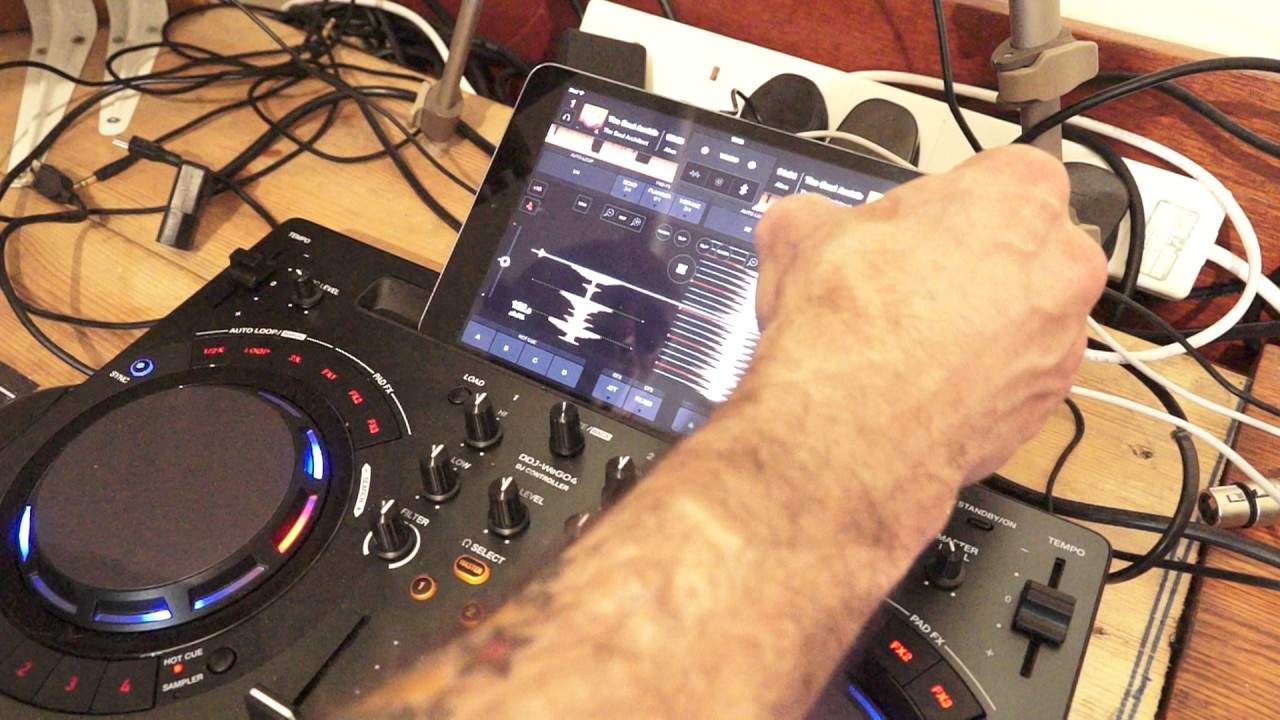
Right guys, another tutorial on the DDJ WeGo 4 from Pioneer and also their software known as WeDJ. Track I'm using is from Karmic Power Records, check the link in the description to the Karmic Power Records website. In this video I'm going to show you how to set the beat grid, also how to increase and decrease the speed of the wave format and also how to use the slicer effect. First of all I'm going to press the icon that says grid. At the moment the wave formats are going in a vertical position. If I press the grid icon that's now highlighted in blue and also we can now see each beat highlighted. In blue as well. If we want to remove that press the grid icon again and now we're back to the original wave format.
At the moment the wave format is going quite slow. We can make the wave format go a lot faster by pressing to the right hand side of the RST icon, the plus icon. And now the wave format is going a lot faster. Ideally though it's a good idea to have that going relatively slowly. That means that you... You are able to see a break coming before it actually happens. This is great to get you ready to bring the next track in. So it's a visual way of looking at guess what? We've got a break coming in or for that matter we've got a break that is finishing as well. Now next to the minus icon, we have the slicer icon. Now what happens is the wave format that we can see... On the screen, it's now segmented and if I press any one of those segments we can get a good slicer effect.
What's happening is it's looping that segment of the track but very importantly the track is still playing in the background in real time so you won't lose any beats. Okay hope that's been a help. Practice and enjoy. Thank you very much.
This transcript was produced automatically from the audio of the video and may contain mistakes.