 3:34
Using the Beat SYNC Function with Virtual DJ
Contents of the video
0:01 This video shows you how to use the sync feature
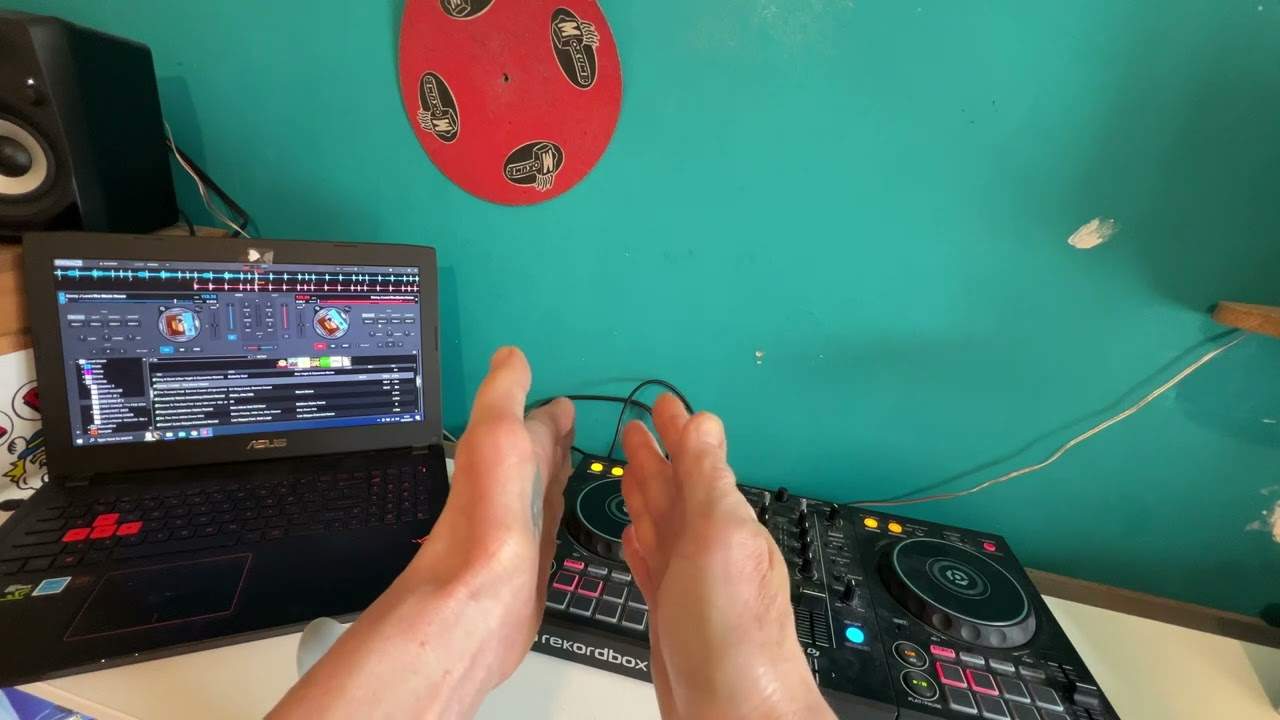
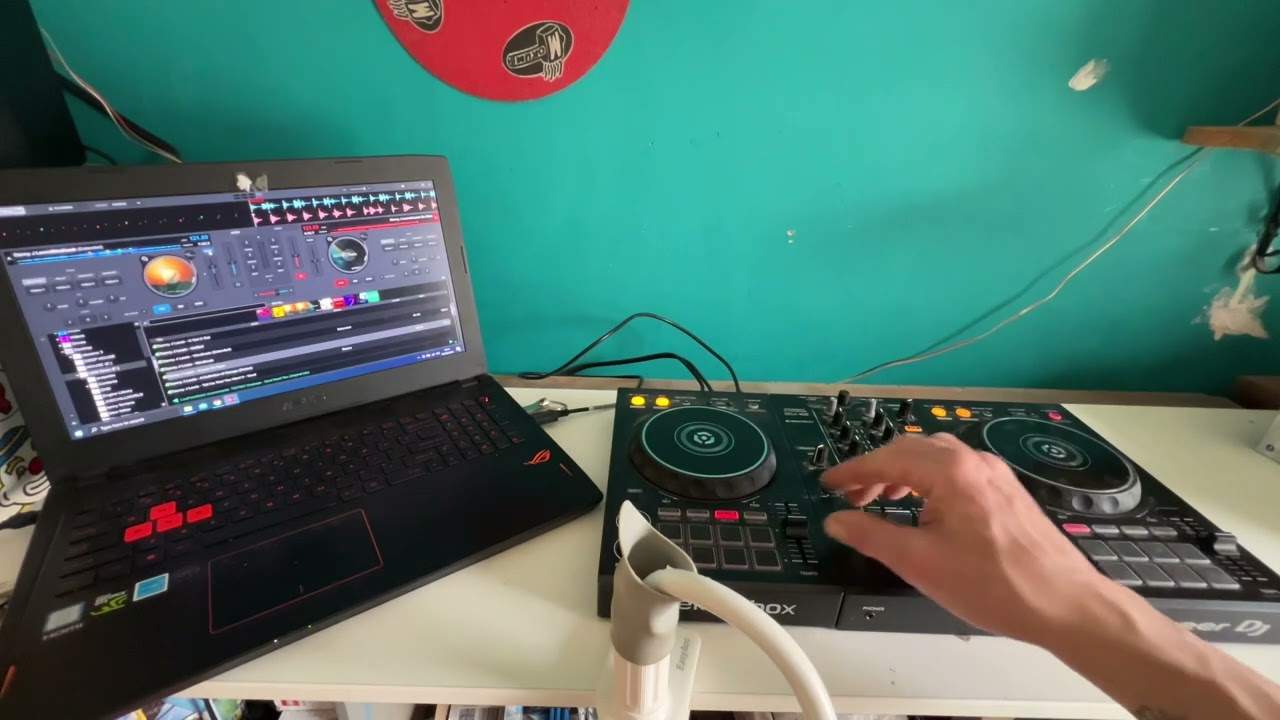
Right, ladies and gentlemen, this video is for complete and utter beginners and I'm using VirtualDJ, also the Pioneer DDJ-400. This video shows you how to use the sync feature. There's quite a few ways how you can use it. Now, on the 400, we have a beat sync button. Now, quite often you've got them on lots of controllers and the likes of CDJs, etc. But there's different ways of using them. Now, at the moment, the track on the right-hand side is at 121 BPM. The track on the left is 128 BPM. Now, of course, if we wanted to, we could move the pitches up and down and make note of... the numbers on the screen so they match. So, for example, I could speed the right side up to 128 BPM. I could slow the left side down to 121 BPM or I could move one up, one down and get them to meet in the middle.
1:15 I'll just do that again to press sync
If I don't want to do that, I don't even touch the pitches, I can sync them up very simply like this. Now, on the right-hand side, I have got a beat sync button. If I press that, you should see now on the screen... that the right-hand side now has gone from 121 to 128 BPM. So, they're both matched. So, I'm just going to move the pitch again and to just set the pitch back to the original BPM... what you need to do is move the pitch controller up to the point where it was set earlier and almost you're grabbing where the BPM has been moved to... and reducing it back. So, I'll just do that again to press sync. We can see the right-hand side on the screen is 128. I'm moving the pitch up towards where it is.
2:06 Bring it back up, click it to the center and there we go
You can see I'm now in control of the icon on the screen. Bring it back down and there you go. All right, we can do the same the other side now. So, I'm now going to press the left-hand side and now that has been matched to the right-hand side 121 BPM. I can do the same with the pitch again. Bring the pitch down, the physical pitch on the controller to the position where the pitch is on the screen, move it around... bring it back up, click it to the center and there we go. All right, the other way we can do it is I can go to the screen itself. I'm going to use the touchpad here and I'm going to just highlight above the pitch on Virtual DJ match. I'm going to click that and now... exactly the same things happened.
It's matched the BPM on the left-hand side 128, 128 come back to the pitch on the controller. Bring it up and bring it back down. Same now on the left-hand side on the software press the match and it's done exactly the same thing 121 and again go to the pitch bring it back down and bring it up to its original BPM. Now, I hope that's a help. Don't forget this video. It's for complete beginners. Let me know what you think. What software do you use? Do you like Virtual DJ? Do you like other softwares? I like virtual DJ because it's it does what it's supposed to do. That's it. Thank you for watching practice and enjoy.
This transcript was produced automatically from the audio of the video and may contain mistakes.